77
Setting the Print Mode Menu
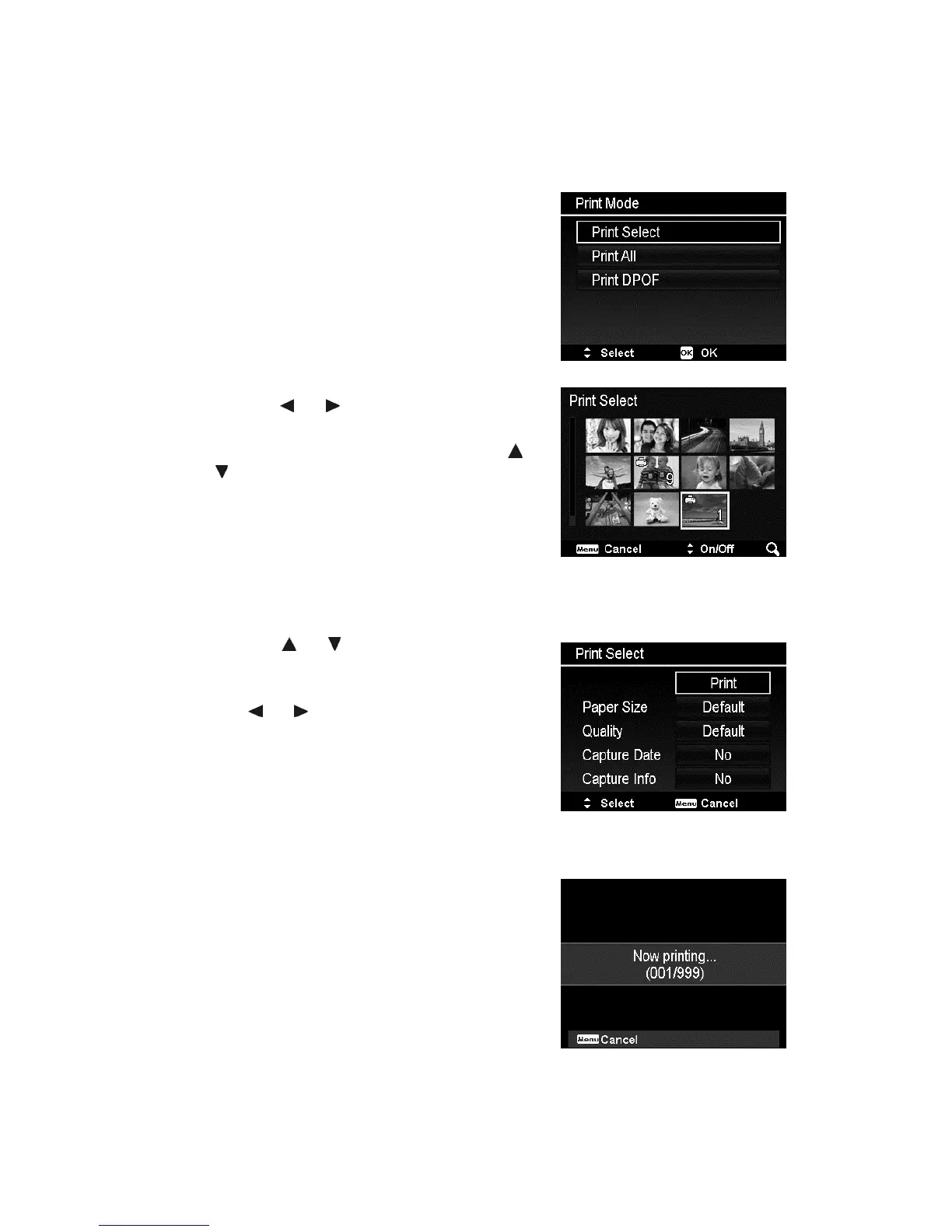
Print Mode menu appears on the screen after the connection between a printer
and your camera is established.
Print Mode includes three major settings:
x Print Select. An image can then be
selected to print.
x Print All. Prints all images.
x Print DPOF. Prints the images which are
set DPOF.
To set Print Select
1. Use the
or keys to scroll and select
an image for printing.
2. Specify the number of copies. Use the
or
key to increase/decrease number.
3. Press the OK button to enter printer
settings.
To set Print All and Print DPOF
Repeat the same steps 1 to 2, then enter printer
settings.
To set Printer Settings
1. Use the
or key to specify a print
option.
2. Modify paper size, quality, date and info by
the
or keys. Available setting:
x Paper size: Default / A4 / 4"x6"
x Quality: Default / Fine / Normal
x Capture Date: Yes / No
x Capture Info: Yes / No
3. Select Print on the screen for printing.
Or Cancel to go back Print Mode.
Start Printing
x LCD monitor appears "Now printing…".
x Or press Menu button to stop printing
anytime.



 To Next Page