XPression Connect User Guide (10.5) 3–15
9. Click the Enable Playback Controls button in the menu bar.
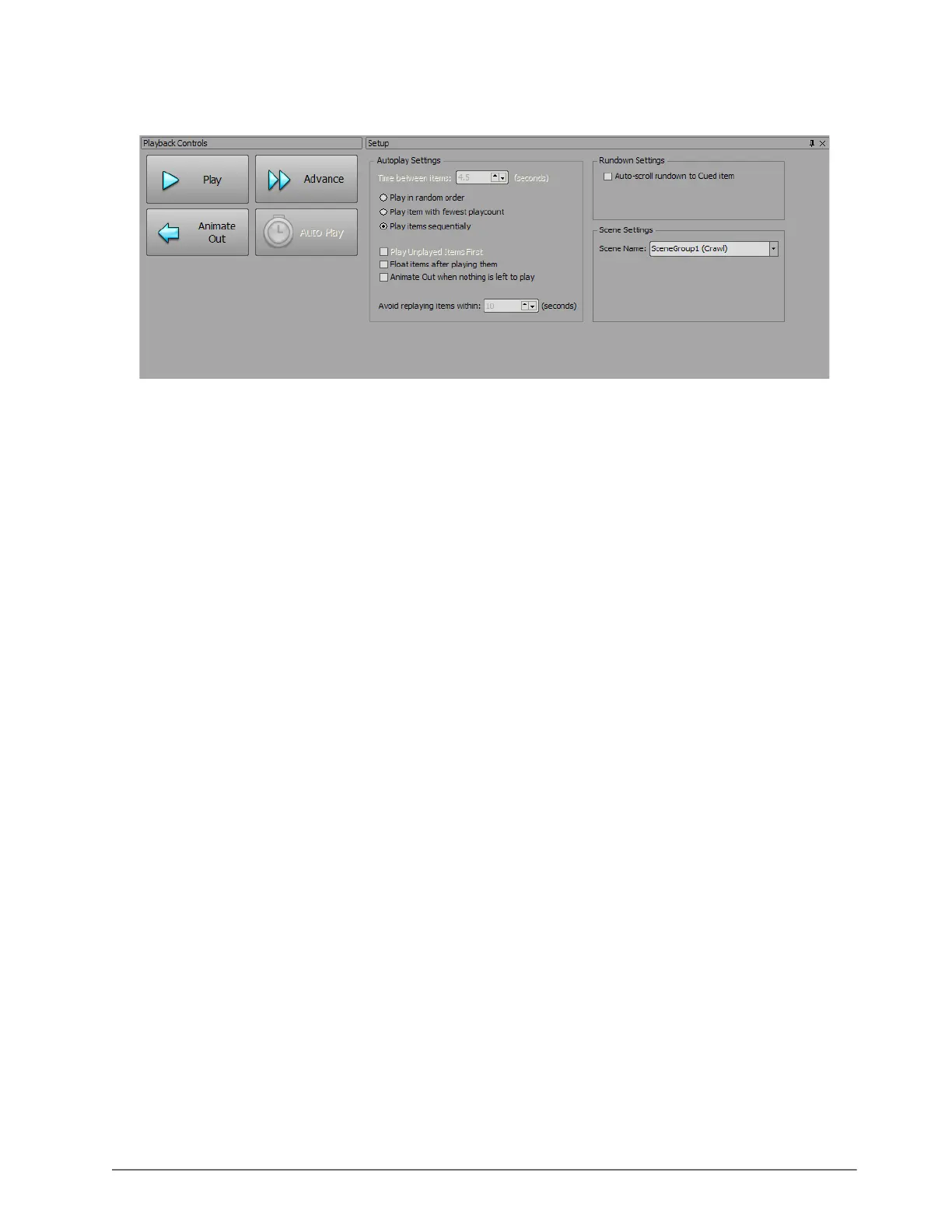
The Playback Controls and Setup windows open.
10. In the Setup window, configure the following options:
a. In the Autoplay Settings section, use the Time between items box to enter or select a time in seconds
between when an item is displayed and when the next item cued in the rundown is displayed.
b. Choose one of the following playout settings:
• Play in random order — display items from the rundown randomly.
• Play item with fewest playcount — automatically display items with the least amount of play counts.
• Play items sequentially — display items according to their order in the rundown.
c. Configure the following autoplay settings:
•If using Play in random order or Play item with fewest playcount, select the Play Unplayed Items
First check box to play new and unplayed items first.
• To drop items from being played in the rundown after they have already been played, select the Float
items after playing them check box.
• To automatically animate out after the last item at the end of a rundown has been played, select the
Animate Out when nothing is left to play check box.
•If using Play in random order or Play item with fewest playcount, use the Avoid Replaying items
within box to enter or select a time in seconds before an item is replayed.
d. In the Rundown Settings section, select the Auto-scroll rundown to Cued item check box to
automatically scroll the Rundown window to the next item cued in the rundown.
e. In the Scene Settings section, use the Scene Name list to select a scene from the XPression project for
displaying the item data.
Select the Preview tab to open the Preview window and view the item in the selected scene from the XPression
project. The Preview tab and window are not available when using a crawl in the Scene Settings.
To clear a playlist, in the playlist window select File > Clear all items.
For More Information on...
• setting up an XPression project for use with XPression Connect, refer to “Setting Up an XPression Project for
Use with XPression Connect” on page 3–2.
• adding a data source, refer to “Adding a Data Source” on page 3–5.
• playback controls, refer to “Playback Controls Window” on page 4–2.


 To Next Page