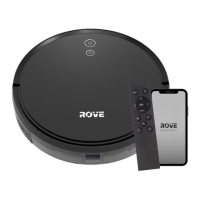
What to do if ROVE G2800 Robotics displays Error 9?
- LLisa BrockSep 8, 2025
If your ROVE Robotics displays Error 9, power off the machine and restart it. If the error continues, schedule maintenance for the device.
What to do if ROVE G2800 Robotics displays Error 9?
If your ROVE Robotics displays Error 9, power off the machine and restart it. If the error continues, schedule maintenance for the device.
How to power off ROVE G2800 Robotics when on charge station?
If your ROVE Robotics device displays Error 16, it means that the product cannot be shut down while it is on the charging base. To power off the device, first move it away from the charging base. Then, press and hold the power button until the device shuts down.
What to do if ROVE Robotics shows error 10?
If your ROVE Robotics device displays Error 10, check the robot’s status and restart it.
What to do if ROVE G2800 Robotics says please restart in new position?
If your ROVE Robotics device displays Error 11, move the robot to a flat surface and restart the cleaning process.
What to do if ROVE G2800 is blocked?
If your ROVE Robotics device displays Error 12, move it to a non-blocked area and then restart the cleaning cycle.
What to do if ROVE G2800 is inclined?
If your ROVE Robotics device displays Error 13, move the device to a level surface, and then restart it.
Specifies the intended use and operational restrictions for the robotic vacuum cleaner.
Details essential safety measures for charging the device and handling its battery to prevent hazards.
Provides instructions for safe product disposal and the procedure for removing the battery.
Highlights crucial safety warnings related to the device's lithium battery and potential risks.
Lists all components and accessories provided with the ROVE G2800 robotic vacuum cleaner.
Identifies and labels the various parts, sensors, and features of the robot vacuum cleaner.
Details the robot's buttons, indicator lights, and the components of the charging base.
Step-by-step guide to setting up the charging base, connecting power, and attaching side brushes.
Instructions for powering on the device for the first time and ensuring it charges correctly.
Covers fundamental controls for turning the device on/off, starting/pausing cleaning, and initiating charging.
Explains the automatic cleanup mode, S-shaped path, and how the robot returns to the charging base.
Details Spot, Edge, Scheduled, and Do Not Disturb cleaning modes for customized cleaning sessions.
Instructions for resetting the Wi-Fi connection and selecting different suction power levels.
Explains the purpose and operation of each button on the remote control for various functions.
Step-by-step instructions on how to open the remote control and insert the required batteries.
Procedures for cleaning and maintaining the main brush and side brushes to ensure optimal performance.
Instructions for emptying the dust bin and cleaning or replacing the HEPA and foam filters.
Guidance on battery care for longevity and regular cleaning of the device's sensors.
Provides detailed technical specifications for the robot vacuum cleaner and its charging base.
Lists common error codes encountered with the robot vacuum and provides step-by-step solutions.
Continues the troubleshooting guide with more error codes and their corresponding resolution steps.
Addresses common problems like startup failures, charging issues, unusual noises, and Wi-Fi connectivity problems.
Details the terms of the 1-year limited warranty, covered/excluded issues, and how to get assistance.
Provides essential information regarding FCC labeling requirements and user guidance for regulatory compliance.