FREE SW UPGRADE and NEWSLETTER SERVICE:
• ROVERoffersyouthepossibilityofcarryingout Free Software and Memory
Plan Upgrades on your Meters, by simply REGISTERING your data in the
Update SW Area;
• Onceyouhaveregistered,youcandownloadtheROVER S.M.A.R.T.
program free of charge, which is necessary for the installation of SW and/
or Memory Plan upgrades;
• ROVERalsooffersyouthepossibilityofregisteringtoourNewsletter service,
which allows you to receive, by email and free of charge, information
regarding: New SW upgrades, Technical Communications, Training
Courses, Technical Articles, Product News, Invitations to exhibitions and
roadshows and much more besides.
UPDATE SW AREA REGISTRATION:
If you have not already registered, click on the words “Update SW“ in the menu in the top, right-
hand corner of your screen:
• Clickon“Register Now (First Access)” in the dropdown menu to access the Update SW Area;
• Fillintheelectronicformwithallyour Personal Information and the Username of your choice;
• Afteryouhavecompletedtheform,confirmbypressingtheblack“Send“ key at the bottom of
the page;
• Oncesent,apagewillbeshownwithasummaryofyourRegistration Data, where you can
modify your data by clicking on the BLUE “Change Data” key, print it by clicking on the BLACK
“Print Data” key or directly access the Update SW Area by clicking on the RED “Access SW
Upgrade Area” key;
• Youwillalsoreceiveane-mail message, reminding you of your chosen User Name and the
Password assigned by ROVER. Keep it in a safe place for future access to the Update SW Area
and so that you can download new SW upgrades and/or Memory Plans;
• If you lose your User Name or your Password assigned by ROVER, click on the function “Forgot
User Name or Password? Click here” in the drop down menu in the ”Update SW”.
SERVICE AND SUPPORT WEB REGISTRATION
AND SOFTWARE UPGRADES
SOFTWARE UPGRADES
SOFTWARE UPGRADES:
Once you have identified and downloaded the correct ROVER S.M.A.R.T. program on your
PC
( for
more information, read the respective S.M.A.R.T. page in this user guide ) install it on your PC in order
to upgrade your Meter’s Software ( SW ). Then proceed as follows:
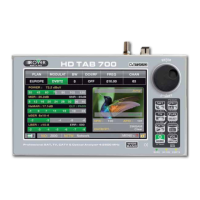
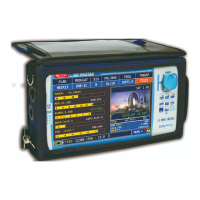
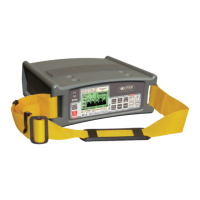
• IntheUpdate SW Area identify the exact Name/Model of your Meter and click on the
corresponding picture;
• Thenclickonthecorresponding“SW Upgrade” file and download it on your PC;
• IfyouwanttoseemoredetailedinformationabouttheSWupgradecontents,clickontheblue“i”
icon.
WARNING:
• Before carrying out your Meter’s SW upgrades, we suggest you close all the applications that are
active on your PC: e-mail messages, internet, management programs, etc.
• Also check that the Meter’s batteries are charged and that the Meter is connected to the mains.
Most importantly do not turn off or disconnect the Meter from the mains during the upgrade. The
Meter will automatically turn off once the SW upgrade has been completed.
N.B. If the graphic of your PC bar shows that the upgrade advancement is blocked, do not interrupt
the procedure because the SW download is still taking place even if the PC monitor does not
correctly show the advancement in sequence.
PROCEDURE:
1. Connect your Meter to the mains and turn it on;
2. Wait for the Start-Up phase of the Meter to finish correctly;
3. Connect the USB cable, first to the Meter and then to the PC;
4. Start up the ROVER S.M.A.R.T. program in your PC;
5. In the ROVER S.M.A.R.T. program window, click on “Instrument” followed by “Upgrade Firmware”;
6. In the Open window, select the “SW Upgrade ( .rvr )” downloaded from the Update SW Area;
7. Click on “Open” and confirm the selection;
8. The SW upgrade procedure will automatically start up;
9. If this does not happen, the Upgrade Firmware window will open, select the exact model of your
Meter and click on “Upgrade” to carry out the Upgrade manually;
10. Wait a few minutes, the ROVER S.M.A.R.T. program will load the new SW in your Meter;
11. Once the download has been completed, the following message on the PC will appear: Power
on the meter to activate FW **PROGRAM SUCCESFUL**;
12. If the Meter did not automatically turn off, turn it back on again and check, in the Start-Up or Self-
Test window ( METER INFO - INFO ABOUT ), the SW version number.
WARNING:
In the case the update is interrupted or is not successful, check the USB cable connection and
repeat the procedure from the beginning.
If the procedure described in this paragraph continues to fail, contact the ROVER After Sales and
Service Department:
• e-mail: wecare@roverinstruments.com
• Fax: +39 030 990 68 94
It is possible to download the Software Upgrade Procedure directly from the ROVER website at the
following address: www.roverinstruments.com. Please refer to the ”F.A.Q.” section.


 To Next Page