U11PRO User Manual
41
Copyright ©2023 Ruko All Rights Reserved.
Wifi Connection
WiFi The drone open after 30s, open the WiFi list, and find the
drone’s wifi.
Connect the phone with the drone’s WiFi ("RUKO-U11PRO-******"),
then click on the APP to enter Control interface.
When the Android phone connect drone’s wife, there is a option
popping up about internet settings, The time for the pop-up setting
option is different depending on the performance of the mobile
phone, ranging from 10 to 40 seconds, and the network setting
options are also different. Please read carefully before selecting the
correct option, so as fail to see the image transmission screen.
①
②
③
Please turn off the VPN, so as fail to see the image transmission
screen.
When Internet speed priority is set on some mobile phones, the
APP cannot see the image transmission screen, and the mobile
phone can try to adjust to the flight mode.
The drone’s image transmission WiFi is 5.8G, and the mobile
phone WLAN function must be supported; dual-band WiFi,
2.4G+5G, can be applied.
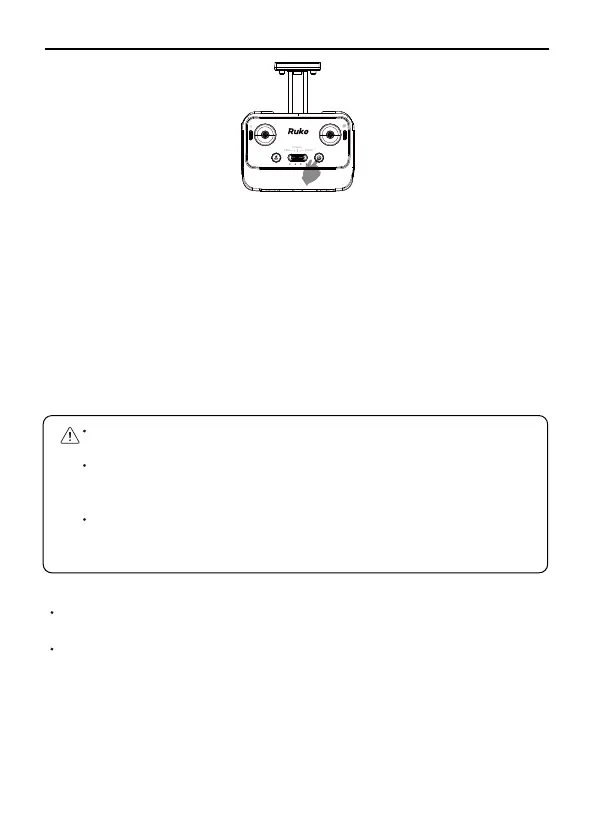
When the interference is large, you can push the joystick to 11&1
o'clock position on the remote controller for compass calibration.
Or You can find compass calibration in the app interface then click
“calibrate” to enter the manual calibration step.
Compass Calibrate


 To Next Page