Revised 5/19/2010 3.7
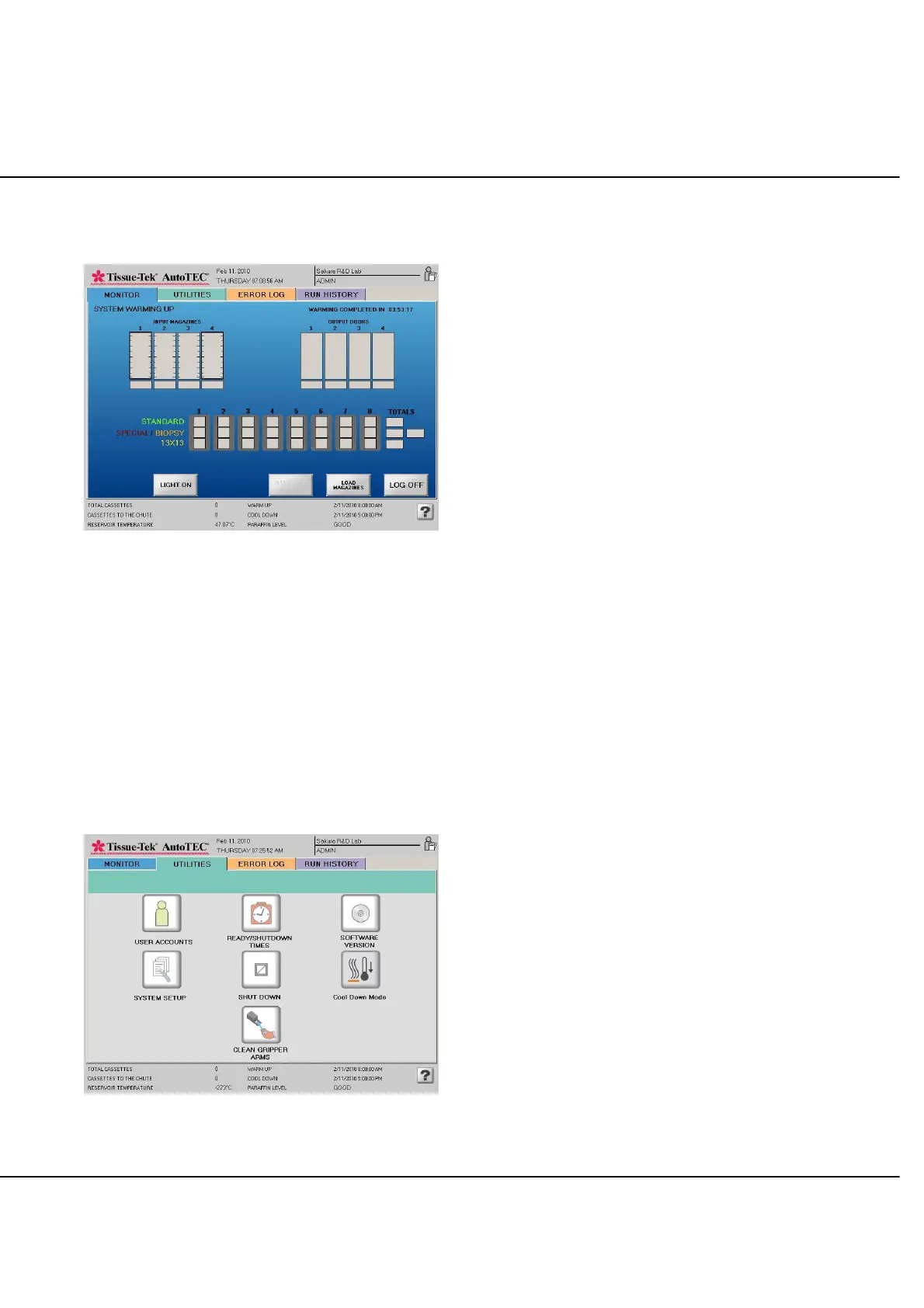
Following a successful login, the Initial MONITOR screen
will appear (Figure 3-J).
Figure 3-J: MONITOR screen
Touch the UTILITIES tab to access the Utilities Selection
screen. This screen is always accessible, but not all
features can be used while the AutoTEC is running.
Configuring System Settings
Figure 3-K shows the Utilities screen as viewed by an
administrator. This screen gives access to various system
utilities. Touching an icon accesses the associated utility.
Icons for utilities inaccessible during AutoTEC operation
display in gray.
Figure 3-K: Utilities Selection screen: Administrator
Administrator level access allows access to all utility
functions.
Operator level access is restricted to the following
functions, some being on a view only basis. These are:
Full Access:
UTILITIES
o Ready / Cool Down Times
o Shut Down
o Cool Down Mode / Warm Up Mode
o Clean Gripper Arms
Error Log
Run History
View Only:
UTILITIES
o User Accounts
o Software Version
o System Setup
NOTE: Icons unavailable to operator-level users or
inaccessible during AutoTEC operation are displayed in
gray.
NOTE: To avoid data corruption, some of the parameters
cannot be changed while the AutoTEC is in operating
mode (running or ready to run). These restricted
parameters are:
− Setting the completion of the four hour warm up
routine automatically at specific times (ready
times) on specific days
− Setting of the automatic cool down at specific
times on specific days
− Override of the programmed ready and cool
down times for scheduled days off such as
holidays or vacation days
− Creation of user names and passwords
− Setting of user-defined names
− Setting of system parameters
The four operator accessible utility screens are reviewed
first in the following pages, followed by the review of the
three screens which can only be accessed by an
administrator. The ERROR LOG and RUN HISTORY
screens are covered in Section 4, Operation.



 To Next Page