CUSTOMIZATION OF SETTINGS
3.8 Revised 5/19/2010
Ready/Cool Down Times
Operators can program automatic timers to initiate the
four-hour warm up routine at specific times on specific
days so that the AutoTEC will be ready for the first run
when the shift begins or when operators are ready to start.
The time entered specifies when the system will be ready
for embedding (plus the 15-minute magazine-warming
process). System warm up will begin four hours before the
time entered for the ON time on the Ready/Cool Down
Times screen.
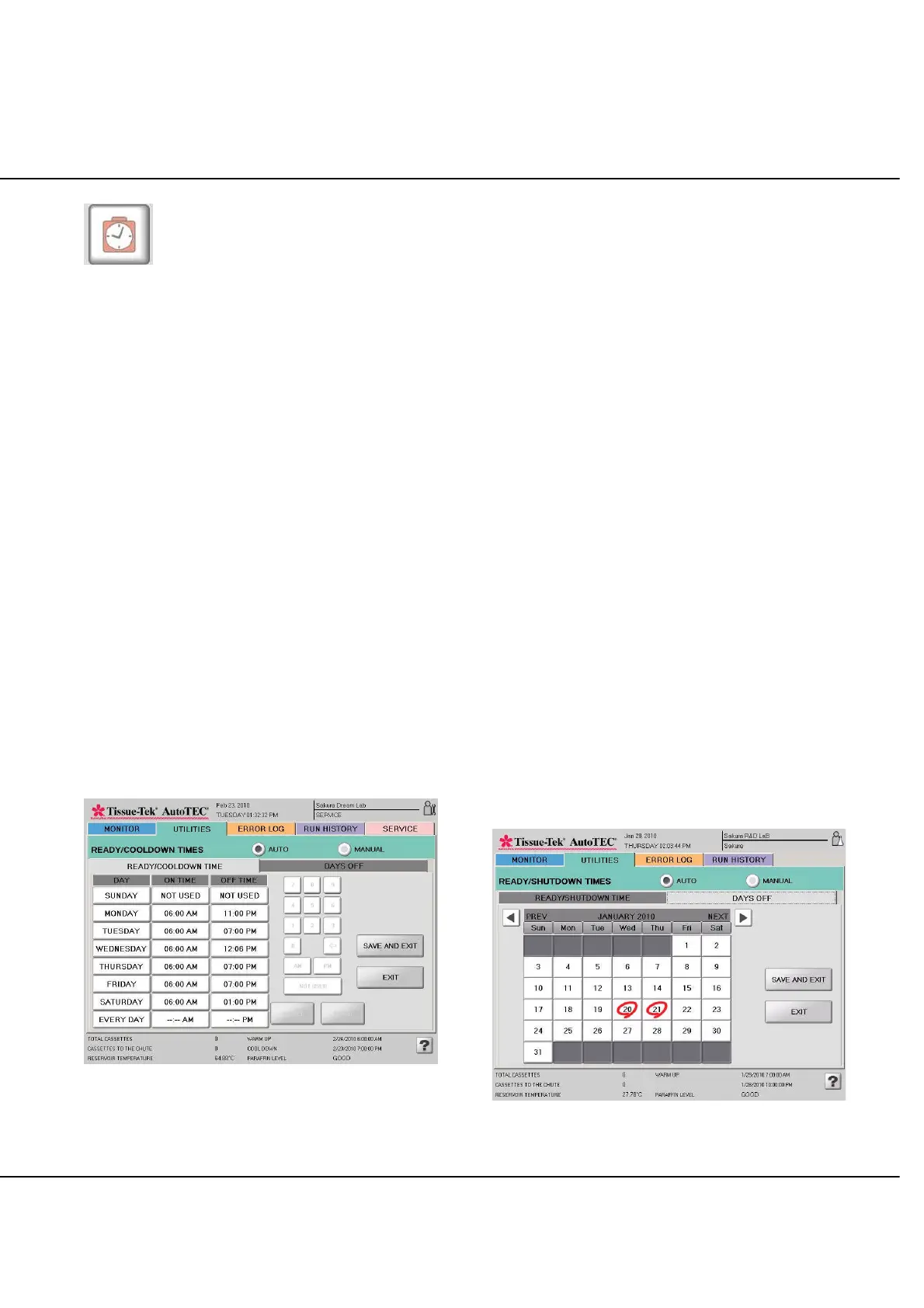
Automatic timers are set on the Ready/Cool Down Times
screen (Figure 3-L):
Select AUTO radial button.
Select READY/COOL DOWN TIMES tab.
To set a time, touch in an ON TIME or OFF TIME
field. Use the keypad to enter a time (in either 12- or
24-hour format, depending on the parameter selected
in the System Setup screen); the entry will appear in
the selected field. Touch the ENTER button to
transfer the time to the ON or OFF TIME field.
To change a field to NOT USED, touch in that field,
then touch the NOT USED button.
After all times have been entered, check that they are
correct, and then touch the SAVE AND EXIT button to
return to the System Setup screen.
Figure 3-L: Ready/Cool Down Times screen
NOTE: The times set in this screen will repeat weekly
unless Days Off is specified.
NOTE: In Auto At least one ON TIME and one OFF
TIME must be set.
NOTE: To control the Ready/Cool Down time manually,
select the MANUAL radial button. NO TIME SET appears
for the WARM UP and COOL DOWN time in the
MONITOR screen.
Days Off Selection
Use the Days Off screen to override the automatic timers
on specific days that the AutoTEC will not be operating
due to holidays, vacations, or other scheduled days off.
On days selected here, the AutoTEC will not automatically
start its warm up procedure.
To schedule a day off (Figure 3-M):
1. Select the DAYS OFF tab.
2. Use the arrow buttons located in the upper-left and
upper-right corners of the calendar to change the
month.
3. Touch on the date on the calendar to set as off. The
chosen date will be circled in red on the calendar, as
will any other days off in the displayed month.
To delete a date and restore it to a working day:
Either touch the date on the calendar, the red circle
will disappear.
When all days off have been scheduled, touch the SAVE
AND EXIT button.
Figure 3-M: Days Off screen



 To Next Page