23
NOTE
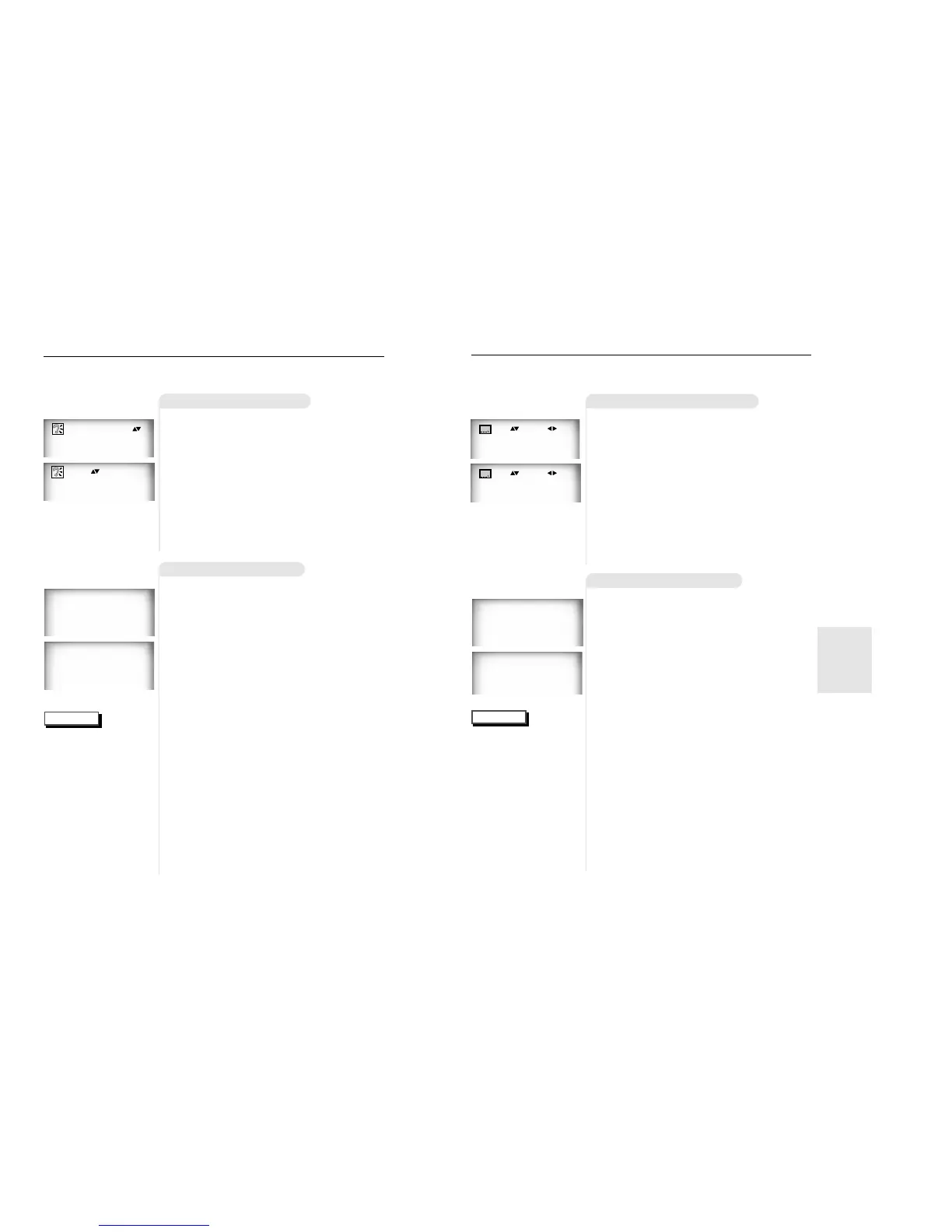
Selecting the Subtitle Language
Using the SUBTITLE button
Using the MENU button
You can select a desired subtitle quickly and easily with the SUBTITLE
button.
1
1
Press the SUBTITLE button.
2
2
Use the UP/DOWN button to select the
desired subtitle language.
3
3
Use the LEFT/RIGHT button to deter-
mine whether or not the subtitle will be
displayed.
- Initially, the subtitling will not appear on screen.
- The audio and subtitle languages are represented by
abbreviations.
ENG Off
1
1
Press the MENU button.
2
2
Use the UP/DOWN button to select SUB-
TITLE information.
3
3
Press the ENTER button.
4
4
Use the UP/DOWN button to select the
desired language.
5
5
Press the ENTER button.
When playing a VCD
In disc version 2.0, the MENU button works as a conversion
switch between MENU ON and MENU OFF mode.
When playing a VCD 1.1 or CD, the MENU button will not
work.
• This function depends on
what languages are
encoded on the disc and
may not work with all
DVDs.
• A DVD disc can contain up
to 32 subtitle languages.
•
How to have the same
subtitle language
come up whenever
you play back a DVD;
Refer to “Setting Up the
Language Features” on
page 29.
1 English
2 Français
(example)
1 Audio
2 Subtitle
ENG On
22
Selecting the Audio Language
NOTE
Using the AUDIO Button
Using the MENU Button
1
1
Press the AUDIO button.
2
2
Use the UP/DOWN button to select the
desired language on a DVD.
- The audio and subtitle languages are represented by
abbreviations.
3
3
Use the UP/DOWN button to select
STEREO, R CHANNEL or L CHANNEL.
(On VCD/CD)
ENG DOLBY DIGITAL 5.1CH
STEREO
When playing a DVD
1
1
Press the MENU button.
2
2
Use the UP/DOWN button to select
AUDIO information.
3
3
Press the ENTER button.
4
4
Use the UP/DOWN button to select
‘ENGLISH’.
5
5
Press the ENTER button.
When playing a VCD
In disc version 2.0, the MENU button works as a conver-
sion switch between MENU ON and MENU OFF mode.
When playing a VCD 1.1 or CD, the MENU button will not
work.
1 Audio
2 Subtitle
1 English
2 Français
• This function depends on
what languages are
encoded on the disc and
may not work with all
DVDs.
• A DVD disc can contain
up to 8 audio languages.
•
How to have the
same audio language
come up whenever
you play back a DVD;
Refer to “Setting Up the
Language Features” on
page 29.
You can select a desired language quickly and easily with the AUDIO
button.
(example)
ADVANCED
FUNCTIONS


 To Next Page