25
NOTE
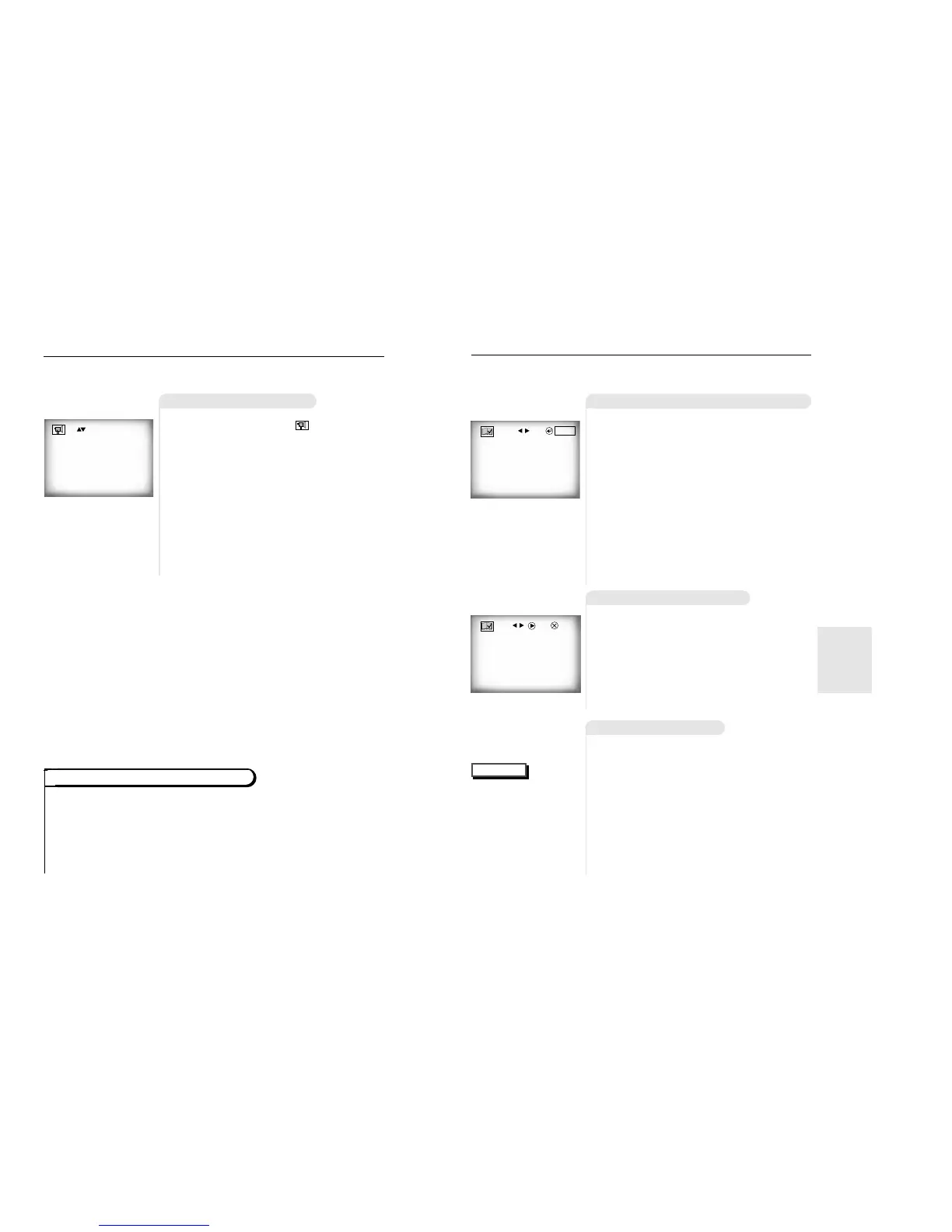
Using the Bookmark Function
Using the Bookmark Function (DVD/VCD)
Recalling a Marked Scene
The Bookmark function lets you select parts of a DVD or VCD (MENU
OFF mode) so that you can quickly find the section at a later time.
1
1
During playback, press the BOOK-
MARK button on the remote. A marker
will be displayed.
2
2
Use the LEFT/RIGHT button to move
to the desired bookmark icon.
3
3
When you reach the scene you want
to mark, press the ENTER button. The
icon will change to a number (1, 2, or
3).
4
4
Press the BOOKMARK button to turn
off the display.
- - -
ENTER
1
1
During playback, press the BOOKMARK
button on the remote.
2
2
Use the LEFT/RIGHT button to select a
marked scene.
3
3
Press the PLAY/PAUSE button to skip to
the marked scene.
Clearing a Bookmark
1
1
During playback, press the BOOK-
MARK button on the remote.
2
2
Use the LEFT/RIGHT button to select
the bookmark number you want to
delete.
3
3
Press the CLEAR button to delete a
bookmark number.
Press the BOOKMARK button to turn
off display.
• Up to three scenes may
be marked at the same
time.
• When in VCD 2.0 mode
(MENU ON mode), this
function does not work.
• Depending on the disc,
the Bookmark function
may not work.
1 - -
PLAY
CLEAR
24
Changing the Camera Angle
Using the ANGLE button
When a DVD contains multiple angles of a particular scene, you can
select the Angle function.
Check to see if an ‘ANGLE ( )’ mark is pre-
sent at the upper right hand corner of the
screen.
1
1
When an ‘ANGLE’ mark is shown, press
the ANGLE button.
2
2
Use the UP/DOWN button to select the
desired screen angle. Then press the
ENTER button.
3
3
To turn off the display, press the ANGLE
button again.
4/4
Press the DISPLAY button twice. Use the UP/DOWN button to select a suitable vol-
ume.
• Master Volume Control function lets you adjust the volume of the player’s output. This is
useful for matching the player’s output level to other equipment in your system.
• Master Volume Control function on CD titles with DTS will not work under VOLUME : 96
level.
• When the DIGITAL OUTPUT is set to BITSTREAM in the SETUP MENU, the Volume
Control function will not work.
Using the Master Volume Control Function
(example)
ADVANCED
FUNCTIONS


 To Next Page