English - 78
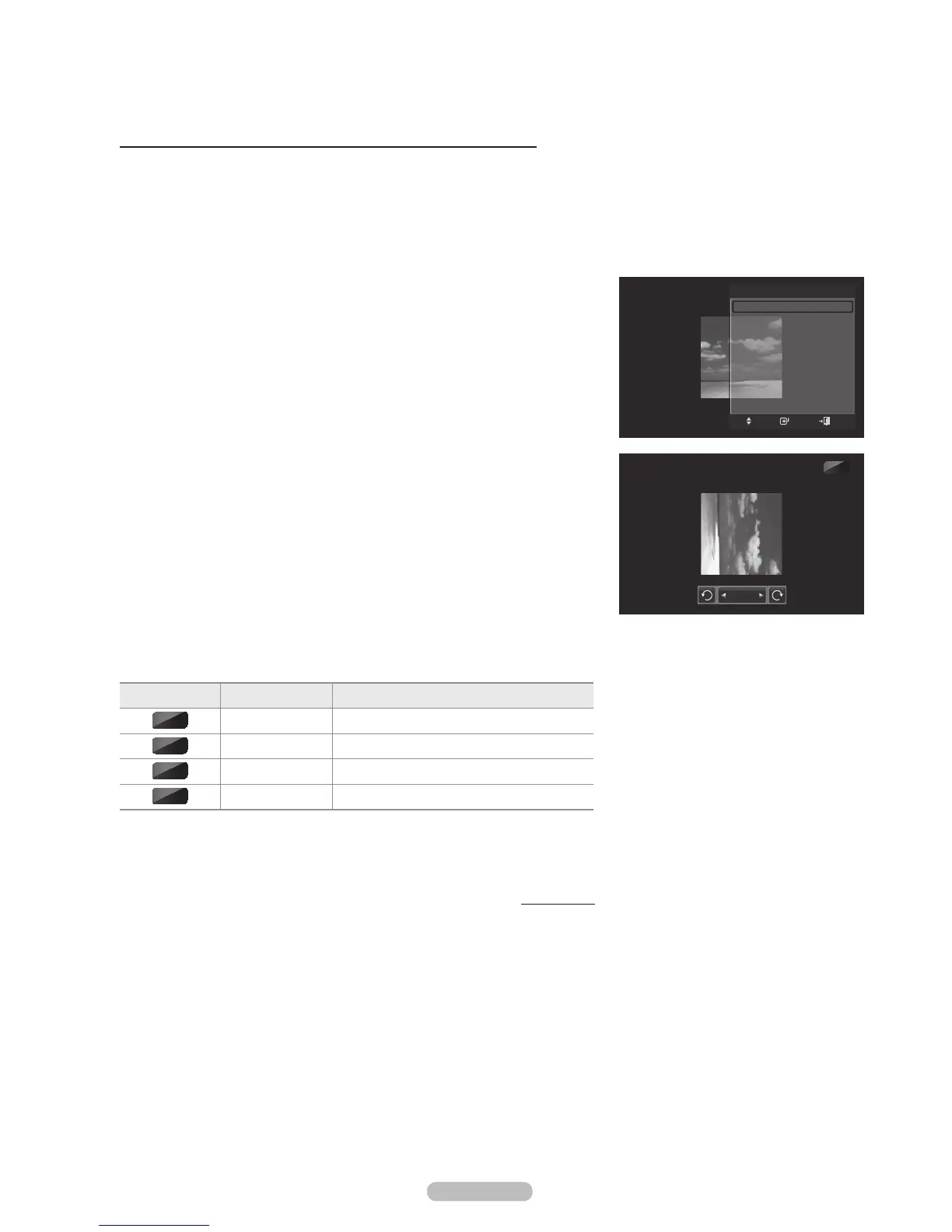
Using the option menu during a slide show (or Viewing a Photo)
1 During a slide show(or viewing a photo), Press the TOOLS button to set
the option.
2 Press the or button to select the desired option. Then press the
ENTER button.
Start Slide Show (Stop Slide Show)
You can start or stop a Slide Show.
Press the or button to select Start Slide Show (or Stop Slide Show),
then press the ENTER button.
Rotate
You can rotate images in full screen mode.
Press the or button to select Rotate, then press the ENTER button.
Press the or button repeatedly to rotate the photo by the desired
amount.
®
Whenever you press the button, it rotates by 270, 180, 90, and 0.
®
Whenever you press the button, it rotates by 90, 180, 270, and 0.
®
If you have select Zoom, the Rotate function is deactivate
®
The rotated file is not saved.
®
The Rotating function information icon is displayed at the top right of the
screen
Icon Current OSD Function
Rotating (0°) This rotates a photo to its original position
Rotating (90°) This rotates a photo by 90 degrees
Rotating (180°) This rotates a photo by 180 degrees
Rotating (270°) This rotates a photo by 270 degrees
Continued...
0
90
180
270
90
Rotate
TOOLS
Start Slide Show
Rotate
Zoom
Background Music : Off
Background Music Setting
Picture Mode : Standard
Sound Mode : Custom
Information
Safe Remove
Enter
Move
Exit








 To Next Page