EasyManua.ls Logo

Samsung 550 - User Manual

Samsung 550
127 pages
Print Icon
To Next Page IconTo Next Page
Loading...
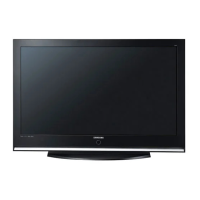
Plasma TV
user manual
Thank you for purchasing this Samsung product.
To receive more complete service, please
register your product at
www.samsung.com/global/register
Model Serial No.
imagine the possibilities

Table of Contents

Other manuals for Samsung 550

Questions and Answers

  • K
    Kristen JonesAug 1, 2025
    Why does Anynet+ not work on my Samsung Plasma TV?
    • T
      Tony SmithAug 1, 2025
      Anynet+ may not work due to several reasons. Ensure the device is an Anynet+ device, as the system only supports these. Connect only one receiver (home theater). Verify that the Anynet+ device power cord is properly connected, along with its Video/Audio/HDMI 1.3 cable connections. Check if Anynet+ (HDMI-CEC) is set to On in the Anynet+ setup menu and that the TV remote control is in TV mode. Also, confirm it is an Anynet+ exclusive remote control. Note that Anynet+ doesn’t work in certain situations like searching channels or operating WISELINK. When connecting or removing the HDMI 1.3 cable, search for devices again or turn your TV off and on. Finally, ensure the Anynet+ Function of the Anynet+ device is set on.
  • B
    Brian HaydenAug 6, 2025
    What to do if the TV sound is not output through the receiver of my Samsung Plasma TV?
    • L
      Luke BrayAug 6, 2025
      To resolve the issue of TV sound not outputting through the receiver, connect the optical cable between the TV and the receiver.
  • V
    villegasneilAug 11, 2025
    What to do if the connected device is not displayed on my Samsung Plasma TV?
    • G
      gvelasquezAug 11, 2025
      If the connected device is not displayed, verify that the device supports Anynet+ functions and that the HDMI 1.3 cable is properly connected. Also, check that Anynet+ (HDMI-CEC) is set to On in the Anynet+ setup menu. Try searching for Anynet+ devices again. Ensure you are using an HDMI 1.3 cable, as some HDMI cables may not support Anynet+ functions.
  • F
    fordtiffanyAug 16, 2025
    What to do if I want to start Anynet+ on my Samsung Plasma TV?
    • D
      David RodriguezAug 16, 2025
      To start Anynet+, ensure the Anynet+ device is properly connected to the TV and that Anynet+ (HDMI-CEC) is set to On in the Anynet+ Setup menu. Press the TV button on the TV remote control to switch to TV. Then, press the TOOLS button to show the Anynet+ menu and select the menu you want.
  • A
    Alan PhillipsAug 21, 2025
    What to do if I want to exit Anynet+ on my Samsung Plasma TV?
    • C
      christopher77Aug 21, 2025
      To exit Anynet+, select View TV in the Anynet+ menu, or press the SOURCE button on the TV remote control and select a device other than Anynet+ menu. Alternatively, press CH, CH LIST, PRE-CH, and FAV.CH to change the TV mode. Note that the channel button operates only when an Anynet+ device with a built-in tuner is not connected.
  • M
    Mario GrayAug 26, 2025
    What to do if the message 'Connecting to Anynet+ device...' appears on the screen of my Samsung Plasma TV?
    • B
      Bonnie VillanuevaAug 27, 2025
      When the message 'Connecting to Anynet+ device...' appears, you cannot use the remote control while configuring Anynet+ or switching to a view mode. Use the remote control when the Anynet+ setting or switching to view mode is complete.

Summary

Important Warranty Information

North American Limited Warranty Statement

Details the warranty service provisions for North American purchasers.

User Instructions and Precautions

Screen Image Retention and Damage Avoidance

Guidance on preventing screen burn-in, after-images, and panel damage from static images.

Remote Control Guide

Remote Control Button Functions

Explains the purpose and operation of each button on the remote control.

Basic TV Operations and Channel Setup

Turning the TV On and Off

Basic steps to power the television on and off.

Automatic Channel Storage Process

Step-by-step guide for automatically scanning and storing available channels.

Channel Management and Picture Control

Picture Standard Mode Selection

Choosing preset picture modes (Dynamic, Standard, Movie) for different viewing environments.

Customizing Basic Picture Settings

Adjusting basic picture parameters like brightness, contrast, and color.

Troubleshooting Common Issues

Resolving Picture and Sound Problems

Solutions for issues like poor picture/sound quality, no picture/sound, or low volume.

Troubleshooting TV Operation and Display Malfunctions

Steps for diagnosing and fixing TV power, remote control, and display irregularities.

Addressing Signal Strength and Interference Issues

Solutions for problems related to digital signal strength, interference, and visual quality.

Remote Control Button Functions Detailed

Comprehensive Remote Button Guide

Detailed explanation of every button on the remote control and its specific functions.

V-Chip Parental Control Setup

Setting Your Personal Identification Number (PIN)

Establishing a PIN for accessing and managing V-Chip parental control settings.

V-Chip Enable;Disable and Restriction Setup

Enabling and Disabling the V-Chip Feature

How to turn the V-Chip feature on or off to manage parental restrictions.

Setting TV Parental Guidelines

Configuring parental restrictions based on TV rating systems.

WISELINK Media Playback Function

Using the WISELINK Functionality

Overview of viewing photos (JPEG) and listening to music (MP3) from USB devices.

Using the Photo List Feature

Photo List Display and Navigation

How to view and navigate through photo files and folders saved on a USB device.

Sorting and Managing Photo Lists

Sorting Photos by Criteria (Month, Time, Folder)

Organizing photos by month, time, and folder structure for easier browsing.

Photo List Sorting Methods

Sorting Photos by Genre and Folder

Organizing photos by genre or by folder structure for efficient viewing.

Editing Photo Information and Favorites

Changing Photo Composition and Color Information

Modifying composition and color details for photos and organizing them into groups.

Managing Photo Files on USB Device

Deleting Single and Multiple Photo Files

Procedures for deleting individual or multiple photo files from the USB device.

Viewing Photos and Slideshows

Viewing a Single Photo in Full Screen

How to view a selected photo in full screen mode.

Creating and Playing Photo Slideshows

Steps to create and play a slideshow of photos, including selecting specific files.

Slideshow and Photo Viewing Options

Photo Slideshow Enhancements

Adjusting Slideshow Speed and Zoom Level

Controlling the speed of the slideshow and zooming into photos for detail.

Using the Music List Feature

Music List Display and Navigation

How to view and navigate through music files (MP3) saved on a USB device.

Sorting Music Files by Criteria

Organizing music files by title, artist, mood, genre, folder, or preference.

Sorting Music Files by Criteria

Sorting Music by Title, Artist, and Mood

Organizing music files alphabetically by title, artist, or by mood.

Managing Music Files and Favorites

Sorting Music by Genre and Folder

Organizing music files by genre or by folder structure for efficient browsing.

Managing Music Files on USB Device

Deleting Single and Multiple Music Files

Procedures for deleting individual or multiple music files from the USB device.

Playing Music Files and Groups

Playing a Single Music File

How to play a selected music file, including pause and stop functions.

Playing Music File Groups

Playing a selected group of music files based on sorting criteria.

About Anynet+ Connectivity

What is Anynet+?

Definition of Anynet+ and its function in controlling connected Samsung devices.

Connecting Anynet+ Devices to TV and Home Theater

How to connect various Samsung devices that support Anynet+ via HDMI.

Anynet+ Function Setup and Management

Setting Up Anynet+ (HDMI-CEC) Function

Enabling the Anynet+ (HDMI-CEC) function for device control.

Scanning and Switching Anynet+ Devices

Discovering and switching between connected Anynet+ devices.

Receiver Audio and Anynet+ Troubleshooting

Anynet+ Troubleshooting Guide

Solutions for common problems encountered with the Anynet+ feature.

Troubleshooting Common TV Issues

Samsung 550 Specifications

General IconGeneral
Display TechnologyLED
Refresh Rate60Hz
HDMI Ports3
USB Ports2
Smart TVYes
Operating SystemTizen
Wi-FiYes
BluetoothYes

Related product manuals