English - 75
Changing the composition information
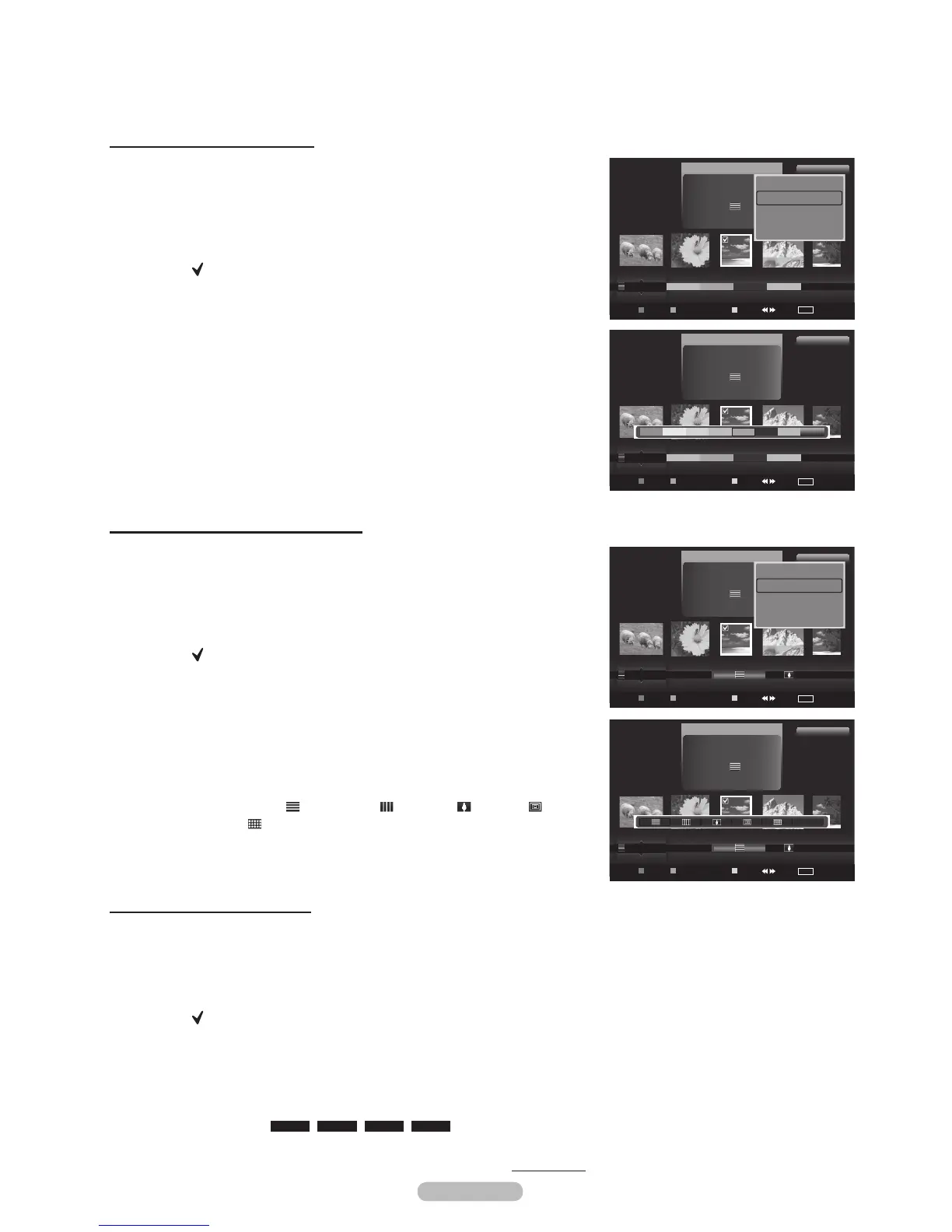
1 Select Composition as the sorting standard in the Photo List and press
the or button to select a photo.
®
Changing the information of multiple files
Press the or button to select the desired photo in the Photo list.
Then press the yellow button.
Repeat the above operation to select multiple photos.
The (
) mark appears to the left of the selected photo.
2 Press the TOOLS button.
3 Press the or button to select Change Group info.
Press the ENTER button.
4 Press the or button to select the desired option, then press the
ENTER button.
®
The group information of the current file is updated and the file is
moved to the new group.
®
Composition option: (horizontal), (vertical), (object),
(perspective),
(pattern), Unclassified.
5 Press Enter to start the Slide Show.
®
All images are displayed by the Composition group.
Changing the Favorites setting
1 Press the or button to select the desired photo in the Photo list.
®
Changing the information of multiple files
Press the or button to select the desired photo in the Photo list.
Then press the yellow button.
Repeat the above operation to select multiple photos.
The (
) mark appears to the left of the selected photo.
2 Press the Green button repeatedly until the relevant setting appears.
To exit WISELINK mode, press the W.LINK button on the remote control.
®
Favorites settings change completed.
®
Users can select the number of stars (up to 3) according to their
preference.
®
Favorites option:
(((
,
(((
,
(((
,
(((
3 Press Enter to start the Slide Show.
Continued...
Changing the color information
1 Select Color as the sorting standard in the Photo List and press the
or button to select a photo.
®
Changing the information of multiple files
Press the or button to select the desired photo in the Photo list.
Then press the yellow button.
Repeat the above operation to select multiple photos.
The (
) mark appears to the left of the selected photo.
2 Press the TOOLS button.
3 Press the or button to select Change Group info.
Press the ENTER button.
4 Press the or button to select the desired option, then press the
ENTER button.
®
Color information change completed.
®
The group information of the current file is updated and the file is
moved to the new group.
®
Color option: Red, Yellow, Green, Blue, Magenta, Black, Gray
5 Press Enter to start the Slide Show.
®
All images are displayed by the Color group.
Photo
image_1.jpg
Month : Jan
Date : Jan.01.2008
Color : Gray
Composition :
Folder : P-other
Favorite : (((
Timeline
Color
Composition
USB
Device
Favorites Setting
Select Jump
TOOLS
Option
1File(s) Selected
Delete selected File
Change Group info
Deselect All
Safe Remove
Photo
image_1.jpg
Month : Jan
Date : Jan.01.2008
Color : Gray
Composition :
Folder : P-other
Favorite : (((
Timeline
Color
Composition
USB
Device
Favorites Setting
Select Jump
TOOLS
Option
1File(s) Selected
Photo
image_1.jpg
Month : Jan
Date : Jan.01.2008
Color : Gray
Composition :
Folder : P-other
Favorite : (((
Color
Composition
Folder
Unclassified
USB
Device
Favorites Setting
Select Jump
TOOLS
Option
1File(s) Selected
Delete selected File
Change Group info
Deselect All
Safe Remove
Photo
image_1.jpg
Month : Jan
Date : Jan.01.2008
Color : Gray
Composition :
Folder : P-other
Favorite : (((
Color
Composition
Folder
Unclassified
USB
Device
Favorites Setting
Select Jump
TOOLS
Option
1File(s) Selected
Unclassified









 To Next Page