46 English
Setup
9. When done with each field, press the ►
button to move successively to the next field.
You can also use the other arrow buttons to
move up, down, and back.
10. Enter the IP Address, Subnet Mask, and
Gateway values.
11. Press the ▼ to go to DNS Mode.
12. Press the ▼ button to go to the first DNS
entry field. Enter the numbers as above.
13. Press the OK button.
14. The Network Status screen appears. The
product connects to the network after the
network connection is verified.
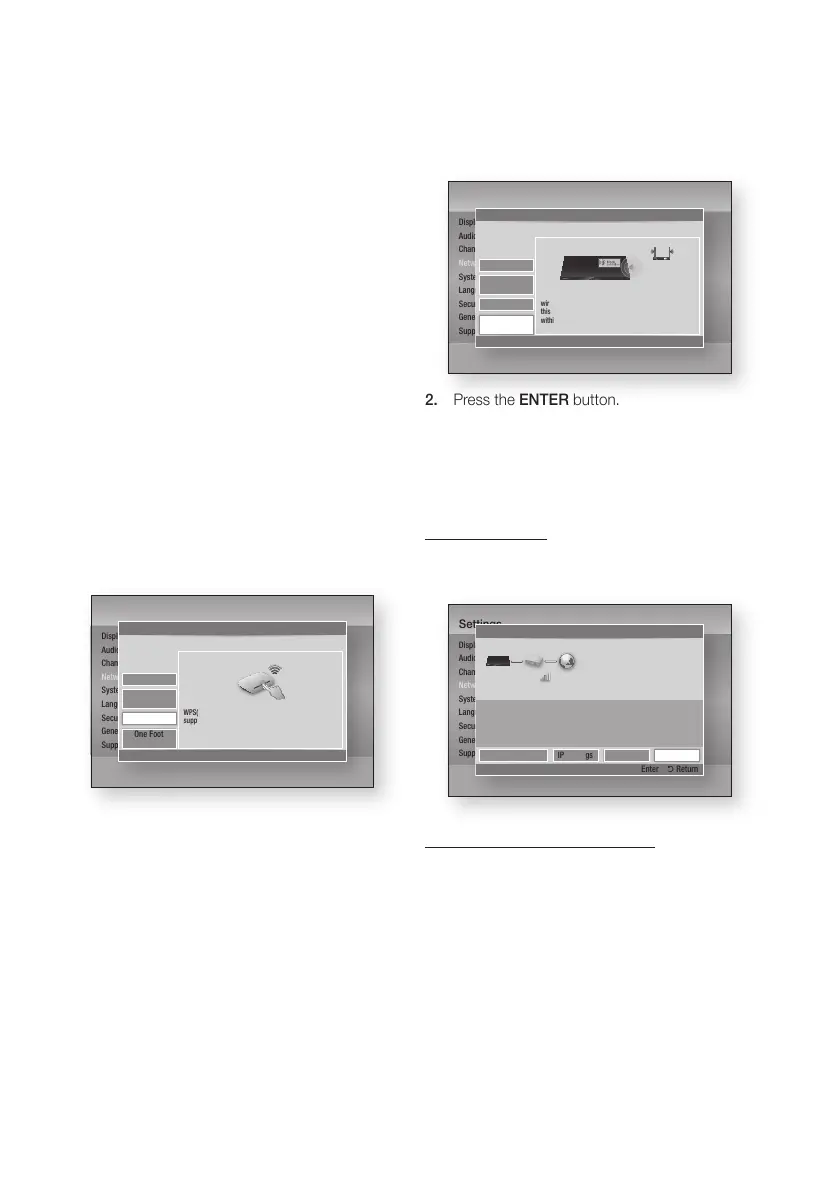
WPS(PBC)
The easiest way to set up the wireless network
connection is using the WPS(PBC) function or the
One Foot Connection function.
If your wireless router has a WPS(PBC) button,
follow these steps:
1. Press the ▲▼ buttons to select WPS(PBC).
2. Press the ENTER button.
3. Press the WPS(PBC) button on your
router within two minutes. Your product
automatically acquires all the network settings
values it needs and connects to your network.
4. The Network Status screen appears. The
player connects to the network after the
network connection is verified.
One Foot Connection
You can set up the wireless connection
automatically if you have a Samsung Wireless
Router which supports One Foot Connection. To
connect using the One Foot Connection function,
follow these steps:
1. Press the ▲▼ buttons to select One Foot
Connection.
2. Press the ENTER button.
3. Place the Samsung Wireless Router within 25
cm (10 inches) of your product to connect.
4. Wait until the connection is automatically
established.
Network Status
Check whether a connection to the network and
the Internet have been established.
SWL(Samsung Wireless Link)
Mobile devices with Samsung Wireless Link
capability can be connected to your network via
this product.
• Off : Set Samsung Wireless Link off.
• On : Set Samsung Wireless Link On.
1. If you select On, press the ▲▼ buttons to
select the Connect SWL, then press the
ENTER button. Please follow the instruction
on TV Screen.
✎
NOTE
`
If this product turned off, the network connection
using SWL will be disconnected.
Settings
Display
Audio
Channel
Network
System
Language
Security
General
Support
Network Settings
> Move " Enter ' Return
One Foot
Connection
Wireless
(general)
Wired
Select a network connection type.
Connect to the wireless router easily by pressing the
WPS(PBC) button. Choose this if your wireless router
supports push button configuration(PBC).
WPS(PBC)
Settings
Display
Audio
Channel
Network
System
Language
Security
General
Support
Network Settings
> Move " Enter ' Return
Wireless
(general)
Wired
Select a network connection type.
Connect to the wireless network automatically if your
wireless router supports One Foot Connection. Select
this connection type after placing the wireless router
within 10 inches (25 cm) of product.
One Foot
Connection
WPS(PBC)
Settings
Display
Audio
Channel
Network
System
Language
Security
General
Support
Network Status
< Move " Enter ' Return
MAC Address XX:XX:XX:XX:XX:XX
IP Address 0.0.0.0
Subnet Mask 0.0.0.0
Gateway 0.0.0.0
DNS Server 0.0.0.0
Internet is connected successfully.
If you have a problem using any Internet services, contact your Internet service
provider.
IP Settings Retry
OK
Network Settings
iptime










 To Next Page