66 English
Recording
This player can record in external devices.
Before recording
You must format the connected device to
recording TV programme by using Device
Format menu.
Please check the available storage size in this
menu. (For more information about device
management, please refer to pages 47~48)
Recording the current TV channel
you are watching
1. Press the PROG (
,
/
.
) or number buttons to
select a TV Channel you want to record.
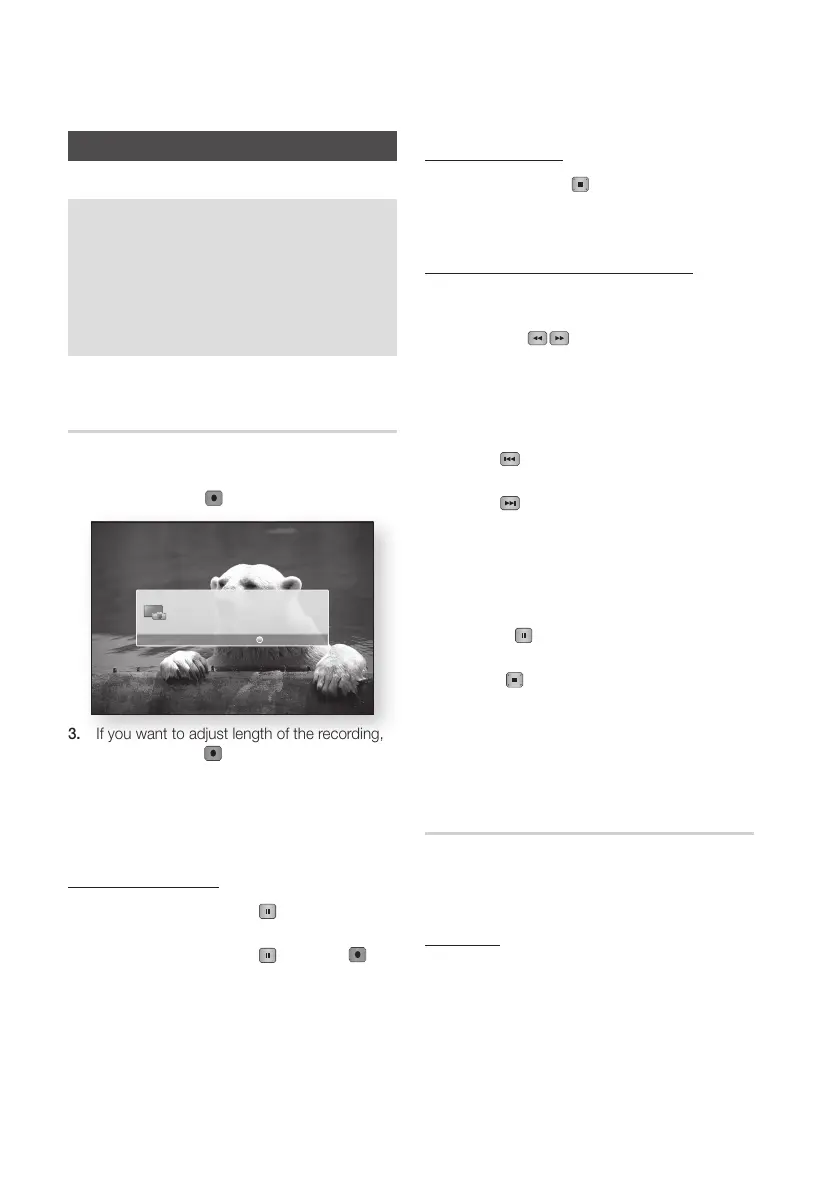
2. Press the REC (
) button.
3. If you want to adjust length of the recording,
press the REC (
) button during the
recording.
4. Press the ▲▼ buttons to select the desired
length of the recording, then press the
ENTER button.
To pause recording
1. Press the REC PAUSE ( ) button to pause
a recording in progress.
2. Press the REC PAUSE (
) or REC ( )
button resume recording.
To stop recording
1. Press the STOP ( ) button to stop
a recording in progress. The message
“Recording completed.”will appear.
Playback control during recording
During recording a TV channel, you can search
scene or move to the beginning point of recording.
1. SEARCH (
) buttons : Search the
desired scene.
)
1
)
2
)
3
)
4
)
5
)
6
)
7
(
1
(
2
(
3
(
4
(
5
(
6
(
7
2. SKIP (
) button : Return to the beginning
point of recording.
3. SKIP (
) button : Jump to the same scene
with Live TV.
4. ◄ button : Jump to - 20 sec from current
positon.
5. ► button : Jump to + 20 sec from current
position.d
6. PAUSE (
) button : Pause the scene while
keeping recording progress.
7. STOP (
) button : If you are watching the
past scene, the playback point will jump
to the same scene with Live TV. If you are
watching same scene with Live TV, recording
will be stopped.
Playing a Disc while Recording a
TV channel
You can play a disc while you are recording a TV
channel.
When disc is already loaded before start
recording
1. Press the MENU button on your remote while
recording a TV channel.
2. In the Home menu, press the ◄► buttons to
move to My Devices.
3. Press the ▲▼ buttons to select a disc to play
and press the ENTER button.
Advanced Functions
Recording Started
3 NOVA
REC Setting




 To Next Page