English 33
05 Setup
NOTE
When the product is connected to a network, select
Smart Hub from the Home menu.
Download the desired content from Samsung Apps.
(See pages 80~81)
The access steps may differ depending on the menu
you selected.
The OSD (On Screen Display) may change in this
product after you upgrade the software version.
If the product is left in the home menu more than 3
minutes without being used, DTV screen will appear.
If the product is left in the other menu including
settings more than 5 minutes without being used, a
screen saver will appear on your TV.
Watch TV
Press the MENU button.
The home menu will be displayed.
Press the ◄► buttons to select the Watch
TV.
Press the ▲▼ buttons to select the desired
submenu, then press the ENTER button.
Press the ▲▼ buttons to select the desired
item, then press the ENTER button.
Press the EXIT button to exit the menu.
NOTE
The Guide menu is not displayed if you select a
country to New Zealand.
✎
▪
▪
▪
▪
▪
1.
2.
3.
4.
5.
✎
▪
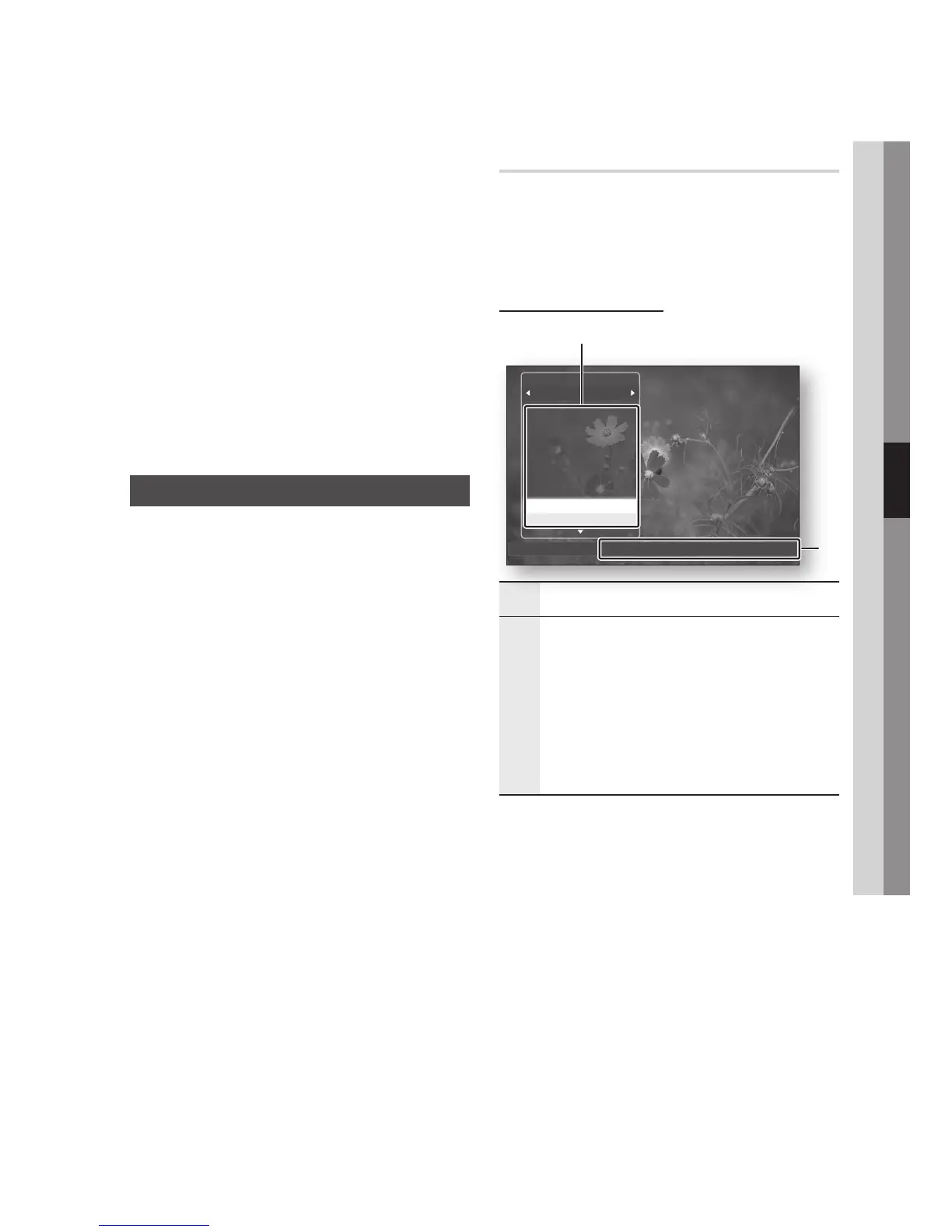
Channel List
You can see all channels searched.
Press the CH LIST button on the remote
control.
The Channel List will be displayed.
Channel List Screen
1
Shows the stored channels.
2
Navigation Help : Displays remote control buttons
available.
YELLOW (C) : Displays the Programme
information.
Ch. Mode : Shows the channel mode according
to channel type. (All, TV, Radio, Data/Other)
Watch : Displays the selected channel.
Page : Moves to next or previous page.
•
•
•
•
Press the ▲▼ buttons to select desired
channel, press the ENTER button.
The selected channel will be displayed.
NOTE
By pressing the INFO button, you can watch or
record the selected channel.
1.
2.
✎
▪
808
809
810
811
812
813
814
BBC World
bid-up.tv
Boomerang
Cartoon Nwk
Class News
Coming Soon
Discovery
No Information
All
Channel List
Programme View
<
Ch. Mode
"
Watch
ƒ
Page
2
1










 To Next Page