54 English
Basic Functions
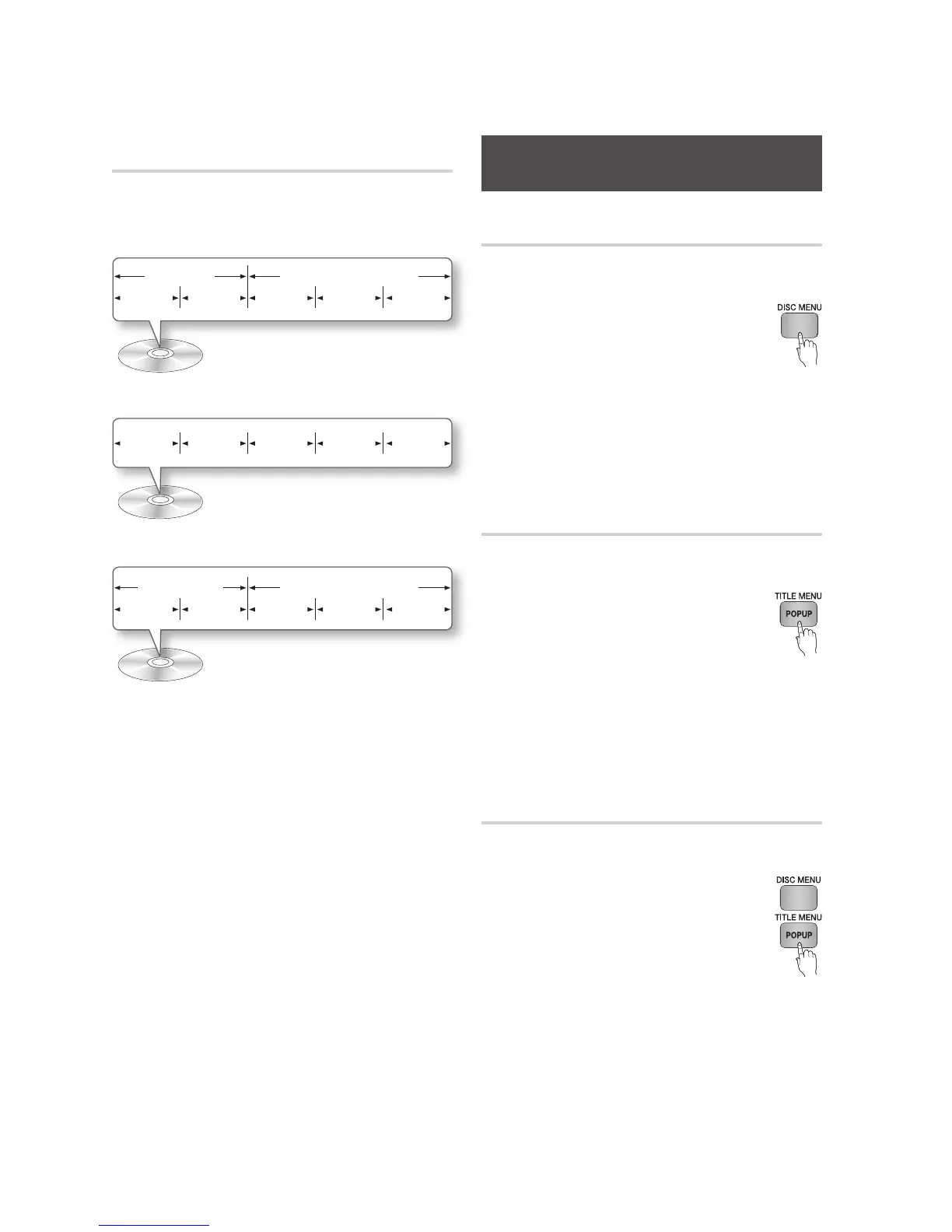
Disc Structure
The content of discs are usually divided as shown
below.
Blu-ray Disc, DVD-VIDEO
Audio CD (CD-DA)
MP3, WMA, DivX, MKV and MP4
NOTE
Playback during recording converts the media into
profile 1.0, while normal playback only supports
profile 2.0. In such cases, the following limitations
are applied:
BONUSVIEW is not available.
Browsable slideshow audio is not available.
(Audio may not be produced in Disc Menu mode
for some discs.)
•
•
•
✎
▪
-
-
Using the Disc Menu/Title Menu/Pop-
up Menu
Using the Disc Menu
hZ
During playback, press the DISC
MENU button on the remote control.
Press the ▲▼◄►
buttons to make a
selection, and then press the ENTER
button.
NOTE
Depending on the disc, the menu items may differ
and this menu may not be available.
Using the Title Menu
Z
During playback, press the TITLE
MENU button on the remote control.
Press the ▲▼◄► buttons to make
the desired selection, then press the
ENTER button.
NOTE
Depending on the disc, the menu items may differ
and this menu may not be available.
Playing the Title List
z
During playback, press the DISC
MENU or TITLE MENU button.
Press the ▲▼ buttons to select an
entry you want to play from the Title
List, and then press the ENTER
button.
NOTE
If your disc has a playlist, press the GREEN (B) button
to go to the playlist.
1.
2.
✎
▪
1.
2.
✎
▪
1.
2.
✎
▪
title 1 title 2
chapter 1 chapter 2 chapter 1 chapter 2 chapter 3
folder (group) 1 folder (group) 2
file 1 file 2 file 1 file 2 file 3
track 1 track 2 track 3 track 4 track 5




 To Next Page