English 47
05 Setup
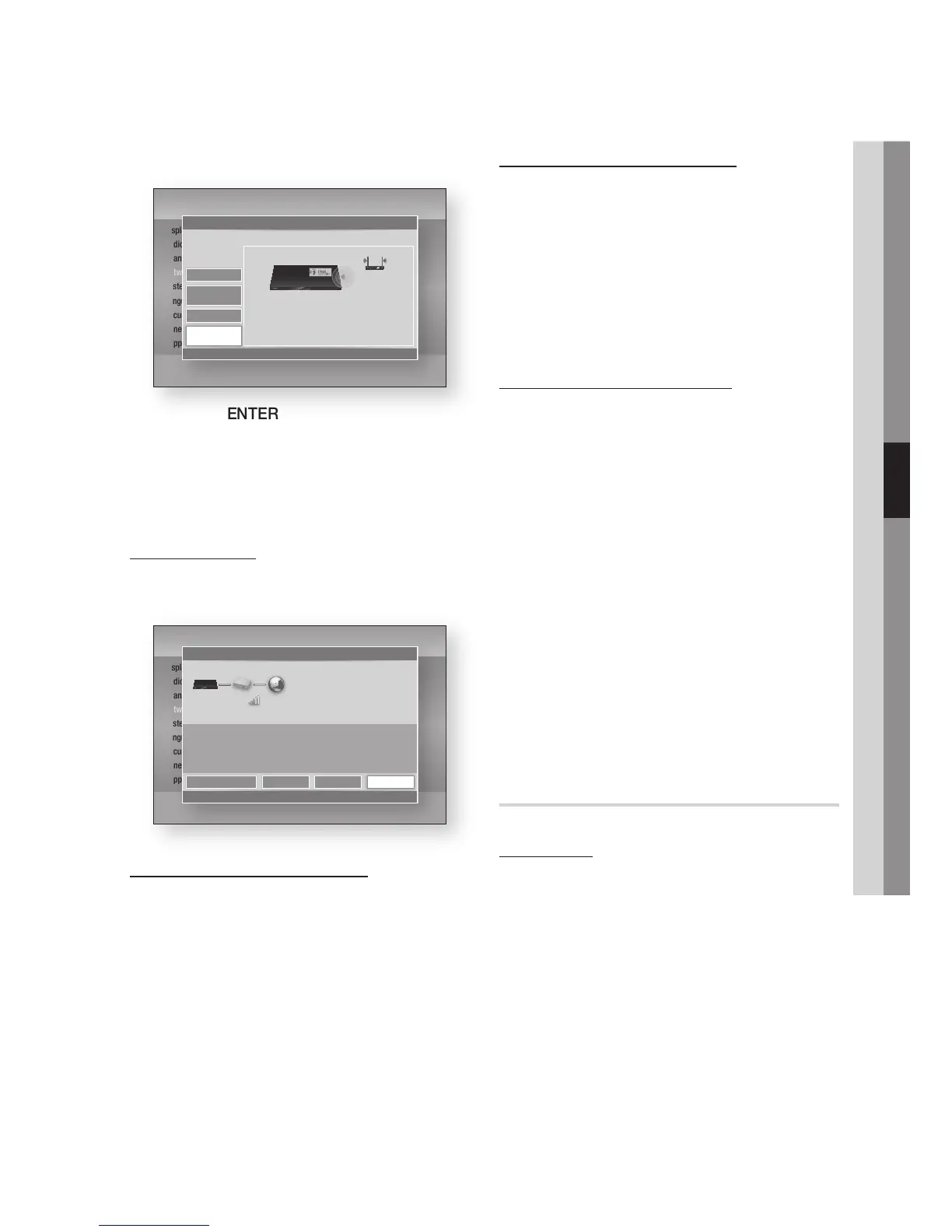
Press the ▲▼ buttons to select One Foot
Connection.
Press the ENTER button.
Place the Samsung Wireless Router within 25
cm (10 inches) of your product to connect.
Wait until the connection is automatically
established.
Network Status
Check whether a connection to the network and
the Internet have been established.
SWL(Samsung Wireless Link)
Mobile devices with Samsung Wireless Link
capability can be connected to your network via
this product.
Off : Set Samsung Wireless Link off.
On : Set Samsung Wireless Link On.
If you select On, press the ▲▼ buttons to
select the Connect SWL, then press the
ENTER button. Please follow the instruction
on TV Screen.
NOTE
If this product turned off, the network connection
using SWL will be disconnected.
1.
2.
3.
4.
•
•
1.
✎
▪
AllShare Server Management
Manage content sharing function. You can share
media contents (videos, music, photos) via the
AllShare function.
AllShare Server : Set the server function.
Change Server Name : Set the server name.
Enables you to identify the server on a network.
Device Access Control : Configures access
authorization for individual device.
BD-Live Internet Connection
Set to allow or prohibit an Internet connection
when you use the BD-LIVE service.
Allow (All) : The Internet connection is allowed
for all BD-LIVE contents.
Allow (Valid Only) : The Internet connection is
allowed only for BD-LIVE contents containing a
valid certificate.
Prohibit : No Internet connection is allowed for
any BD-LIVE content.
NOTE
What is a valid certificate?
When the product uses BD-LIVE to send the disc data
and a request to the server to certify the disc, the
server uses the transmitted data to check if the disc is
valid and sends the certificate back to the product.
The Internet connection may be restricted while you
are using BD-LIVE contents.
System
Plug & Play
By using Plug & Play, you can set country, clock
mode and Network Settings, etc.
For more information about the Plug & Play
function, refer to the Plug & Play section of this
user manual. (See pages 32~52)
NOTE
If you want to change plug & play options, you
should enter the password.
•
•
•
•
•
•
✎
▪
▪
✎
▪
Settings
Display
Audio
Channel
Network
System
Language
Security
General
Support
Network Settings
>
Move
"
Enter
'
Return
Wireless
(general)
Wired
Select a network connection type.
Connect to the wireless network automatically if your
wireless router supports One Foot Connection. Select
this connection type after placing the wireless router
within 10 inches (25 cm) of product.
One Foot
Connection
WPS(PBC)
Settings
Display
Audio
Channel
Network
System
Language
Security
General
Support
Network Status
<
Move
"
Enter
'
Return
MAC Address XX:XX:XX:XX:XX:XX
IP Address 0.0.0.0
Subnet Mask 0.0.0.0
Gateway 0.0.0.0
DNS Server 0.0.0.0
Internet is connected successfully.
If you have a problem using any Internet services, contact your Internet service
provider.
IP Settings Retry
OK
Network Settings
iptime










 To Next Page