46 English
Setup
Windows 7
Click the Network icon on the bottom right of
the Windows desktop.
In the pop-up menu, click Network and
Sharing Centre.
On the dialog that appears, click the Local
Area Connection or Wireless Network
Connection depending on your network
connection.
On the Support tab, click the Details button.
The Network settings are displayed.
NOTE
Depending on your Windows version, the information
may differ.
To enter the Network settings into your product,
follow these steps:
Follow Steps 1 through 4 in the ‘Setting Up
the Wireless Network Connection - Auto’
procedure.
When done, press the GREEN (B) button on
your remote, or press the ▲▼◄► buttons to
move the cursor to Done, and then press the
ENTER button. The Network Status screen
appears.
On the Network Status screen, select Cancel,
and then press Enter.
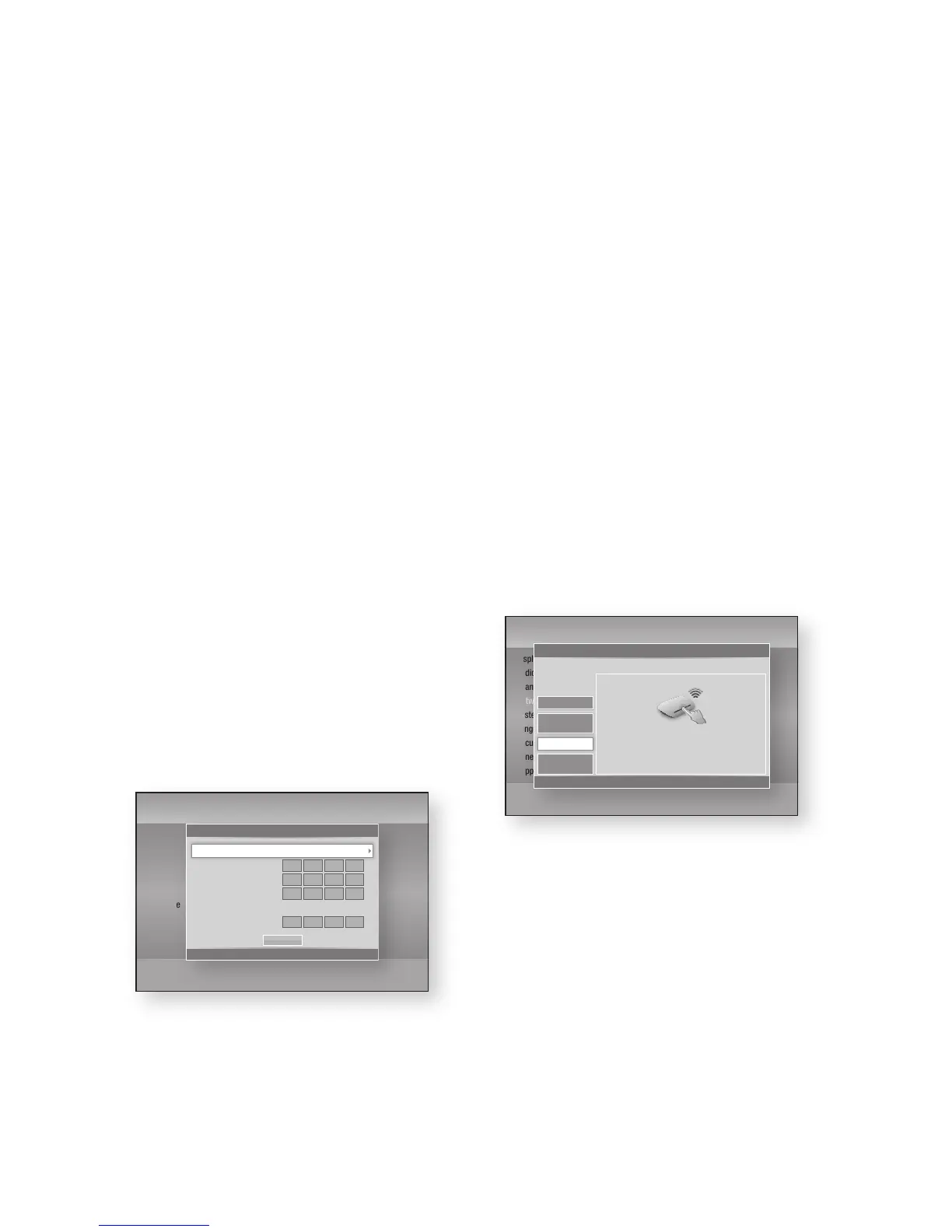
Press the ◄► buttons to select IP Settings,
and then press the ENTER button.
Press the ENTER button to select IP Mode.
Press the ▲▼ buttons to select Manual, and
then press the ENTER button.
Press the ▼ button to go to the first entry field
(IP Address).
Use the number buttons to enter numbers.
1.
2.
3.
4.
✎
▪
1.
2.
3.
4.
5.
6.
7.
8.
When done with each field, press the ►
button to move successively to the next field.
You can also use the other arrow buttons to
move up, down, and back.
Enter the IP Address, Subnet Mask, and
Gateway values.
Press the ▼ to go to DNS Mode.
Press the ▼ button to go to the first DNS
entry field. Enter the numbers as above.
Press the OK button.
The Network Status screen appears. The
product connects to the network after the
network connection is verified.
WPS(PBC)
The easiest way to set up the wireless network
connection is using the WPS(PBC) function or the
One Foot Connection function.
If your wireless router has a WPS(PBC) button,
follow these steps:
Press the ▲▼ buttons to select WPS(PBC).
Press the ENTER button.
Press the WPS(PBC) button on your
router within two minutes. Your product
automatically acquires all the network settings
values it needs and connects to your network.
The Network Status screen appears. The
player connects to the network after the
network connection is verified.
One Foot Connection
You can set up the wireless connection
automatically if you have a Samsung Wireless
Router which supports One Foot Connection. To
connect using the One Foot Connection function,
follow these steps:
9.
10.
11.
12.
13.
14.
1.
2.
3.
4.
Settings
Display
Audio
Channel
Network
System
Language
Security
General
Support
IP Settings
>
Move
"
Enter
'
Return
IP Mode Manual
IP Address
0
.
0
.
0
.
0
Subnet Mask
0
.
0
.
0
.
0
Gateway
0
.
0
.
0
.
0
DNS Mode Manual
DNS Server
0
.
0
.
0
.
0
OK
Settings
Display
Audio
Channel
Network
System
Language
Security
General
Support
Network Settings
>
Move
"
Enter
'
Return
One Foot
Connection
Wireless
(general)
Wired
Select a network connection type.
Connect to the wireless router easily by pressing the
WPS(PBC) button. Choose this if your wireless router
supports push button configuration(PBC).
WPS(PBC)










 To Next Page