English 45
05 Setup
Wireless Network
You can setup a wireless network three ways:
Wireless (general)
Using WPS(PBC)
One Foot Connection
Wireless (general) includes both Automatic and
Manual setup procedures.
Setting Up the Wireless Network Connection -
Auto
Most wireless networks have an optional security
system that requires devices that access the
network to transmit an encrypted security code
called an Access or Security Key. The Security
Key is based on a Pass Phrase, typically a word
or a series of letters and numbers of a specified
length you were asked to enter when you set up
security for your wireless network. If you use this
method of setting up the network connection, and
have a Security Key for your wireless network, you
will have to enter the Pass Phrase during the Auto
setup process.
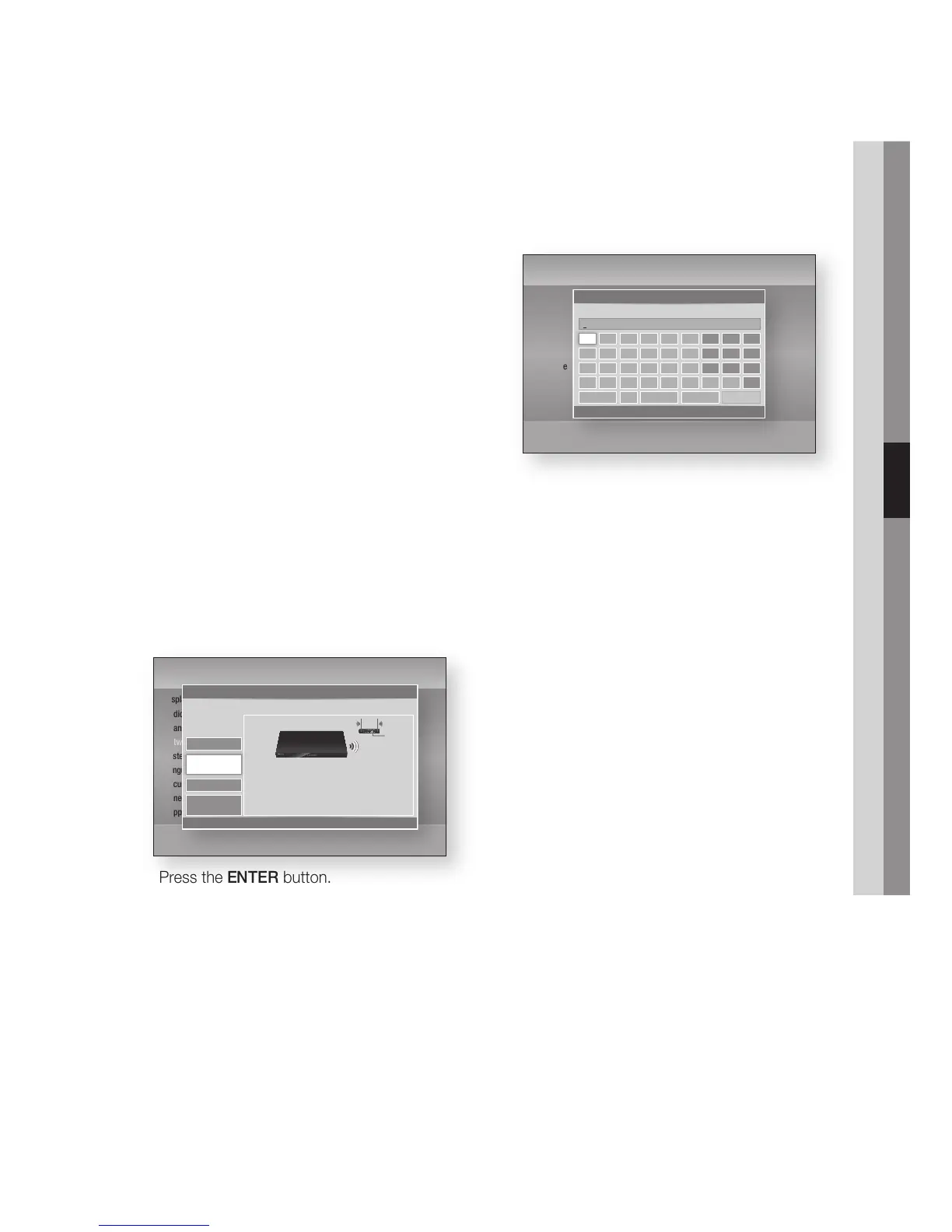
Press the ▲▼ buttons to select Wireless
(general).
Press the ENTER button.
When done, it displays a list of the available
networks.
Press the ▲▼ buttons to select the desired
network, and then press the ENTER button.
The Security screen appears.
•
•
•
1.
2.
3.
On the Security screen, enter your network’s
Pass Phrase. Enter numbers directly using your
remote control.
To select a letter, press the ▲▼◄► buttons to
move the cursor, then press the ENTER button.
NOTE
You should be able to find the Pass Phrase on one of
the set up screens you used to set up your router or
modem.
When done, press the GREEN (B) button on
your remote, or press the ▲▼◄► buttons to
move the cursor to Done, and then press the
ENTER button.
The Network Status screen appears. The
product connects to the network after the
network connection is verified.
Setting Up the Wireless Network Connection -
Manual
If the Auto Setting does not work, you need to
enter the Network setting values manually.
To view your Network Settings values on most
Windows computers, follow these steps:
Windows XP
Right click the Network icon on the bottom
right of the Windows desktop.
In the pop-up menu, click Status.
On the dialog that appears, click the Support
tab.
On the Support tab, click the Details button.
The Network settings are displayed.
4.
✎
▪
5.
1.
2.
3.
4.
Settings
Display
Audio
Channel
Network
System
Language
Security
General
Support
Network Settings
>
Move
"
Enter
'
Return
Wireless
(general)
One Foot
Connection
WPS(PBC)
Wired
Select a network connection type.
Set up a wireless network by selecting your wireless
router. You may need to enter a security key
depending on the settings of the wireless router.
Settings
Display
Audio
Channel
Network
System
Language
Security
General
Support
Network Settings
a
Previous
m
Move
"
Enter
'
Return
Enter security key. 0 entered
a b c d e f 1 2 3
g h i j k l 4 5 6
m n o p q r 7 8 9
s t u v w x y z 0
a/A * Delete Space Done










 To Next Page