48 English
Setup
Clock
Set time-related functions.
Clock Mode : You can set it to Auto or Manual.
Clock Set : If Clock Mode set to Manual, the
this menu will be activated.
Time Zone : If you set the Country to Australia,
and Clock Mode set to Auto, this menu will
appear.
NOTE
If Timer Viewing and Timer Recording is set using
GUIDE, Channel List, or Info menu, It will work based
on the time information of the TV programme.
If you set the Clock Mode to Manual and change
time manually, Timer Viewing and Timer Recording
function can be limited or work abnormally.
Anynet+(HDMI-CEC)
Anynet+ is a convenient function that offers linked
operations with other Samsung products that
have the Anynet+ feature.
To operate this function, connect this product to a
Samsung TV with an HDMI cable.
With Anynet+ on, you can operate this product
using a Samsung TV remote control and start
disc playback simply by pressing the PLAY ( )
button on the TV’s remote control.
For more information, please see the TV user
manual.
Off : Anynet+ functions will not work.
On : Anynet+ functions will work.
NOTE
This function is not available if the HDMI cable does
not support CEC.
If your Samsung TV has an Anynet+ logo, then it
supports the Anynet+ function.
Depending on your TV, certain HDMI output
resolutions may not work.
Please refer to the user manual of your TV.
If you press the Play button of TV when product is in
DTV mode, Time Shift function will start.
•
•
•
✎
▪
•
•
✎
▪
▪
▪
▪
Device Management
Manage internal HDD and external devices.
You can manage options such as device format
and default recording device.
Device Format : Format the device.
Checking Device : Checks for errors on the
device.
Device Performance Test : Test the recording
performance of the device.
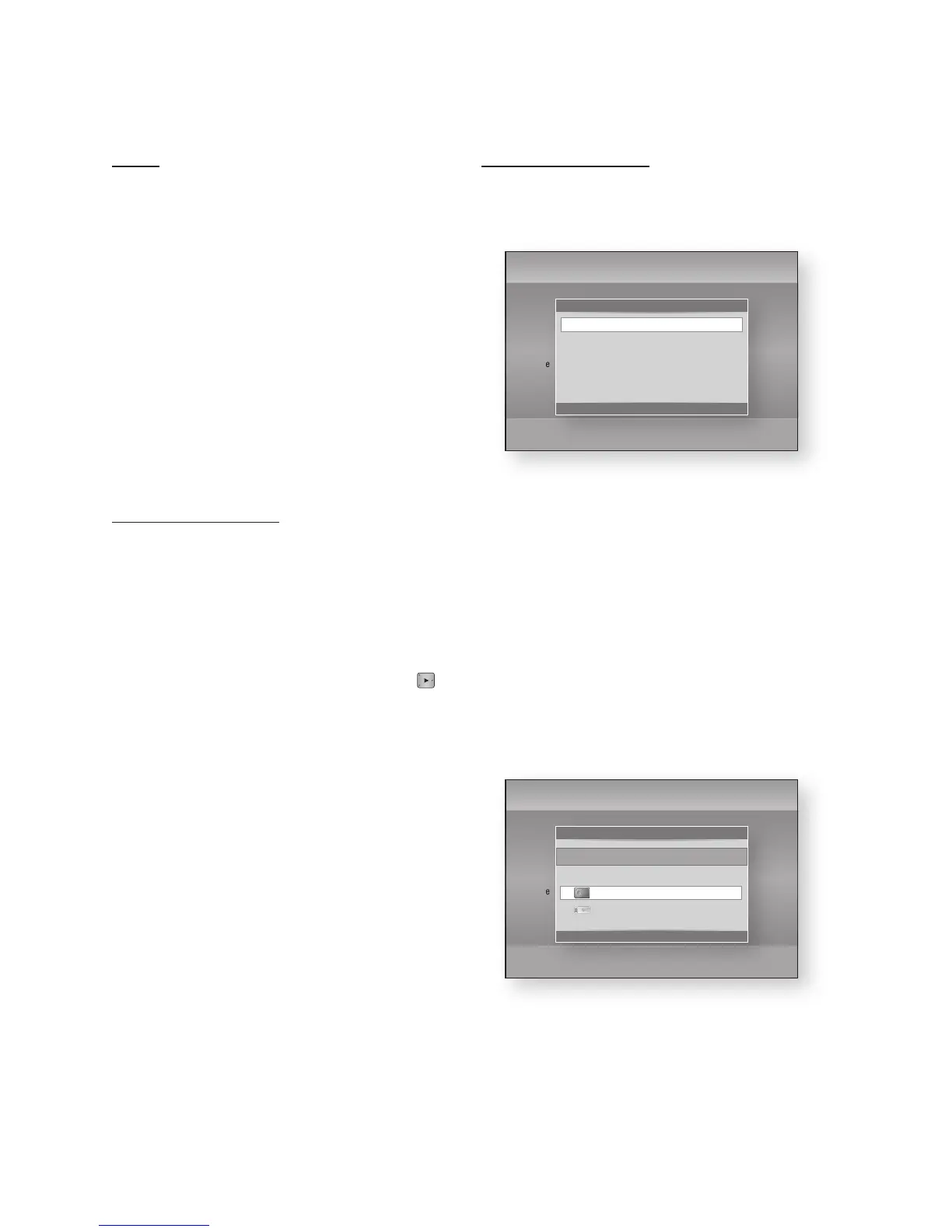
Default Recording Device : Select default
recording device.
By HDD
Select the Default Recording Device, and
then press the ENTER button.
Select recording device to HDD. (You can
also check available storage in this menu.)
•
•
•
•
1.
2.
Settings
Display
Audio
Channel
Network
System
Language
Security
General
Support
Plug & Play
HDMI Deep Color : Auto
Device Management
Device Format
Checking Device
Device Performance Test
Default Recording Device : HDD
>
Move
"
Enter
'
Return
Settings
Display
Audio
Channel
Network
System
Language
Security
General
Support
Plug & Play
HDMI Deep Color : Auto
Default Recording Device
>
Move
"
Enter
'
Return
Select default device for recording.
HDD XXX.XX GB/XXX.XX GB
HDD Internal storage
abc Recordable










 To Next Page