Setting Up Your Remote
First
Time
User
Setup
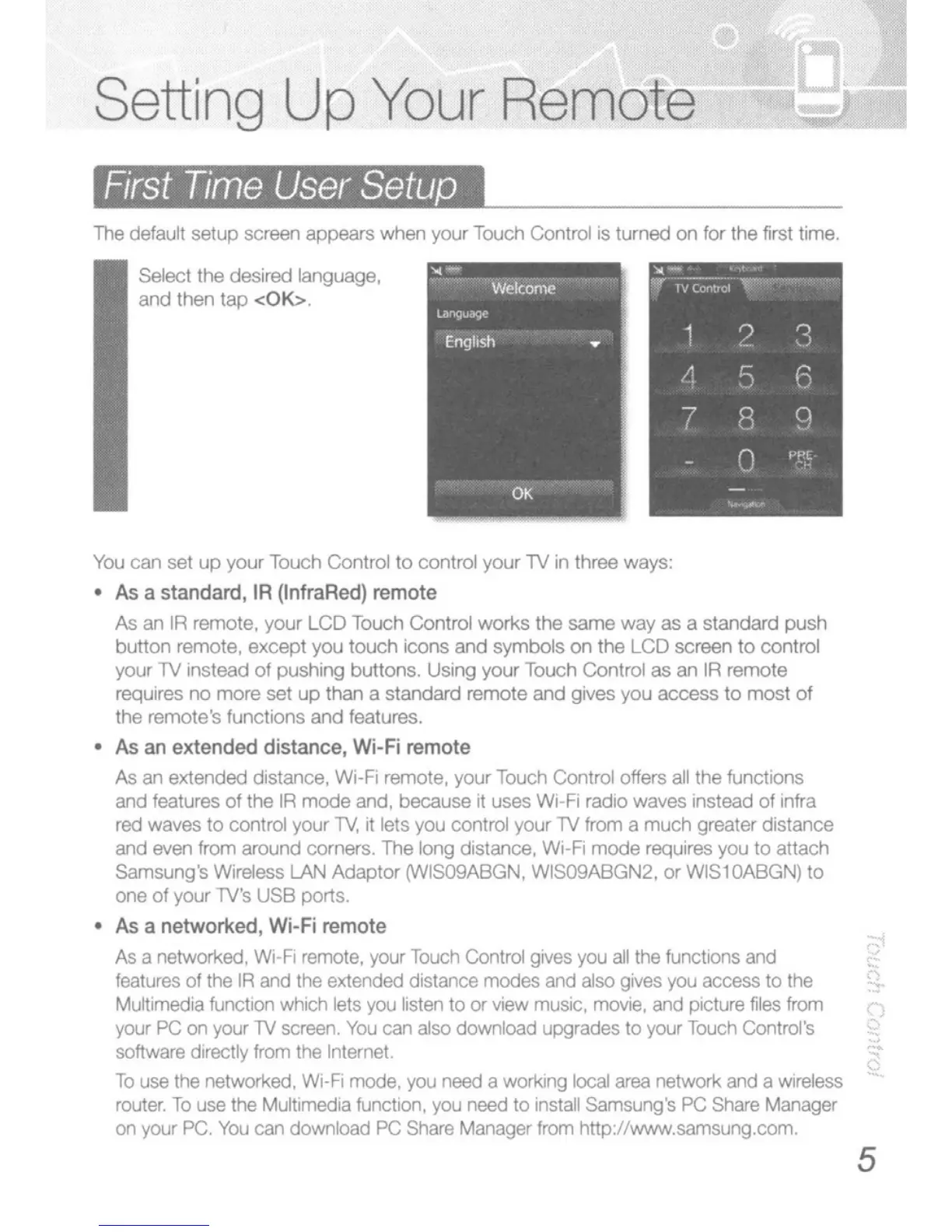
The default setup screen appears when your Touch Control is turned
on
for the
firsllime.
Select
the
desired language,
and
then
tap
<OK>.
You
can
sel
up
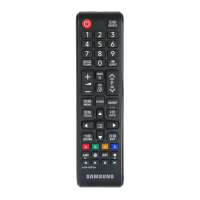
your Touch Control
to
control
your
TV in three ways:
•
As
a standard,
IA
(InfraRed)
remote
As an
IR
remote, your LCD Touch Control
works
the
same
way
as a standard
push
button remote, except you touch icons and symbols on the LCD screen
to
control
your
TV
instead of pushing
buttons.
Using your Touch Control as an
IR
remote
requires
no
more set
up
than a standard remote and gives you access to
most
of
the remote's functions and features.
• As
an
extended distance, Wi-Fi remote
As
an
extended distance,
Wi-Fi
remote, your
Touch
Control offers
all
the functions
and
features of the
IR
mode
and,
because
it
uses Wi-Fi radio waves instead of
infra
red
waves
to control your
TV,
it
lets
you
control your
TV
from
a much greater distance
and
even
from around corners, The long distance, Wi-Fi mode requires you
to
attach
Samsung's Wireless
LAN Adaptor
{VVIS09A8GN,
WIS09ABGN2, or WIS10ABGN}
to
one
of your
lV's
USB ports,
•
As
a networked, Wi-Fi remote
As
a networked,
Wi·Fi
remote,
your
Touch
Control
gives
you
all
the
functions
and
features
of
the
IA
and
the
extended distance modes
and
also
gives
you
access
to
the
Multimedia function which lets
you
listen
to
or
view
music,
movie,
and
picture
files
from
your
PC
on
your
lV
screen.
You
can
also
download upgrades
to
your
Touch
Control's
software directly
from
the
Internel.
To
use
the
networked.
Wi-Fi
mode,
you
need
a working
local
area
network
and
a
wireless
rou1er.
To
use
the
Multimedia function,
you
need
to
install
Sam
sung's
PC
Share
Manager
on
your
PC,
You
can
download
PC
Share
Manager
from
http://W.N.N.samsung.com.
5



 To Next Page