EasyManua.ls Logo

Samsung DVD-V6600 - User Manual

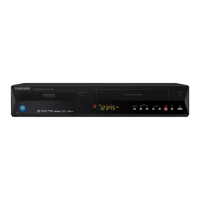
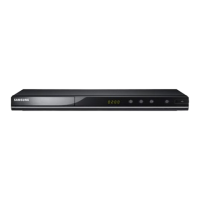
Samsung DVD-V6600
56 pages
Print Icon
To Next Page IconTo Next Page
Loading...
Users Manual
DVD-V5600
DVD-V6600
PAL
www.samsung.com/uk
XEU ENG 1 27/02/2006 13:33 Page 1
Downloaded From DvDPlayer-Manual.com Samsung Manuals

Table of Contents

Questions and Answers

  • W
    willisjosephAug 20, 2025
    How to reset a forgotten password on a Samsung DVD-V6600?
    • C
      Charles BrownAug 20, 2025
      If you've forgotten your password for the Samsung DVD Player, power on the unit without a disc inside. Then, press the ?? button on the front panel for five seconds. Turn the DVD-VCR off and on again using the STANDBY/ON button. The parental mode will now be unlocked, allowing you to set a new rating level and password.
  • S
    Stephen MccallAug 21, 2025
    Why won't my Samsung DVD Player play the disc?
    • W
      wesley61Aug 21, 2025
      If your Samsung DVD Player disc doesn't play, make sure that the disc is placed with the label side facing up. Also, verify the region code of the DVD to ensure it is compatible. Note that this DVD-VCR cannot play CD-ROMs or DVD-ROMs; use a DVD or CD instead.
  • Y
    ypenaAug 25, 2025
    How to troubleshoot a Samsung DVD-V6600 that has no power?
    • M
      Melissa HollandAug 25, 2025
      If your Samsung DVD Player has no power, ensure that the power plug is properly connected to a wall outlet. Also, check if you have pressed the STANDBY/ON button to turn on the device.
  • M
    Michele BrandtAug 26, 2025
    Why is 5.1 channel sound not working on my Samsung DVD-V6600 DVD Player?
    • N
      nicole95Aug 26, 2025
      If you are not getting 5.1 channel sound on your Samsung DVD Player, ensure that: 1) The DVD-VCR is connected to a compatible amplifier. 2) The disc is recorded with 5.1 channel sound. Also, check the disc for the '5.1 ch' mark and verify that your audio system is properly connected and functioning.
  • C
    Cynthia GravesAug 27, 2025
    Why is there no audio coming from my Samsung DVD Player?
    • A
      Aaron ReedAug 28, 2025
      If there is no audio from your Samsung DVD Player, make sure you have selected the correct Digital Output in the Audio Options Menu.
  • S
    Scott CharlesAug 30, 2025
    When should I clean the video heads on my Samsung DVD-V6600 DVD Player?
    • S
      Scott ReedAug 30, 2025
      If poor pictures appear on a variety of cassettes on your Samsung DVD Player, the video heads may need cleaning.
  • K
    kelly42Sep 1, 2025
    What to do if you cannot see normal broadcasts on a Samsung DVD Player?
    • C
      cynthiaperkinsSep 1, 2025
      If you cannot see normal broadcasts on your Samsung DVD Player, check that the tuner or external setting is set to tuner. Also, verify the TV or VCR aerial connections.
  • L
    lukethomasSep 2, 2025
    Why did timer recording fail on my Samsung DVD-V6600 DVD Player?
    • C
      cervanteslisaSep 3, 2025
      If the timer recording was unsuccessful on your Samsung DVD Player, ensure that the STANDBY/ON button was pressed to activate the timer. Double-check the recording start and stop time settings. Keep in mind that a power failure or interruption during timer recording will cancel the recording.
  • S
    Stacey HallSep 5, 2025
    What to do if the television programme was not recorded on my Samsung DVD Player?
    • L
      Leah GutierrezSep 5, 2025
      If the television programme was not recorded on your Samsung DVD Player, check the DVD-VCR aerial connections. Ensure the DVD-VCR tuner is properly set. Also, verify that the safety tab on the cassette is intact.
  • F
    fostertheresaSep 7, 2025
    How do I fix noise bars or streaks on playback with my Samsung DVD-V6600?
    • K
      karlathompsonSep 7, 2025
      If you see noise bars or streaks during playback on your Samsung DVD Player, try pressing the TRK (? or ?) buttons to minimize this effect.

Summary

Safety Instructions

Disc Type and Characteristics

Overviews

Connections

Connecting DVD-VCR to TV via RF Cable

Instructions for connecting the DVD-VCR to a TV using an RF cable.

Connecting DVD-VCR to TV via SCART Cable

Instructions for connecting the DVD-VCR to a TV using a SCART cable.

Connecting DVD-VCR to TV via Audio;Video Cable

Instructions for connecting the DVD-VCR to a TV using audio/video cables.

Plug & Auto Setup

Automatic initial setup process for tuning TV stations and configuring the device.

Settings

Tuning Your Television for DVD-VCR

Steps to tune the TV for optimal viewing of the DVD-VCR signal.

Setting the Date and Time

How to set the DVD-VCR's internal clock and calendar for accurate recording.

Presetting the Stations Automatically

Instructions for automatically scanning and storing available TV channels.

Presetting the Stations Manually

How to manually scan and store TV channels for optimal reception.

Setting the VCR Output Channel

How to change the VCR output channel to avoid interference.

VCR Functions

Recording a Programme Immediately

Guide to starting an immediate recording of a TV program.

Recording Programme with Automatic Stop

How to record programmes with an automatic stop function at a set duration.

Using Timer Programming Feature

How to preset programmes for automatic recording up to a month in advance.

Cancelling a Preset Recording

How to remove incorrect or no longer needed timer recordings.

Playing Back

Playing a Cassette

Basic instructions for playing pre-recorded video cassettes.

DVD Functions

Setting Up Language Features

How to set disc menu, audio, and subtitle languages in advance.

Setting Up Audio Options

How to configure audio settings like Dolby Digital and MPEG-2 output.

Setting Up Display Options

How to adjust display settings like TV aspect ratio and black level.

Setting Up Parental Control

How to set up parental controls to restrict DVD content based on ratings.

DivX(R) Registration

How to register the DVD-VCR for DivX Video On Demand service.

Firmware Upgrade Procedure

Instructions for updating the DVD-VCR's firmware using a CD-R.

How to Make an Update Disc

Steps to prepare a CD-R with the necessary software for firmware updates.

Adjusting Aspect Ratio (EZ View)

How to adjust the screen aspect ratio for different TV types and discs.

MP3;WMA Playback

How to play MP3 and WMA files from discs.

DivX;MPEG4 Media Playback

How to play DivX and MPEG4 files from discs.

DivX;MPEG4 Special Playback Features

Special playback options for DivX/MPEG4 files.

Technical Specifications

General Specifications

Details voltage, power, weight, size, and operating conditions.

Input and Output Connections

Lists all available input and output ports and their types.

VCR Specifications

Technical details related to the VCR functions and performance.

DVD Specifications

Technical details related to the DVD player functions and performance.

Troubleshooting Guide (VCR)

Troubleshooting Common VCR Issues

Solutions for common problems like no power, cassette issues, and recording failures.

Video Head Cleaning Procedure

Instructions and precautions for cleaning the VCR video heads.

Troubleshooting Guide (DVD)

Troubleshooting Disc Playback Issues

Solutions for problems like discs not playing or sound issues.

Handling Password and Other DVD Problems

How to reset forgotten passwords and general troubleshooting for DVD issues.

Samsung DVD-V6600 Specifications

General IconGeneral
Progressive scan outputYes
Audio formats supportedMP3, WMA
I/O ports2x SCART A/V in A/V out Component out RF in/out
Dimensions (WxDxH)430 x 275 x 84 mm
S-Video outputs quantity1
Device typeDVD player
Product colorBlack
Disc types supportedDVD+RW, DVD-R, DVD-RW
Number of optical discs1 discs
Weight and Dimensions IconWeight and Dimensions
Weight3900 g

Related product manuals