EasyManua.ls Logo

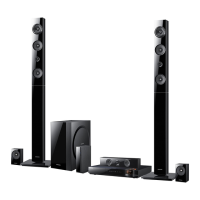
Samsung HT-E6500W - User Manual

Samsung HT-E6500W
86 pages
Print Icon
To Next Page IconTo Next Page
Loading...
imagine the possibilities
Thank you for purchasing this Samsung product.
To receive more complete service,
please register your product at
www.samsung.com/register
5.1CH Blu-ray™
Home Entertainment System
user manual
HT-E6500W
HT-E6500W_ZA_0417-1(D2D).indd 1 2012-04-17 7:01:32

Table of Contents

Questions and Answers

  • K
    Kaylee JacksonSep 12, 2025
    What to do if the HDMI output resolution is not supported by my TV on Samsung HT-E6500W Home Theater System?
    • J
      Jeffrey ThompsonSep 13, 2025
      Press and hold the 5 button on the front panel for more than 5 seconds with no disc in the product. All settings will revert to the factory settings.
  • G
    George GrantSep 12, 2025
    What to do if I can't eject the disc from my Samsung HT-E6500W Home Theater System?
    • K
      Karen LoganSep 12, 2025
      Check if the power cord is plugged securely into the outlet. Try turning the power off and then back on.
  • J
    James CaldwellSep 9, 2025
    Why is there no sound coming from my Samsung HT-E6500W?
    • M
      Matthew PeckSep 9, 2025
      The home theater does not play sound during fast playback, slow playback, and step motion playback. Check if the speakers are connected properly and the speaker setup is correctly customized. Also, check if the disc is severely damaged.
  • W
    Wendy ReyesSep 8, 2025
    Why can't I see the files in AllShare Play on my Samsung HT-E6500W?
    • J
      Jason WheelerSep 8, 2025
      AllShare Play on your Samsung Home Theater System only shows files corresponding to the Photo, Music, and Movie categories. Files that do not correspond to these categories may not be displayed.
  • A
    Andrea LeonardSep 7, 2025
    Why is there no sound when listening to TV audio through my Samsung HT-E6500W?
    • S
      sstevensSep 7, 2025
      If no sound is heard while listening to TV audio through your Samsung Home Theater System, pressing the OPEN/CLOSE ^ button while using the D. IN or AUX functions may activate the Blu-ray/DVD disc functions and mute the TV audio.
  • J
    Joseph AllisonAug 23, 2025
    What to do if the remote control for my Samsung HT-E6500W Home Theater System doesn't work?
    • A
      Alexander GarciaAug 23, 2025
      Ensure you are operating the remote within its operational range and at the proper angle relative to the sensor. Check if the batteries are drained. Verify that you have correctly selected the mode (TV/BD) functions of the remote control (TV or BD).
  • S
    Samantha ChavezSep 5, 2025
    Why can't my Samsung Home Theater System receive radio broadcasts?
    • J
      Jenny GarciaSep 5, 2025
      If you can't receive radio broadcasts on your Samsung Home Theater System, check that the antenna is properly connected. If the antenna's input signal is weak, try installing an external FM antenna in an area with good reception.
  • U
    ubeckSep 4, 2025
    Why is the AllShare Play connection unstable on my Samsung Home Theater System?
    • C
      Christine KingSep 4, 2025
      If the AllShare Play connection between your TV and PC is unstable when using your Samsung Home Theater System, ensure that each IP address under the same subnetwork is unique to avoid IP collision. Also, check if you have a firewall enabled and, if so, disable it.
  • G
    Gregory VasquezSep 3, 2025
    Why is video playing intermittently on my Samsung HT-E6500W Home Theater System?
    • H
      Howard HughesSep 3, 2025
      If video playback is intermittent on your Samsung Home Theater System, check the stability of your network connection. Ensure the network cable is properly connected and that the network isn't overloaded. If using a wireless connection, verify its stability.
  • I
    ipooleSep 2, 2025
    Why is Dolby Digital 5.1 CH Surround Sound not working on my Samsung HT-E6500W Home Theater System?
    • H
      Holly WintersSep 2, 2025
      If Dolby Digital 5.1 CH Surround Sound isn't working on your Samsung Home Theater System, check if the disc has the 'Dolby Digital 5.1 CH' mark, as surround sound is only produced if the disc is recorded with 5.1 channel sound. Also, verify that the audio language is correctly set to Dolby Digital 5.1-CH in the information display.

Summary

Safety Information

Warning

Reduce risk of fire or electric shock; do not expose to rain or moisture.

CLASS 1 LASER PRODUCT

Compact Disc player classified as CLASS 1 LASER product with radiation precautions.

Precautions

Important Safety Instructions

Read and follow all safety instructions carefully before using the unit.

Handling Cautions

Precautions for handling the apparatus, power plug, and liquids.

Remote Control

Tour of the Remote Control

Explains the function of each button on the remote control.

Connections

Connecting the Speakers

Instructions and guidance on speaker placement and connection.

Connecting to a TV

Explains how to connect the product to a TV via HDMI or Video cable.

Connecting to External Devices

Explains connecting external devices via HDMI, Optical, or AUX.

Connecting to a Network Router

Illustrates wired and wireless network connection methods.

Settings

The Initial Settings Procedure

Step-by-step guide for initial setup after connecting the product.

Auto Sound Calibration

Explains the Auto Sound Calibration function and how to run it.

Media Play

Controlling Video Playback

Controls for playback of video files (play, pause, search, repeat).

Controlling Music Playback

Controls for playback of music files (play, pause, skip, repeat).

Controlling Photo Playback

Controls for playback of photo content.

Appendix

Troubleshooting

Table of common symptoms and their remedies.

LIMITED WARRANTY TO ORIGINAL PURCHASER

Quick Installation Guide

First Steps

Initial steps for setting up the product.

Video Out Connections

How to connect the product to a TV via HDMI or Video cable.

Audio In Connections

Method 2: OPTICAL - Connecting an External Digital Audio Component

Connect external digital audio device via Optical.

Method 3: AUX IN - Connecting an External Analog Component

Connect external analog audio device via AUX.

Network Connections

Layout of the Speaker System

How to lay out the speaker system components.

Final Steps

Plug in the main unit and insert batteries into the remote.

Instructions for powering the unit and inserting remote batteries.

Initial Settings

Safety Warnings

READ THIS BEFORE USING YOUR SAMSUNG PRODUCTS!

Samsung HT-E6500W Specifications

General IconGeneral
Disc types supportedBD, CD, CD-R, CD-RW, DVD, DVD+R, DVD+RW, DVD-R, DVD-RW
Playback disc formatsBlu-Ray audio, Blu-Ray video, CD audio, CD video
Number of optical discs1 discs
Optical disc player typeBlu-Ray player
Built-in HDDNo
TV tuner integrated-
Image formats supportedJPG
Apple docking compatibilityiPhone, iPod
Compatible memory cardsNot supported
Video formats supportedAVCHD, MKV, MPEG, MPEG4, VC-1, WMV, XVID
Audio decodersDolby Digital, Dolby Digital Plus, Dolby Pro Logic II, Dolby TrueHD, DTS, DTS 96/24, DTS-HD
RMS rated power1000 W
Audio output channels5.1 channels
Audio formats supportedAAC, AC3, LPCM, MP3, WMA
Product colorBlack
USB direct playbackYes
Consumer Electronics Control (CEC)Anynet+
HDMI in2
USB version2.0
SCART ports quantity0
Number of HDMI outputs1
Package depth446 mm
Package width606 mm
Package height374 mm
Package weight15000 g
Weight and Dimensions IconWeight and Dimensions
Main unit weight3900 g
Main unit dimensions (WxDxH)430 x 315 x 63 mm

Related product manuals