Changing the screen resolution and the color
Theresolutionreferstothenumberofpixelsdisplayedonthescreen.Whenincreasingtheresolution,theitemsonthe
Desktopbecomesmallerandmoreitemscanbedisplayedonthescreen.Thehigherthecolorquality,themorecolors
aredisplayedonthescreen.
1
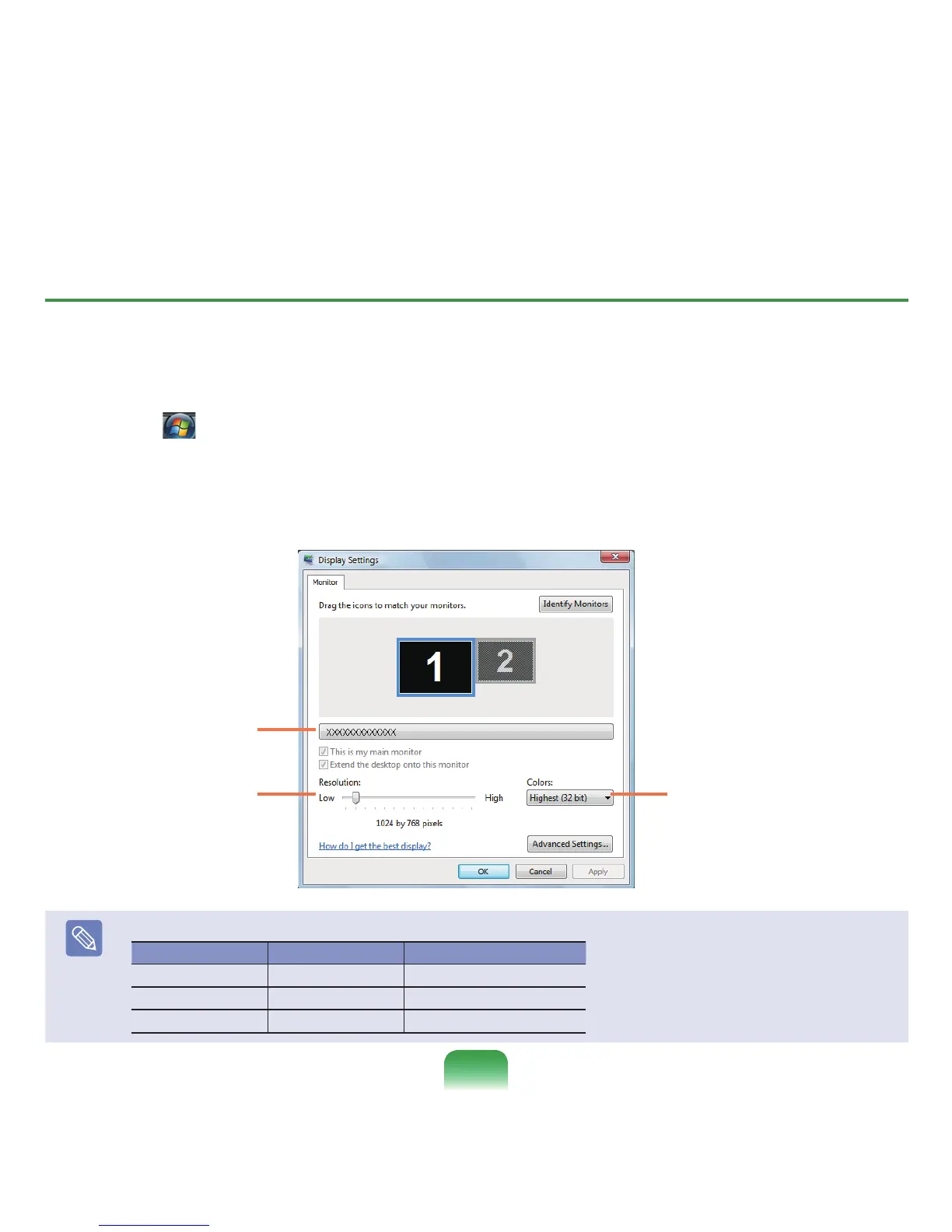
Click Start( ) > Control Panel > Appearance and Personalization > Personalization > Display Settings.
Alternatively,right-clickontheDesktopandselectPersonalization > Display Settingsfromthepop-upmenu.
2
TheDisplaySettingsscreenappears.
Change the resolution and color settings and click the OKbutton.
Tochangethecolorquality,click
thisbuttonandselectaparticular
quality.
Tochangetheresolution,
slidetheresolutionslidingbar
toaparticularresolution.
You can check the
graphicschipset.
Note
ThefollowingresolutionsandcolorqualitiesarerecommendedaccordingtothecomputerLCDpaneltype.
LCD Type Resolution Color Quality
WXGA+ 1440x900 VeryHigh(32bit)
WSXGA+ 1680x1050 VeryHigh(32bit)
WUXGA
1920x1200 VeryHigh(32bit)
86






 To Next Page