4
Select a power plan and click the OKbutton.
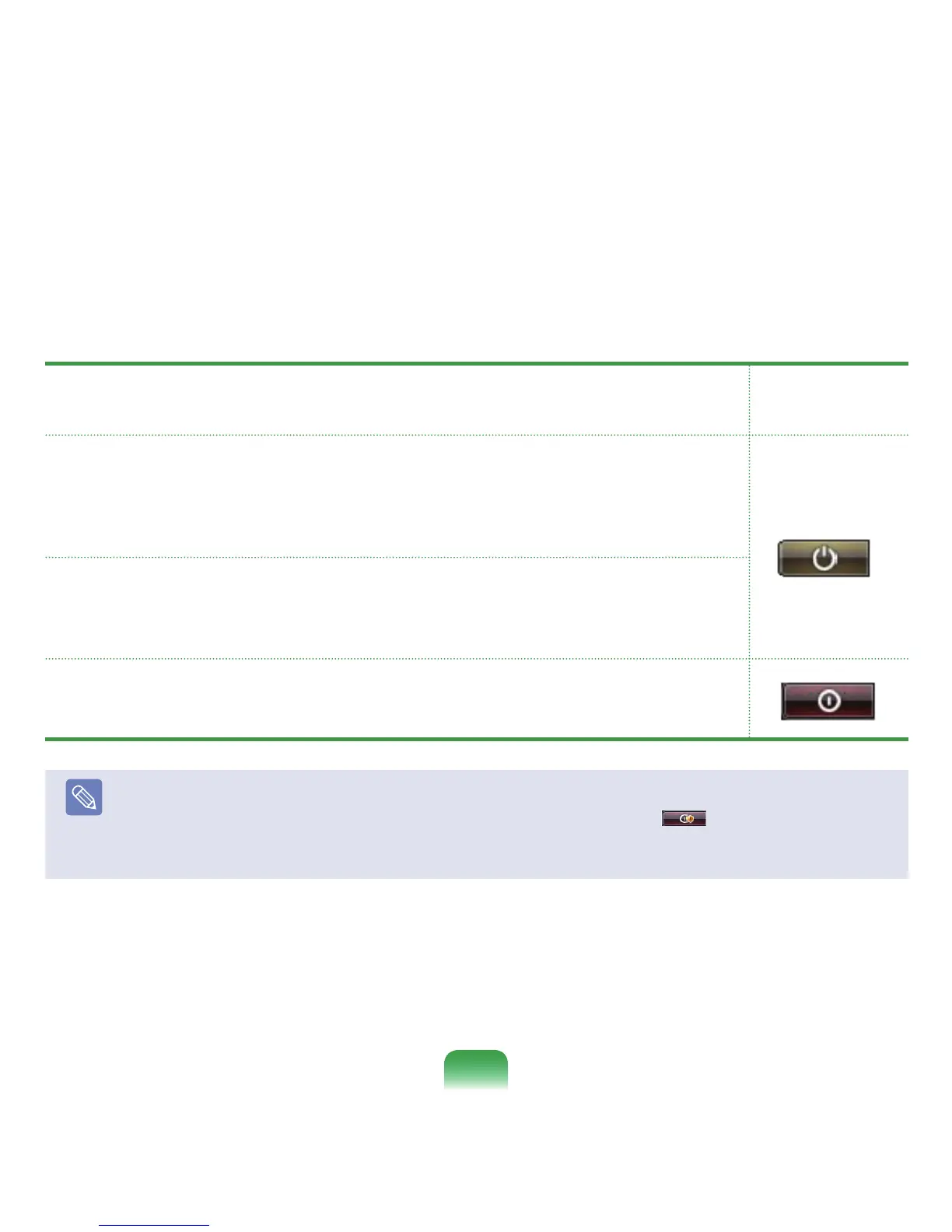
Type Description
Power Button
Image after Setting
Change
Sleep
SetsthecomputertoenterSleepmode.
Thescreenandharddiskwillbeturnedofftoreducethepowerconsumptionof
theoverallsystem.
IfyoupressthePowerbuttononthecomputer,Sleepmodeisdeactivatedand
youcanstartworkingimmediately.
Hibernate
Setsthecomputertohibernate.
Allworkisautomaticallysaved,thescreenisturnedoffandthecomputermakes
nonoise.IfyoupressthePowerbuttonofthecomputermainbody,thework
environmentisrestoredandyoucanstartworkingimmediately.
Shut down
Shutdownthecomputer.
You have to shut down the computer after closing all programs and opened
folders.
Note
■
ThePowerbuttonissettoSleepmodebydefault.
■
IfthecomputerissettodownloadWindowsupdatesautomatically,theupdatemark( )isdisplayedonthePower
buttonwhenanupdateisready.
Ifyouclickthisbutton,theupdateisinstalledandthecomputerisshutdownwhentheupdateinstallationiscomplete.
88










 To Next Page