Shooting options
69
Applying effects/Adjusting images
Available filters while capturing a photo
Icon Description
Normal: No effect
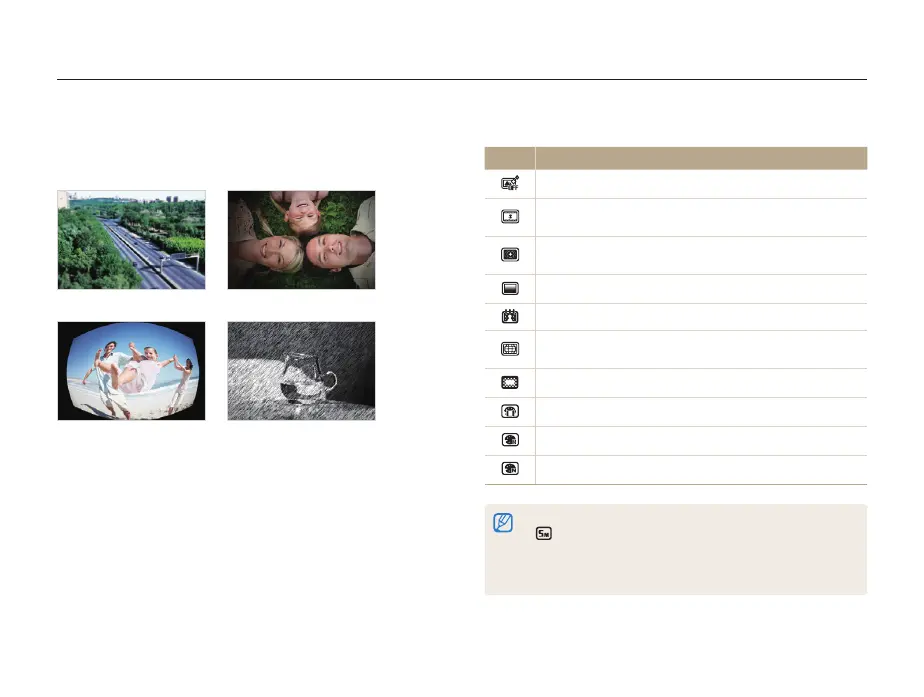
Miniature: Apply a tilt-shift effect to make the subject
appear in miniature.
Vignetting: Apply the retro-looking colors, high contrast,
and strong vignette effect of Lomo cameras.
Half Tone Dot: Apply a halftone effect.
Sketch: Apply a pen sketch effect.
Fish-eye: Blacken the edges of the frame and distort
objects to imitate the visual effect of a fisheye lens.
Defog: Make image clearer.
Classic: Apply a black and white effect.
Retro: Apply a sepia tone effect.
Negative: Apply a negative film effect.
•
Depending on the option you select, the photo size may change to
or smaller automatically.
•
If you set Smart Filter effects, you cannot use the Face Recognition
options, ACB, Burst options, Image Adjustment options, Intelli zoom,
or Tracking AF.
Applying Smart Filter effects
Apply various filter effects to your photos and videos to create
unique images.
Miniature Vignetting
Fish-eye Sketch
1
In Shooting mode, press [
m
].
2
Select
a
or
v
Smart Filter.
3
Select an effect.
pv



 To Next Page