INSTALLATION ]
Connecting a DVD Player
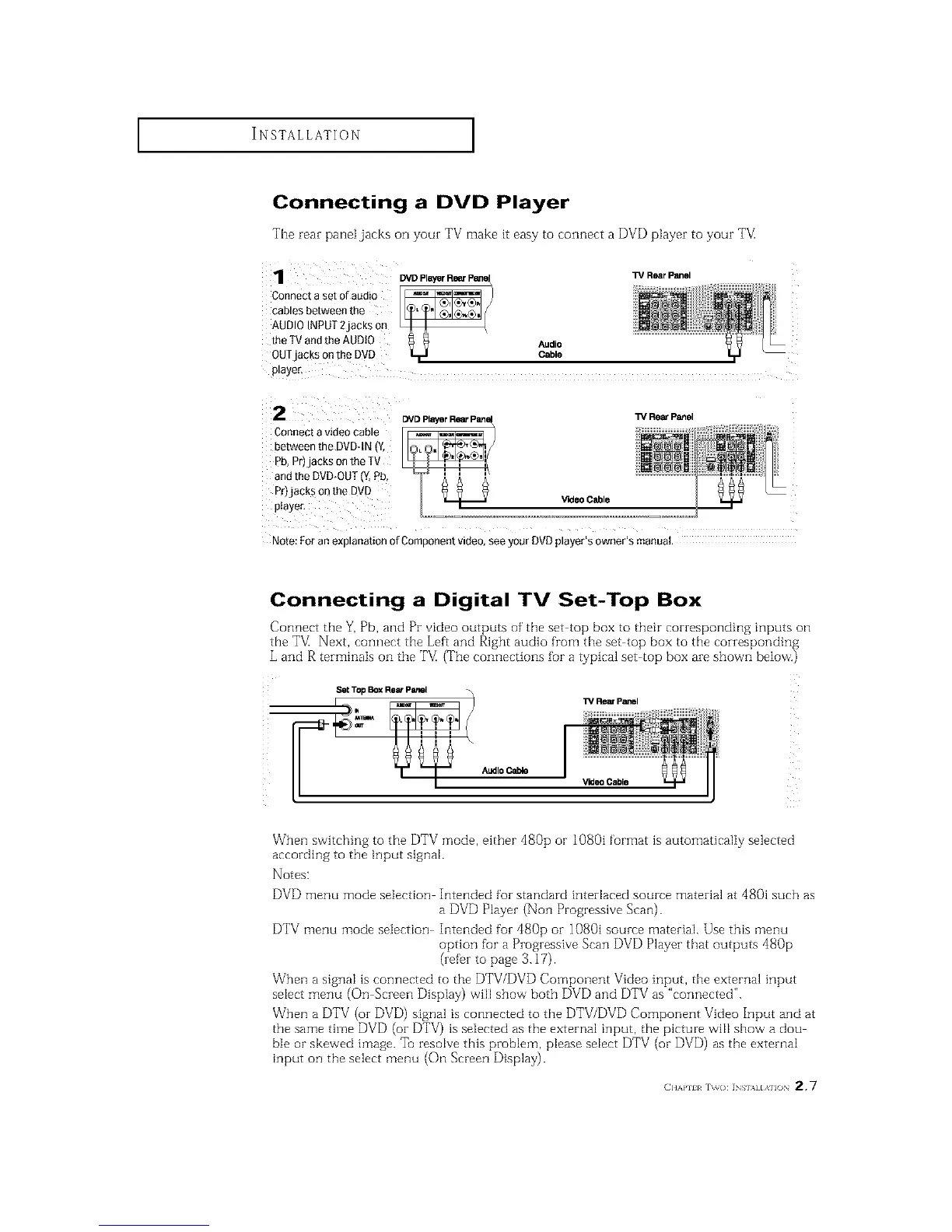
The rear paneljacks on your TV make it easy to connect a DVD player to your TM
1
Connect a set of audio
cables between the
AUDIO INPUT2 laCKSon
the TVand the AUDIO
OUTjacKs on the DVD
p_aye_
Audio
Cable
W R_rP_el
2
Connect a video cable
between the DVD-tN _v
_b, Pri acksonthe IV
and the DVD-OUT {Y.Pb
_r)jacks on the DVD
piayer,
_DPlayerRearP_
Rear Panel
V'KleoCable
Note: For an exD anation of Comoonent VlCteo,see your DVD player's owner's manual.
Connecting a Digital TV Set-Top Box
Connect the Y, Pb, and Pr video outputs of' the set top box to their corresponding inputs on
the TV_ Next, connect the Left and Right audio from the set top box to the corresponding
L and R terminaIs on the TM (The connections for a typical set top box are shown below.)
Set Top Box Rear Panel
AudioCable
TV Rear Panel
_rldeo Cable
When switching to the DTV mode, either dg0p or 1080i format is automatically selected
according to the input signal.
Notes:
DVD menu mode selection Intended for standard interlaced source material at 480i such as
a DVD Player (Non Progressive Scan).
DTV menu mode selection Intended for 480p or 1080i source material. Use this menu
option fur a Progressive Scan DVD Player that outputs 480p
(refer to page 3.17).
When a signal is connected to the DTV/DVD Component Video input, the external input
select menu (On Screen Display) will show both DVD and DTV as "connected".
When a DTV (or DVD) signal is connected to the DTV/DVD Component Video Input and at
the same time DVD (or DTV) is selected as the external input, the picture will show a dou
ble or skewed image. Tel resolve this problem, please select DTV (or DVD) as the external
input on the select menu (On Screen Display).
(]]]'kPlll r\_o: INs],,][,\]lO 2,7



 To Next Page