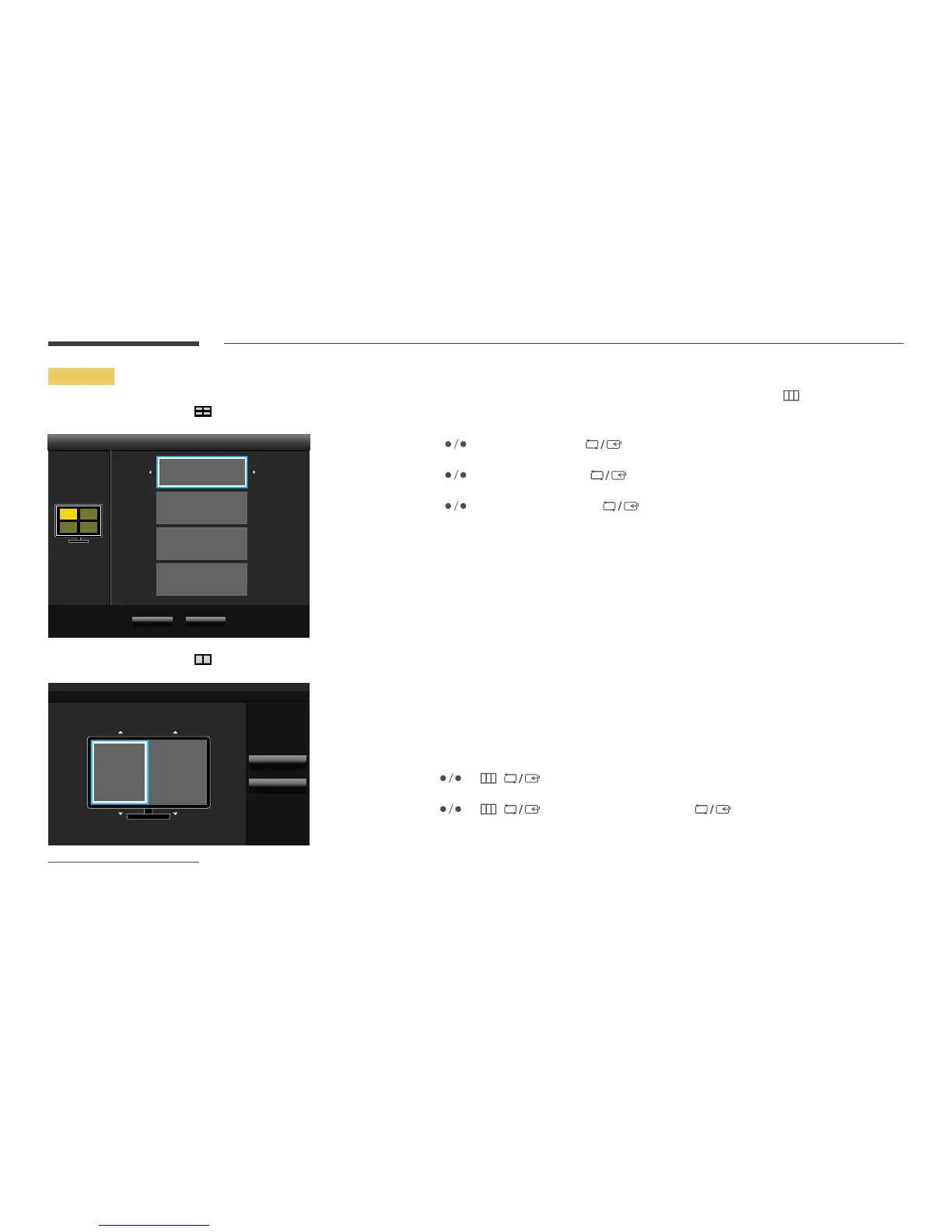
Image Size
Wide
Wide
Wide
Wide
Apply Cancel
(available in PBP mode(Size ))
Image Size
Apply
Wide
Wide
Cancel
-
The displayed image may differ depending on the model.
Set the Image Size for each of the divided screens.
1
Press any button on the front of the product to display the Function Key Guide. Next, press to display the
corresponding menu screen.
2
Press to move to Screen and press on the product.
3
Press to move to PIP/PBP and press on the product.
4
Press to move to Image Size and press on the product.
In PC mode
•
Auto: Display the picture according to the aspect ratio of the each screen input source.
•
Wide: Display the picture in full screen regardless of the aspect ratio of the each screen input source.
In AV mode
•
4:3: Display the picture of the sub-screen with an aspect ratio of 4:3. Suitable for videos and standard broadcasts.
•
16:9: Display the picture of the sub-screen with an aspect ratio of 16:9.
•
Screen Fit: Display the picture of the sub-screen with the original aspect ratio without cutting anything off.
―
The function may not be supported depending on the ports provided with the product.
―
Changing the screen size is available when the following conditions are satisfied.
-
A digital output device is connected using the DVI/HDMI/DP cable.
-
The input signal is 480p, 576p, 720p, or 1080p and monitor can display normally (Not every model can support all of
these signals.).
-
This can only be set when the external input is connected through DVI/HDMI/DP and PC/AV Mode is set to AV.
5
Use and / to specify the Image Size for each of the divided screens.
6
Use and / to move the focus to Apply and press .
7
The selected option will be applied.



 To Next Page