29
Setting the picture size
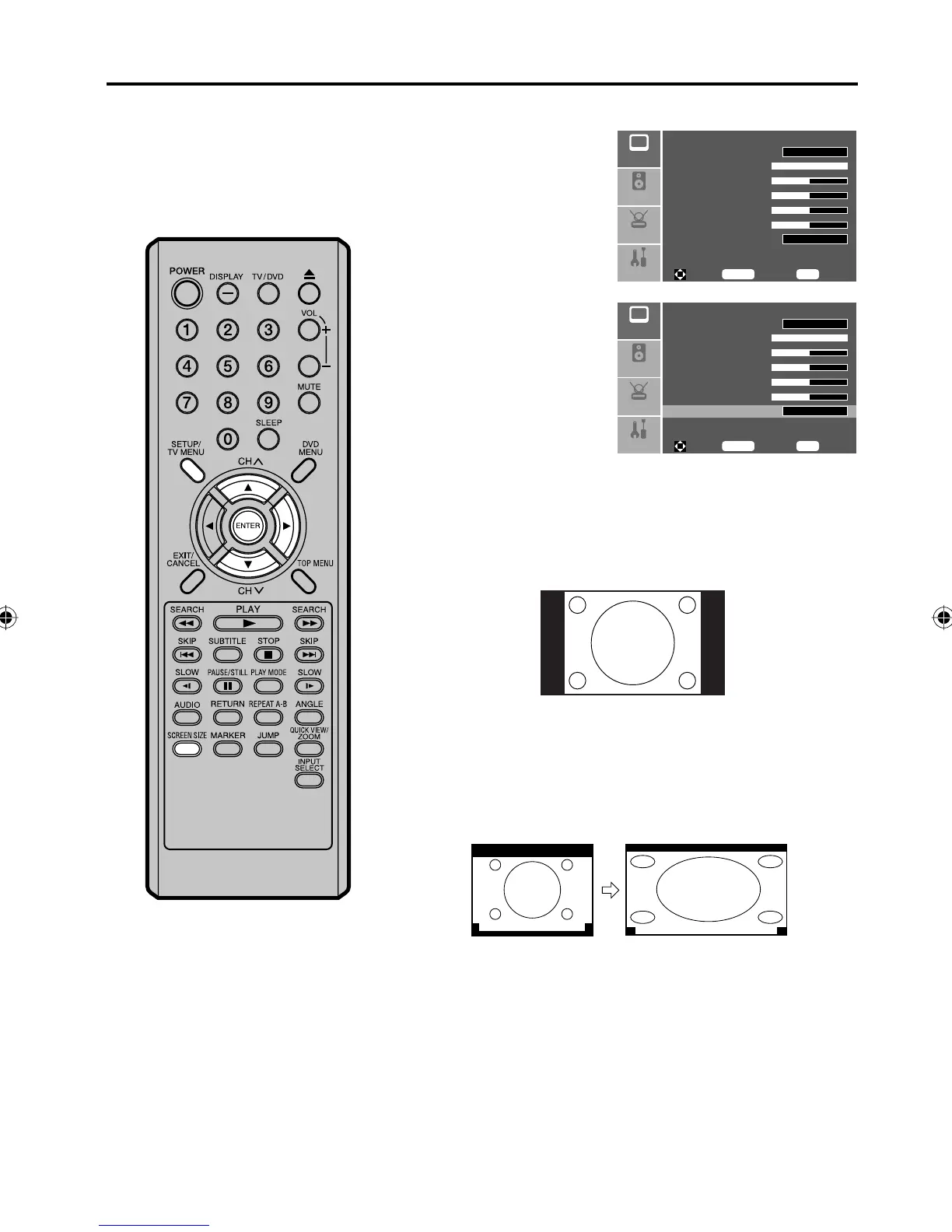
Selecting the picture size
1
Press SETUP/TV MENU
in the TV mode.
Press ▲ or ▼ to select
“Picture” menu, then
press ▶.
Picture Mode
Contrast 100
Brightness 50
Sharpness 50
Color 50
Tint 50
Picture Size
Setup
Audio
Feature
Wide
Vivid
Picture
To M ove
To S el ec t
To E xi t
Enter
Menu
2
Press ▲ or ▼ to select
“Picture Size”, then press
▶ or ENTER to select the
desired picture size, as
described below and on
the next page.
Picture Mode
Contrast 100
Brightness 50
Sharpness 50
Color 50
Tint 50
Picture Size
Setup
Audio
Feature
Wide
Vivid
Picture
To M ove
To S el ec t
To E xi t
Enter
Menu
3
Press SETUP/TV MENU to return to the normal screen.
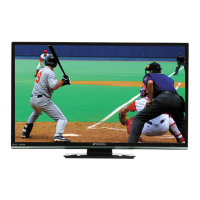
Normal picture size
In some cases, this image will display the size of standard 4:3 with
a black side bar.
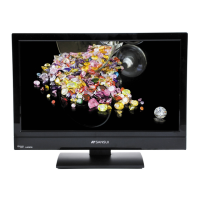
Zoom picture size (for letter box programs with
subtitles)
To fill the width of the screen, it is extended horizontally. However; it
is only slightly extended at the top and the bottom.
The top and bottom edges of the picture may be hidden.
A B C D E F G - - - - - - - - - - - - - - - -
A B C D E F G - - - - - - - - - - - - - - - - - - - - - - - - - -
You can view 480i and 480p format
programs in a variety of picture
sizes— Normal, Zoom, Wide and
Cinema.
NOTE:
You can also set the picture size
by pressing SCREEN SIZE on the
remote control.
Some High Definition and/or Digital
broadcasts may not allow you to
change the picture size.
•
•
5Z90101A.indd 295Z90101A.indd 29 07.9.3 3:48:43 PM07.9.3 3:48:43 PM



 To Next Page