Section Two
22
www.Satloc.com Falcon User Manual, Rev A
ere are three
buttons across
the top labeled
‘Blank’ and have
dropdown menus.
Select one of
the dropdown
buttons to select
a setting/function
that you want displayed. ese settings/functions will appear across the top of map screen (le, center, right).
Choose the desired function/setting that you want to appear on the top dislplay.
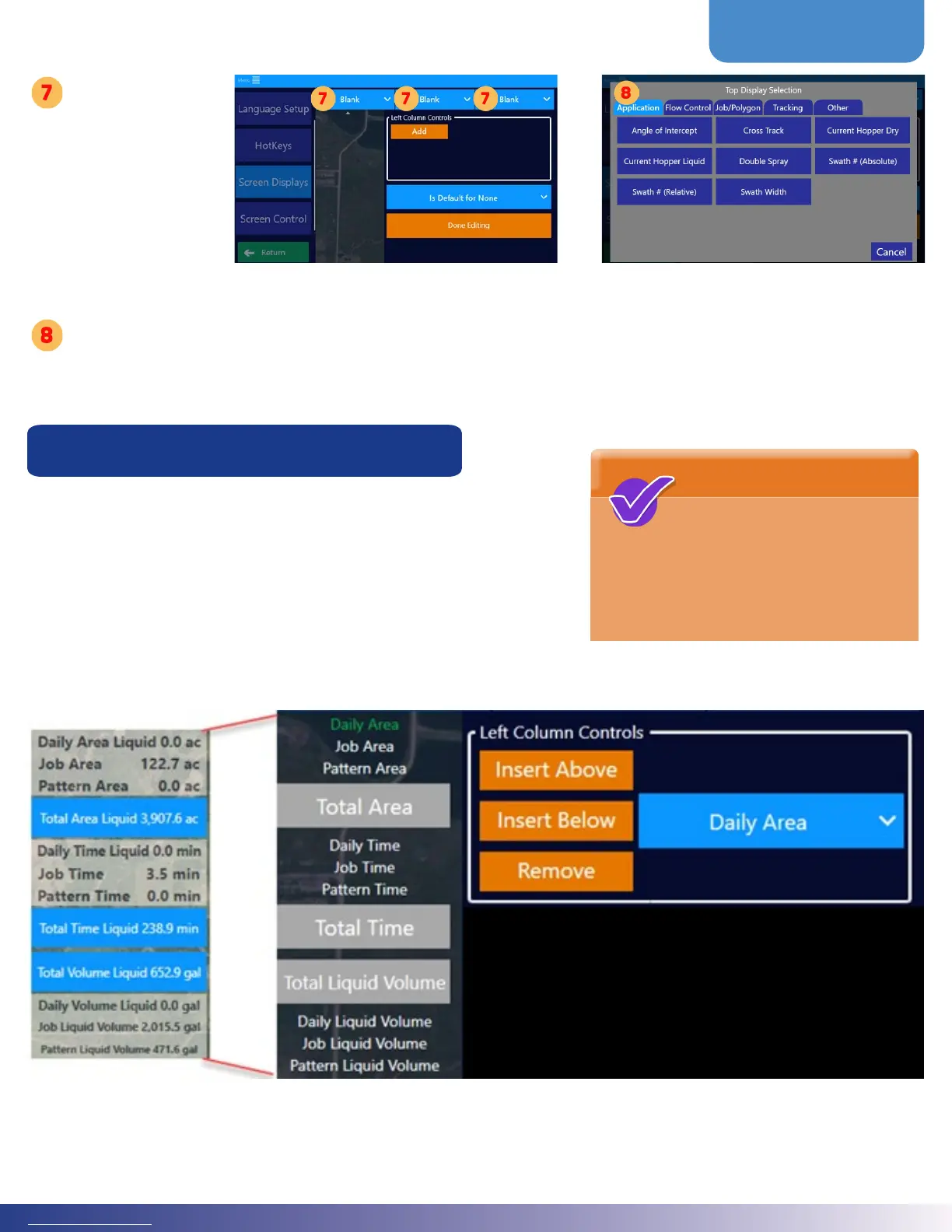
Le Display Customization
As explained earlier, at the le of the Moving Map Screen is a collapsible
panel that contains user-selected information and buttons. is is editable
from the screen display and is part of the areas automatically updated when
Guidance Modes change.
e image below shows what will appear on the Moving Map Screen based
upon what Le Display functions/settings were chosen. Notice how the
image on the le shows some functions as simple text while others are have
a blue button. Selections that are buttons typically allow the user to make quick edits to that information.
Appendix B lists the
functions and the
denitions of what can
be displayed on the top and le
displays.
NOTE



 To Next Page