Saia-Burgess Controls AG
User Manual Standby System │ Document 27-645 │ Edition ENG 02 │ 2017-04-26
Programming
Diagnostic
2-27
2
-
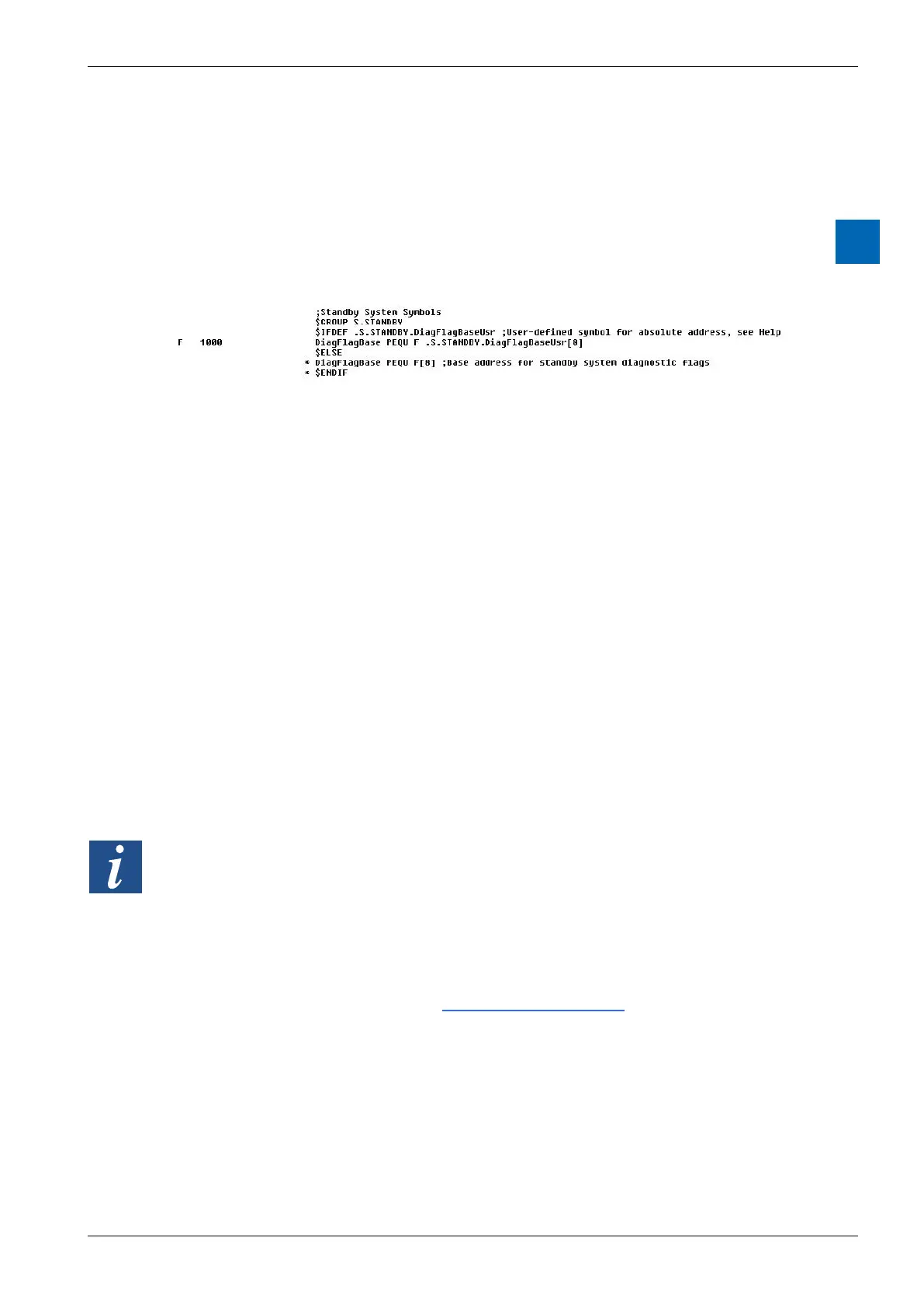
This works because the code that creates the symbols uses $IFDEF conditional
S.STANDBY.DiagRegBaseUsr then it will use these symbol values instead of dy-
2.6.5 Download Programs to Standby System dialog box
A standby system project consists of two PCD3.M6880 devices (the Primary and
the Secondary devices), and each of these devices contains two CPUs. This
means that programs must be downloaded into four separate CPUs. To make this
easier, all four programs can be downloaded in a single step by using the “Down-
load Programs to Standby System” dialog box.
This dialog box is shown when the “Download Program” command is done for any
of the standby system’s devices: the Primary, Secondary or the Redundant device.
The dialog box shows the four CPUs: the Primary CPUs 0 and 1, and the Second-
ary CPUs 0 and 1. The Primary and Secondary CPU 1 runs the redundant pro-
gram, which is the same on both devices. The Primary and Secondary CPU 0 may
For each CPU, the CPU Status (Run, Stop, Halt etc), the Build Status (Build OK,
Build required), and the Program Status of the program already in the CPU (Pro-
texts are shown in red. The Program Info... button can be pressed to see more
details of the Program Status.
Tip: The list of error messages and their meanings can be found at the end of this page.
The line below the Program Status shows any other errors that were detected,
program names are compared. An error message shown here indicates that the
), or that you may be
connected to the wrong PCD.
For advanced uses, there is a checkbox for each CPU so you can prevent the
download if the program is already the same of if you want to test the behaviour
You will not be able to download a program if certain errors are present, such as
“Build required”.


 To Next Page