EasyManua.ls Logo

Sceptre E165 - User Manual

Sceptre E165
67 pages
Print Icon
To Next Page IconTo Next Page
Loading...
- 1 -
www.SCEPTRE.com
SCEPTRE E165 HD Display User Manual
Dear Sceptre Customer,
Congratulations on your new SCEPTRE E165 HD display purchase. Thank
you for your support. To ensure safety and many years of trouble free
operation of your display, please read the manual carefully before making any
adjustments, and keep them in a safe place for future references. We hope
you enjoy your new SCEPTRE HD display.
For technical assistance, please call 1800-788-2878 and select option 3 or
email our tech support group at SceptreTS@sceptre.com.
For all other inquiries, please call 1800-788-2878 and select option 4 or
email our customer service group at SceptreCS@sceptre.com.
Live Chat also available during business hours M-F 8:30AM-5:30PM.
We recommend you register your SCEPTRE HD display at our online website
http://www.sceptre.com/registration.html
This HD display is MHL® ready under HDMI 2 / MHL.
This display does NOT have QAM support. For digital cable, you’ll need
a cable box.
This display may or may not come with the optional TV tuner. Please
consult your retailer or our customer service for further information.

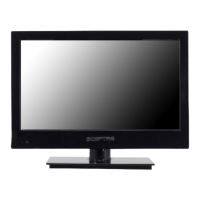
Table of Contents

Questions and Answers

  • F
    Felicia KnightSep 9, 2025
    Why is the picture on my Sceptre E165 distorted?
    • N
      Nathaniel LeonSep 9, 2025
      If the picture on your Sceptre monitor is distorted or has abnormal sound, this might be due to interference from large electrical appliances, cars, motorcycles, or fluorescent lights. If the display is close to the wall, try moving it to another room to see if the problem persists.
  • K
    kingernestSep 7, 2025
    Why does my Sceptre E165 Monitor turn on slowly?
    • M
      Margaret RamosSep 8, 2025
      If your Sceptre monitor turns on or off slowly and the screen appears gradually, this is normal. This display is a High Definition liquid crystal display panel, which requires a few more seconds than normal displays to power up and show the picture.
  • A
    Amanda CampbellAug 22, 2025
    Why does my Sceptre Monitor have no picture?
    • D
      Deborah McdanielAug 22, 2025
      If your Sceptre monitor displays no picture, ensure the power cord is correctly connected and the power is turned on. Also, verify that the video cable is properly connected. Select the appropriate input signal source using the source button to match your cable connection.
  • K
    kellyamberSep 5, 2025
    What to do if Sceptre E165 has audio only no picture?
    • B
      brittany28Sep 5, 2025
      If your Sceptre monitor is producing audio but no picture, make sure you have connected both your video and audio cables. Also, verify that the TV’s tuner signal is not lower than 65%.
  • J
    Jessica JonesSep 4, 2025
    What to do if Sceptre E165 has no color?
    • M
      Michelle BrownSep 4, 2025
      If your Sceptre monitor is displaying no color, adjust your picture setup and ensure that the saturation and RGB settings are not turned all the way down. Also, make sure the TV’s tuner signal is not lower than 65%; check your signal strength.
  • D
    David SmallSep 2, 2025
    How to get more channels on my Sceptre E165 Monitor?
    • A
      Anita EllisSep 3, 2025
      If you cannot receive sufficient channels through the ATSC/NTSC tuner on your Sceptre monitor, ensure that the TV’s tuner signal is not lower than 65%. Try changing the direction of your antenna and rescanning the channels. If you have cable, contact your cable company to inquire about the signal strength of your local cable.
  • S
    stoutsarahSep 1, 2025
    What to do if my Sceptre E165 Monitor has abnormal colors?
    • K
      karenhullSep 1, 2025
      If your Sceptre monitor is displaying abnormal colors, ensure that the colors on the cables match the ports on the back of the television, for example, connect the red cable to the red colored port.
  • P
    Phyllis StewartAug 31, 2025
    Why is the remote control not working on my Sceptre Monitor?
    • C
      carlosmarksAug 31, 2025
      If the remote control for your Sceptre monitor isn't working, turn off the display and unplug it from the socket. Remove the batteries from the remote for 30 seconds, then press the remote buttons and the power button randomly for about 2 seconds before reinstalling the batteries. Ensure there is a clear line of sight between the remote control's front sensor and the display's remote sensor, which is located in the same place as the power indicator light.
  • J
    Jesse PruittAug 30, 2025
    Why can't I get 1360x768 resolution on PC VGA with my Sceptre E165?
    • M
      Monica JonesAug 30, 2025
      If you cannot get 1360x768 resolution on PC VGA with your Sceptre monitor, ensure the display is recognized as a plug and play monitor. Try updating your video card’s drivers. If that does not help, you may need to upgrade your video card to a newer one.
  • J
    Joshua SmithAug 28, 2025
    Why does my Sceptre HDCP video have no audio?
    • M
      Michael MartinAug 29, 2025
      If your HDCP video has no audio on your Sceptre monitor, ensure you have a 3.5 mm mini-jack cable connected from your HDCP video device’s sound output to the display’s VGA STEREO INPUT. If your HDCP video device uses RCA AUDIO jacks, you’ll need to obtain an RCA audio converted into a 3.5 mm mini-jack cable.

Summary

Important Information and Safety

Safety Instructions

Essential guidelines for safe installation, operation, and maintenance of the display.

Important Information (Optional)

Details on antenna connection protection, lightning, and power line safety.

Product Setup and Installation

Opening the Package

Instructions for unpacking the display and listing included accessories.

Installation

Guidance on proper placement, ventilation, and mounting of the display.

Display Overview and Controls

Identifying Front and Rear Panel

Locating and understanding the display's indicator light, sensor, and mounting pattern.

Side Control Buttons

Explanation of buttons located on the display's side panel for operation.

Rear View Connections

Details on various ports for connecting external devices like video and audio.

Remote Control and Device Connections

SCEPTRE Remote Control

Overview and functions of the SCEPTRE remote controls.

Connecting External Devices

Guidance on connecting various devices like antennas, DVD players, PCs, and consoles.

Display Operation and Settings

Switching Sources

How to select and cycle through different input sources.

OSD Controls and Options

Using OSD menus with remote and side buttons for adjustments.

Advanced Features and Explanations

USB Connection Explained

How to connect USB flash drives for media playback and updates.

DVD OPERATION

Guidelines for handling discs and operating the DVD player.

MHL Explained

How to connect mobile devices for display and charging via MHL.

Troubleshooting, Support, and Specifications

Cleaning the Display

Instructions for cleaning the display screen and remote.

Troubleshooting

Common problems and their solutions for display issues.

Specifications and Warranty

Technical specifications, warranty details, and contact information.

Sceptre E165 Specifications

General IconGeneral
Screen Size15.6 inches
Resolution1366 x 768
Panel TypeTN
Aspect Ratio16:9
Contrast Ratio500:1
Built-in SpeakersYes
Brightness200 cd/m2
PortsHDMI, VGA
Viewing Angle90° horizontal, 65° vertical
Input ConnectorsVGA, HDMI

Related product manuals