QUICK START GUIDE
SEAWARD PG 13
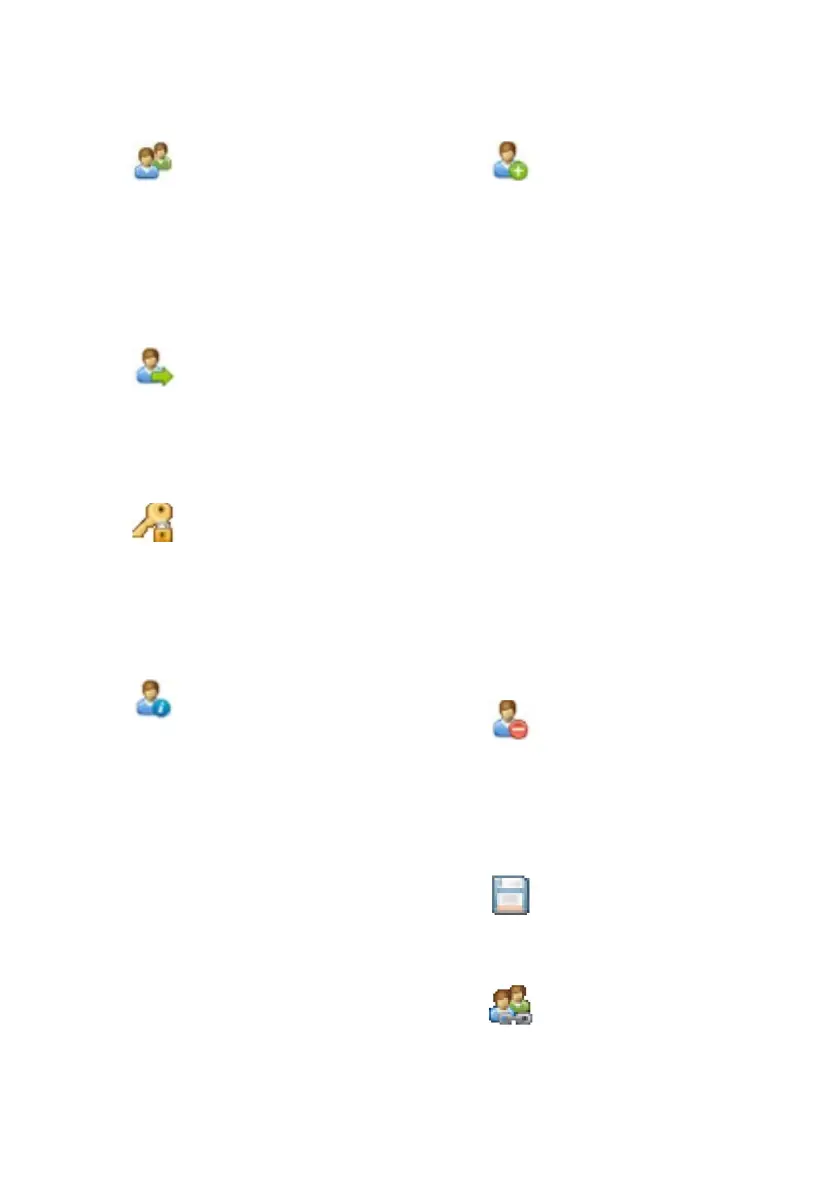
By selecting Users (2), in the
Main Menu, you can setup new,
edit and delete user accounts.
Users can alter their own screen
power save time, auto power
down, background image; avatar
and power on screen.
Use this button (F2) to Select a
new user. Select the User name,
from the dropdown and enter
the correct Password to change
the current user of the tester.
Use this button (F2 in the Select
a new user window) to Change
Password for:- the current user.
Enter the Existing Password,
enter a New Password and then
Confirm New Password.
This User Privileges menu (F3)
allows users to view their current
privileges. If they have Edit users
rights they will also be able to
edit their own and other users
privileges by selecting the
user they wish to edit from the
dropdown.
This is the New User button
(F1 in User Privileges menu).
A New User can be setup
by adding a Username and
Password and selecting Save
(F3). The New User can then
be selected in the Username
field of the User Privileges
screen. Select the Type of user
(Expert or Novice), privileges
can be setup by using the Enter
Key to check or uncheck, if a
privilege is checked, the user
has access to that feature or
function. To block a feature or
function, for example adjusting
the Time/Date, uncheck that
function before saving (F3).
Note: that items not selected
or left unchecked (for example
adjusting the Time/Date) will be
greyed out in certain menus of
the instrument.
This is the Delete User button.
It will delete whichever User
is currently selected in the
Username dropdown. Note:
that the admin user cannot be
deleted.
Press this button to Save
changes and return to the
previous screen.
This is the Copy User function.
This will copy the settings and
preferences of the current user
to a new user account.
MAIN MENU WINDOW USER SETUP


 To Next Page