27 [en] Manual
How to Reset Parameters to their Default Values
You can reset the Fiscal Server to its default values, e.g. if you want to install the
Fiscal Server in a different network. All settings will be set to factory settings.
Installed certificates will not be deleted.
Resetting Parameters from the EPS TSE Server Control Center
1. Start the EPS TSE Server Control Center.
2. Select MAINTENANCE – Default settings.
A security query appears.
3. Confirm the security query.
The parameters are reset.
Resetting Parameters from the SEH Product Manager
You can use the SEH Product Manager to reset one or more Fiscal Servers.
The SEH Product Manager is installed on the client 9.
The device is shown in the device list 9.
1. Start the SEH Product Manager.
The device list is displayed.
2. Select the Fiscal Server(s) in the device list.
3. In the menu bar, select Device – Reset.
The Reset dialog appears.
4. Click Reset.
The parameters are reset.
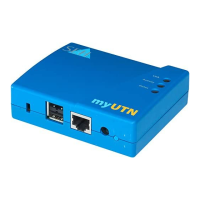
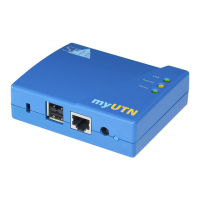
Resetting Parameters using the Reset Button
The reset button allows you to reset the Fiscal Server parameter values to their
default settings.
1. Press the reset button for 5 seconds.
2. The Fiscal Server will restart.
The parameters are reset.
How to Find Errors (Log File)
You can save log files to your local client for troubleshooting purposes. In case
of a support request (
29) you can supply the file to get faster and better
results.
1. Start the EPS TSE Server Control Center.
2. Select the MAINTENANCE – Debug menu item.
3. Click Save.
Important:
The connection to the EPS TSE Server Control Center my
be interrupted if the IP address of the Fiscal Server
changes with the reset.
If required, determine the new IP address
9.


 To Next Page