Manual [en] 16
2. Select SETTINGS – Users.
3. In the Users table, click the cross icon for the user.
A security query appears.
4. Confirm the security query.
The user has been deleted.
Logging Off
You are logged in as a user.
1. Select the Logout menu item.
You have been signed out.
How to View Information on the Connected TSE Modules
A TSE module is connected to the Fiscal Server.
1. Start the EPS TSE Server Control Center.
2. Select the TSE MODULE menu item.
A table with information on the connected TSE modules is displayed.
Click the Details button to view detailed information on the TSE
module.
How to Identify TSE Modules
You can use the identification function to find out which TSE module displayed
in the EPS TSE Server Control Center is physically connected to which USB port
of the Fiscal Server.
A TSE module is connected to the Fiscal Server.
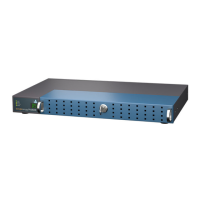
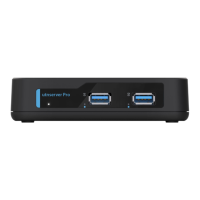
You can see the Fiscal Server.
1. Start the EPS TSE Server Control Center.
2. Select the TSE MODULE menu item.
A table with information on the connected TSE modules is displayed.
3. Click the Identify button for one of the displayed TSE modules.
The USB port to which the TSE module is connected flashes (
5).
How to Remove a Connected TSE Module
A TSE module is connected to the Fiscal Server.
1. Start the EPS TSE Server Control Center.
WARNING
Data loss!
There is a risk of data loss if you remove a TSE module
from the Fiscal Server directly.
Eject the TSE module before you physically remove it
from the Fiscal Server.


 To Next Page