SHANLING M0 PRO – ADVANCED USER MANUAL
Page 11
Now playing screen and playback controls
NOW PLAYING SCREEN
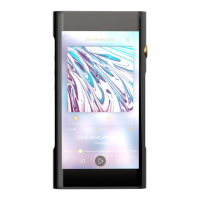
“Now Playing screen” standardly displays cover art of currently playing file. If file has no cover
art available, random cover art will be displayed instead.
To go back to My Music submenu or Folders Submenu browsing, swipe right.
To view playback controls, click anywhere on the “Now Playing Screen”.
PLAYBACK CONTROLS AND LYRICS ON NOW PLAYING SCREEN
Playback Controls are divided into three separate screens, you can circle between them with left
and right swipes. Three dots at bottom of Playback Controls shows which screen is currently
displayed.
Playback controls 1
First screen of Playback controls displays song title and artist.
Underneath is button enabling A/B repeated playback.
On progress bar, current position of played file is shown, alongside elapsed time and total
length of file. By touching or dragging, you can quickly change position of playback.
Three icons serve for “Previous song”, ”Play/Pause” and “Next song”.
Note: “Previous song”, if more than 10 seconds of audio file was played, clicking this icon will
restart the playback of the current song. Press again within first 10 second of song to start
playback of previous song.
Playback controls 2
Second screen of Playback controls includes 6 icons and file progress bar.
“Plus” icon can be used to add currently playing file into Playlists.
“i” icon will display detailed information about currently playing file. To close these details,
swipe right.
Third icon serves as shortcut into Playback submenu.
In left bottom corner is “Play mode” icon. By clicking on this icon, you can circle between
different play modes, which includes “List Play”, “Repeat track”, “Shuffle” and “Repeat all”.
This setting can be also changed in Playback Submenu, in Play Mode.
Right bottom corner hosts “heart” icon. By clicking this icon, you will add current playing song
into “My Favorites” playlist, which is located in ”My Music” submenu. To indicate this action,
heart icon will change its color to red.



 To Next Page