CONNECTING THE SHARKCLEAN APP AND ROBOT
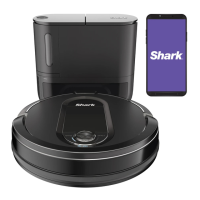
Search SharkClean in the app store
and download to get started.
STEP 1
Create An Account
STEP 2
Activate Robot Wi-Fi
STEP 3
Select Robot (Apple iOS Only)
• Open the SharkClean app
and set up your account.
• Hold down Dock and Clean
buttons simultaneously until
your Shark prompts you
with audio, and Wi-Fi light
(
) on robot blinks.
• Exit the app and open
Wi-Fi settings.
• Select your robot (Ex. Shark_
RVXXX) from the menu.
• Exit settings and return to
the SharkClean app.
STEP 4
Connect To Home Wi-Fi
STEP 5
Success!
WI-FI TROUBLESHOOTING
• If you have multiple Wi-Fi
networks, select the
2.4 GHz network.
• When pairing is complete, the
Success screen will appear.
• To use the app, your phone
must be connected to a 2.4 GHz
network. The app will not
work on a 5 GHz network.
• DO NOT use a VPN or a proxy server.
• Make sure Wi-Fi isolation is
turned o on the router.
• If you still can’t connect, restart your
phone, reboot your robot, and reboot
your router. Having trouble connecting
to your robot? visit sharkclean.eu.
INTERACTIVE MAP
It will take your robot multiple runs to
generate your interactive map, so run it
frequently to get the best map.
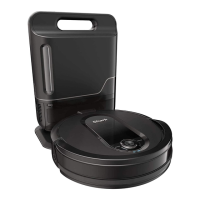
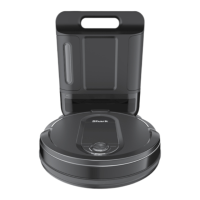
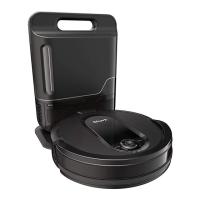
GETTING TO KNOW YOUR SHARK IQ ROBOT SELF-EMPTY®
!
Clean Button
Front Bumper
Battery Indicator Light
Error Indicator Light Wi-Fi Indicator Light
Docking Sensor
Cli and Boundary Sensors
Charging Contact
Vision
Module
Side Brush
Battery Door
Anti Hair Wrap
Brush-roll
Drive Wheel
Robot Dustbin
and Filter
Brush-roll Door
Front Caster
Wheel
Dock Button
Navigation
Module
Power Switch
Debris Discharge
Opening
Dustbin
Release Tabs
ENGLISH



 To Next Page