1.6m
1m
1m
Clean Dock
!
Botboundary strips
PLUG IN THE BASE
STEP 5
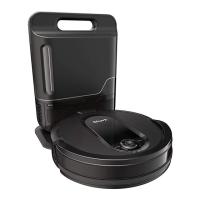
Find a permanent location for the base. Place it with
its back against a wall, in an area with a good Wi-Fi
signal. Remove any objects that are closer than 3 ft.
from either side of the base, or closer than 5 ft. from
the front. For best results, set up base on bare floor,
or on the SharkMat. Not included.
SET UP THE BASE
STEP 4
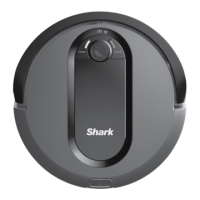
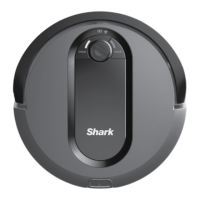
PREP THE ROBOT
STEP 3
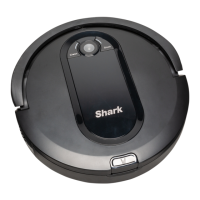
• Remove protective film from robot and base.
• Attach the side brushes to the posts on the bottom
of the robot. The side brushes are located in the red
packaging.
• Turn on the power by pressing the button on the side
of the robot to the (I) ON position.
• Plug the base power cord into an electrical outlet.
• Turn the power switch on the back of the base to
the (I) ON position.
• The green power indicator light
on the base will
illuminate when the base has power.
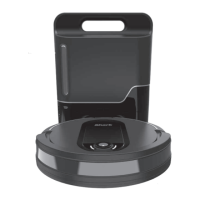
• To charge, place robot with its BACK side against base.
• Turn power switches on BOTH robot and base to (I) ON
position.
• When charging begins, robot will beep and
BLUE charging indicator light
on base will PULSE.
When robot is fully charged, light
will turn SOLID blue.
NOTE: Every time the robot returns to the base, it will make a loud noise as it
empties debris. This is normal and no cause for concern.
Clear cords and remove small objects like toys,
clothing, or drapes from floors. Open interior doors in
rooms you want your robot to clean. For best results,
run your robot in well-lit conditions.
CHARGE THE ROBOT
PREP YOUR HOME SET UP FOR SUCCESS
STEP 6
STEP 1 STEP 2
First
Charge
6h
SETUP
OPTIMISING YOUR HOME FOR CLEANING
Use the BotBoundary strip included in the box to
keep your robot out of the areas you would like it to
avoid:
• Near power cords or phone chargers
• In front of thresholds higher than an inch
SharkMat
(for use on carpet)
Side Brushes
INDICATORPOWER
Clean Dock
!
As your robot learns your home, you may need to make some small adjustments to optimize performance.
WHAT TO EXPECT
AVOID MOVING THE ROBOT OR BASE CHECK BASE FILL LEVEL
While your robot is cleaning, DO NOT pick it up and
move it, or move the charging base—this will impact
the robot’s ability to map your home.
During the first few weeks, your robot will empty
more debris than usual. Check the fill level regularly.
The dustbin is designed to hold up to 1 month/31 days
worth of debris, but home environments vary, and the
bin may fill up quicker in some homes.
LIGHTING CONDITIONS
DOORWAYS AND THRESHOLDS
For best results, run your robot in well-lit conditions. If
you run your robot at night, keep the lights on in the
areas to be cleaned.
Your robot can easily climb over most thresholds,
but if one is higher than an inch, block it o with a
Botboundary strip.
Questions?
For how-to videos, FAQs, troubleshooting, and tips &
tricks visit: sharkclean.eu
CAN’T CONNECT TO WI-FI?
Restart your phone
• Turn o phone, wait a few minutes, then turn it
back on and connect to Wi-Fi.
Reboot your robot
• Make sure the power switch on the back of the
BASE is in the ON position.
• Press the power button on the side of the ROBOT
to the OFF position for 10 seconds. Press it again
to turn power back ON.
Reboot your router
• Unplug the router power cable for 30 seconds,
then plug it back in. Allow several minutes for
your router to reboot completely.
Search “SharkClean” in the app store to download
the app.
DOWNLOAD THE SHARKCLEAN APP
STEP 7
SharkClean
App Features
✔ Build an interactive map
of your home.
✔ Select specific rooms
to clean from the
interactive map.
✔ Control your robot from
anywhere.
• To use the app, your phone must be
connected to a 2.4 GHz network. The app
will not work on a 5 GHz network.
• DO NOT use a VPN or a proxy server.
• DO NOT use Wi-Fi repeaters to connect your robot
DO NOT use Wi-Fi repeaters to connect your robot..
ENGLISH



 To Next Page