GB
78
Preparing to Use DVD
/
PLAY
STOP
OPEN/
CLOSE
OPERATE
VCR/DVD
SELECTOR
VCR MENU
DVD SETUP
TAPE
SPEED
ON
SCREEN
TIMER
ON/OFF
TITLE
DVD MENU
DISPLAY
EJECT
FUNCTION
CONTROL
PROG/
REPEAT
CLEAR
RETURN
REV FWD
SET
ENTER
ZERO BACK
SKIP SEARCH
VCR DVDAM/PM
INPUT SELECT
PAUSE/STILL
REC
VCR/DVD COMBINATION
SLOW
CH
VCR DVD
SKIP
DPSS
AUDIO
OUTPUT
ANGLE
PROG
DV- NC70
DV- NC70X
G-CODE
DV- NC70W
OPERATE
PLAY/×2
AV 2 IN
VIDEO
L
(
MONO
)
-
AUDIO
-
R
REC
CH
VCR/DVD
SELECTOR
/
EJECT/STOP
REW
TIMER
VCR
DVD
PLAY STOP
OPEN/CLOSE
OPERATE
VCR/DVD
SELECTOR
VCR/DVD
SELECTOR
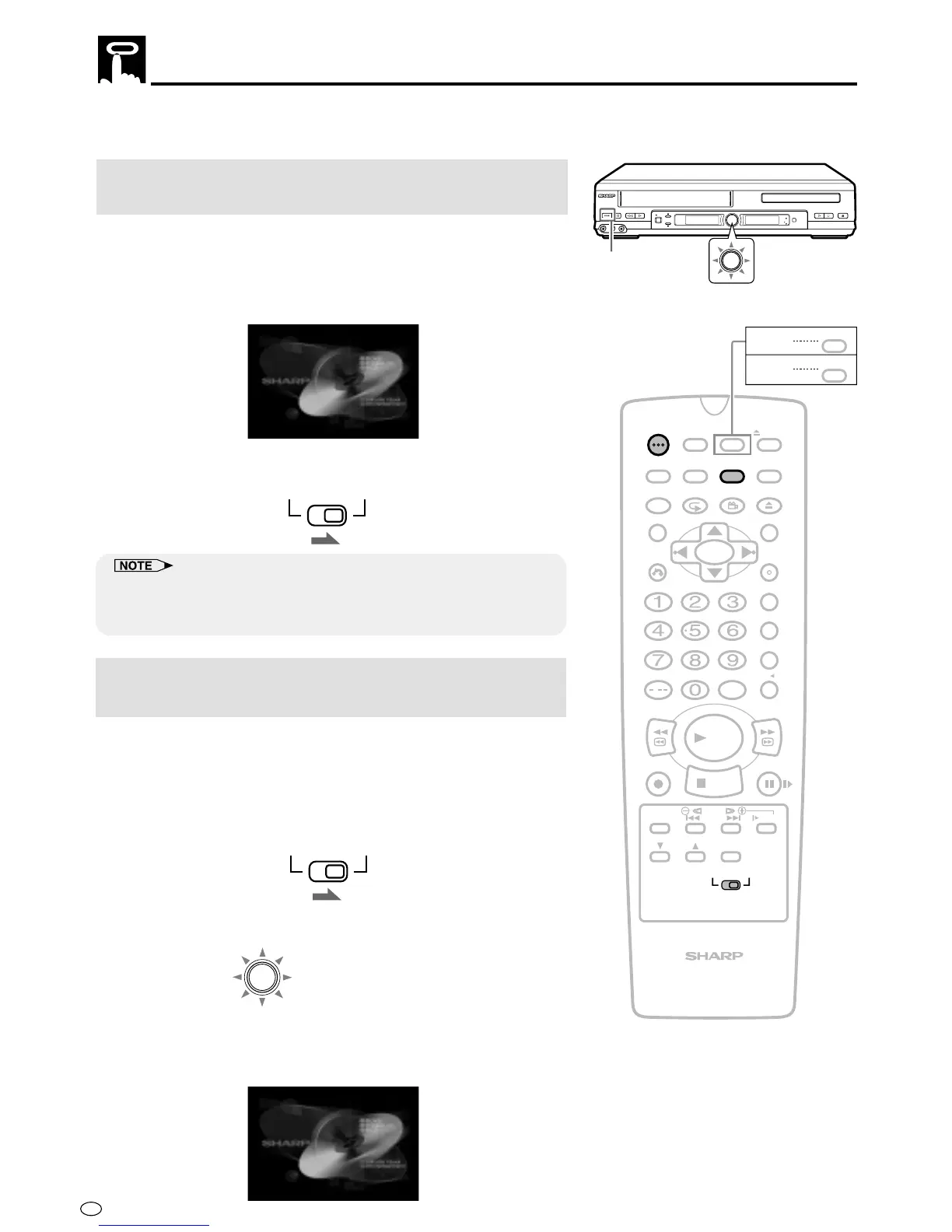
The following steps are necessary to display the DVD screen on the
TV.
When connecting a TV with the DVD output
jacks
1 Turn on the TV and switch the TV channel to the external input
“VIDEO” or “AV” channel connected to DVD output jack.
2 Press OPERATE.
• The start up screen is displayed on the TV screen.
3 Move VCR/DVD CHANGE Switch on the Remote to DVD.
• When the TV is connected to the DVD output jack, the image will be
displayed regardless of the VCR/DVD mode selected. Therefore, it is
not necessary to adjust the mode selected.
When connecting a TV with the DVD/VCR
shared output jacks
1
Turn on the TV and switch the TV channel to the external input
“VIDEO” or “AV” channel connected to DVD/VCR shared output
jack.
2 Press OPERATE.
3 Move VCR/DVD CHANGE Switch on the Remote to DVD.
4 Press VCR/DVD SELECTOR to enter the DVD mode.
• The VCR/DVD SELECTOR on the product lights up in green.
•
Each time VCR/DVD SELECTOR is pressed, the mode
changes between “VCR” mode and “DVD” mode.
VCR DVD
VCR DVD
VCR/DVD
SELECTOR
Light up in green


 To Next Page