23
LC-32LB370U/LC-50LB370U Sharp 32"/50" LED TV
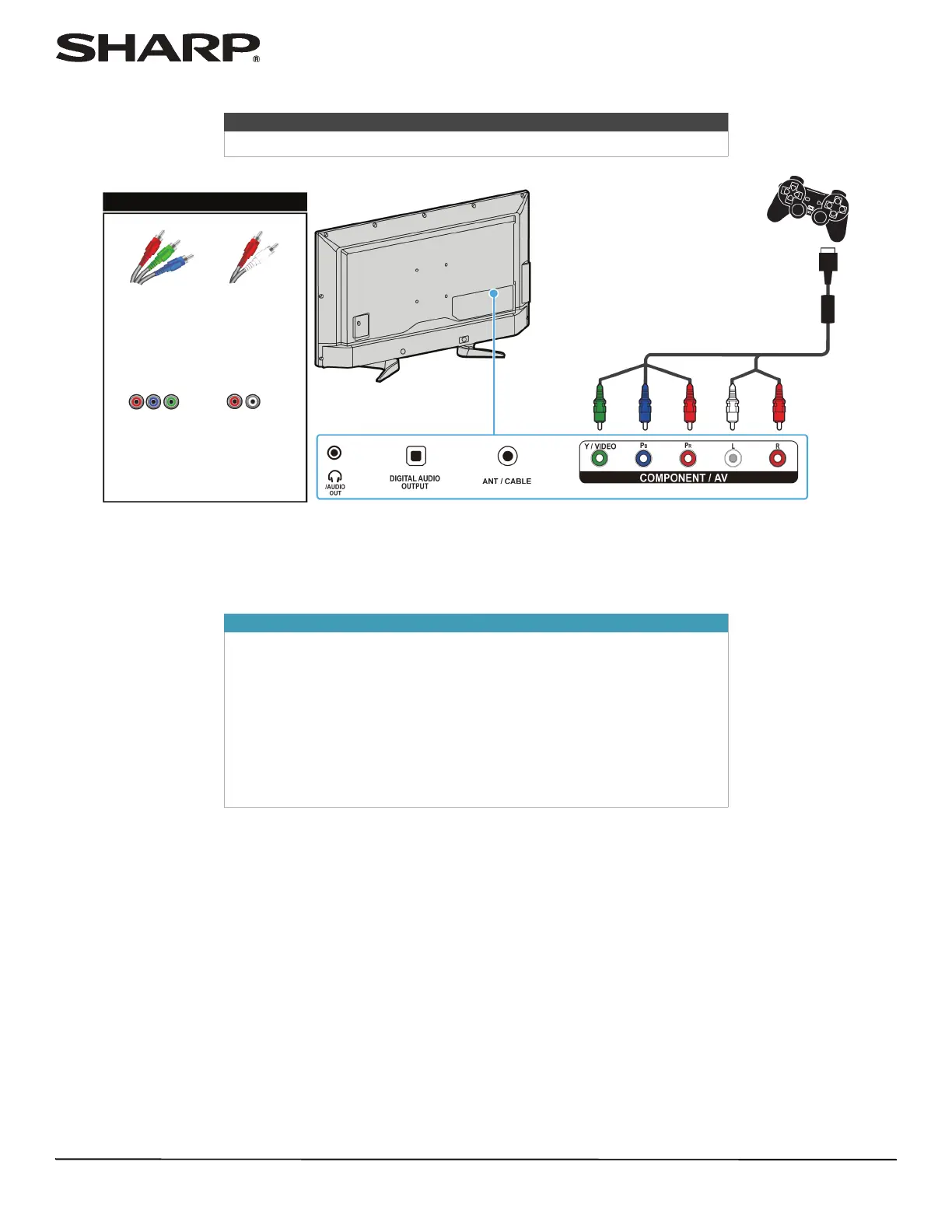
Component video (better)
1 Make sure that your TV’s power cord is unplugged and the game console is turned off.
2 Connect the video and audio connectors on the component video cable (not provided) to the Y/VIDEO, P
B
, and P
R
video jacks and L and R audio jacks on the back of your TV and to the component jack(s) on the game console.
3 Plug your TV’s power cord into a power outlet, then turn on your TV.
4 Turn on the game console, then set it to the correct output mode. For more information, see the documentation that
came with the console.
5 Press INPUT to open the INPUT SOURCE list.
6 Press
S
or
T
to select Component, then press ENTER.
Note
Cables are often color-coded to match color-coded jacks.
Important
• Your game console may require a special component video cable. See
the documentation that came with your game console or check the
manufacturer’s website.
•The Y/VIDEO, P
B
, and P
R
video jacks (used to connect a component
video device) share the L and R audio jacks with the Y/VIDEO jack
(used to connect an AV device). You can only connect one component
video or AV device at a time. We suggest upgrading to HDMI if your
game console supports it.
• When you connect the audio using the L and R audio jacks, the audio
output is analog.
Game
console
Back of TV
Console-specific component
video and audio cable
On your TV
Component
video cable
connectors
Analog
audio cable
connectors
Component
video jacks
Analog
audio
jacks



 To Next Page