EasyManua.ls Logo

Sharp MD-E9000H - User Manual

Sharp MD-E9000H
52 pages
Print Icon
To Next Page IconTo Next Page
Loading...
Thank you for purchasing this SHARP product.
To obtain the best performance from this product, please read this
manual carefully. It will guide you in operating your SHARP product.
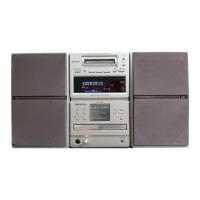
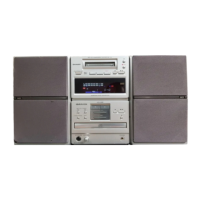
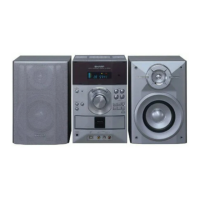
MD-E9000H MD Compact Component System consisting of MD-E9000H
(main unit) and CP-E9000H (speaker system).
MD COMPACT COMPONENT
SYSTEM
MODEL
MD-E9000H
OPERATION MANUAL
If you require any advice or assistance regard-
ing your Sharp product, please visit our web-
site www.sharp.co.uk/support.
Customers without internet access may tele-
phone 08705 274277 during office hours (or (01)
676 0648 if telephoning from Ireland).
*MD9000H(FRONT/BACK) 2001.4.20, 2:01 AM2

Other manuals for Sharp MD-E9000H

Questions and Answers

  • T
    Tina RiceSep 3, 2025
    What to do if trouble occurs with Sharp MD-E9000H?
    • H
      Hector DavidSep 3, 2025
      If you encounter trouble with your Sharp Stereo System, set the unit to the stand-by mode and turn the power on again. If this doesn't restore the unit, unplug it, plug it back in, and then turn the power on.
  • M
    Mary RichardsonSep 1, 2025
    What to do if Sharp Stereo System playback sounds are skipped?
    • G
      Grant TaylorSep 1, 2025
      If playback sounds on your Sharp Stereo System are skipped or stopped in the middle of a track, check if the unit is located near excessive vibration, if the disc is very dirty, or if condensation has formed inside the unit.
  • L
    Laura CrossAug 31, 2025
    What to do if Sharp Stereo System displays 'CD/MD NO DISC' or 'Can't READ'?
    • J
      Jennifer Garcia MDAug 31, 2025
      If your Sharp Stereo System displays 'CD/MD NO DISC' or 'Can't READ' even with a disc loaded, or if playback sounds are skipped, check if the unit is near excessive vibration, if the disc is very dirty, or if condensation has formed inside the unit.
  • N
    nharrisAug 29, 2025
    Why is my Sharp MD-E9000H clock not on time?
    • L
      Lisa BarrettAug 29, 2025
      If the clock on your Sharp Stereo System is not on time, it may be due to a power failure. Reset the clock.
  • J
    John HallAug 27, 2025
    What to do if Sharp Stereo System playback does not start or stops?
    • H
      howard93Aug 27, 2025
      If playback on your Sharp Stereo System doesn't start, stops in the middle, or isn't performing correctly, ensure the disc is loaded correctly (not upside down), the disc meets the required standards, and the disc is not distorted or scratched.
  • C
    Cory TurnerAug 26, 2025
    What to do if my Sharp MD-E9000H Stereo System doesn't respond when I press a button?
    • C
      Christine JonesAug 26, 2025
      If your Sharp Stereo System does not respond when a button is pressed, try setting the unit to power stand-by mode and then turning it back on. If the unit still malfunctions after that, reset it.
  • M
    mdayAug 25, 2025
    What to do if Sharp MD-E9000H Stereo System has no sound from the speakers?
    • D
      Duane CruzAug 25, 2025
      If you cannot hear any sound from the speakers of your Sharp Stereo System, check if the volume level is set to '0', ensure that headphones are not connected, and verify that the speaker wires are properly connected.
  • G
    gdennisAug 22, 2025
    How to fix Sharp Speaker System remote control that is not operating?
    • K
      Kristin DaltonAug 22, 2025
      If your Sharp Speaker System remote control isn't working, check if the system is plugged in, the battery polarity is correct, the batteries aren't dead, the distance or angle to the system is correct, and the remote control sensor isn't exposed to strong light.

Summary

Special Notes

Notes for Users in the U.K. and Ireland

Specific safety and installation notes for users in the UK and Ireland.

Warnings

General safety warnings and precautions for operating the unit.

Caution

Important cautions regarding laser beam and adjustments.

Precautions

Controls and Indicators

Front panel

Identifies and explains controls on the front of the main unit.

Display

Explains the various indicators and icons on the unit's display.

Rear Panel

Identifies and describes the connection sockets on the rear of the unit.

Controls and Indicators (continued)

Remote Control

Identifies and explains the functions of buttons on the remote control.

System Connections

Aerial connection

Instructions for connecting FM and AM aerials for optimal reception.

Connecting the AC power lead

Guidance on connecting the unit to the power supply.

Remote Control

General Control

Sound Control

Setting the Clock

Listening to a CD

Listening to a CD

Steps to turn on the unit, select CD mode, load a CD, and start playback.

Listening to a CD (continued)

Listening to a MiniDisc

Listening to a MiniDisc

Steps to turn on the unit, select MD mode, load a MiniDisc, and start playback.

Listening to a MiniDisc (continued)

Programmed Play

Listening to the Radio

Listening to the Radio

Steps for tuning into FM or AM radio stations using manual or auto tuning.

Memorising a station

Using the Radio Data System (RDS)

Using the Auto Station Programme Memory (ASPM)

To automatically play the desired programme (EON-PTY)

To automatically play the traffic information (EON-TI)

Before Recording to a MiniDisc

Recording to a MiniDisc from a CD

Recording to a MiniDisc from a CD (One-Touch Editing)

Steps for recording a CD onto a MiniDisc with one-touch operation.

To record without using One-Touch Editing

To record without using One-Touch Editing

Steps for recording a CD to MiniDisc without using the one-touch method.

Recording the first several tracks of a CD

Recording the first several tracks of a CD

How to record selected tracks from a CD to create a custom collection.

Programmed recording from a CD

Programmed recording from a CD

How to record tracks from a CD based on a programmed sequence.

Recording to a MiniDisc from the Radio

Recording to a MiniDisc from the Radio

Instructions for recording radio broadcasts onto a MiniDisc.

Titling a MiniDisc

To divide a track

To combine tracks

To erase a track

To erase all of the tracks at once

Timer playback;Timer recording

Timer playback;Timer recording

Instructions for setting up timed playback or recording functions.

Sleep operation

Sleep operation

How to set the unit to turn off automatically after a specified time.

Error Messages

Error Messages

Lists common error messages and their remedies for troubleshooting.

Troubleshooting Chart

General

Troubleshooting common issues related to clock, buttons, and sound.

Tuner

Troubleshooting radio reception issues like noise and interference.

Remote control

Troubleshooting problems with the remote control's functionality.

CD player

Troubleshooting common CD playback issues like no start or skipping.

MiniDisc

Troubleshooting issues with MiniDisc recording and playback.

If trouble occurs

If trouble occurs

General steps to take when the unit malfunctions due to interference or incorrect operation.

Clearing all the memory (reset)

Clearing all the memory (reset)

How to perform a factory reset to clear all settings and memory.

Maintenance

Specifications

Sharp MD-E9000H Specifications

General IconGeneral
BrandSharp
ModelMD-E9000H
CategoryStereo System
LanguageEnglish

Related product manuals