EasyManua.ls Logo

Sharp XE-A201 - User Manual

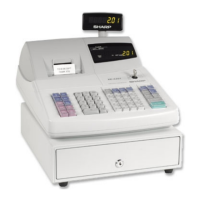
Sharp XE-A201
276 pages
Print Icon
To Next Page IconTo Next Page
Loading...
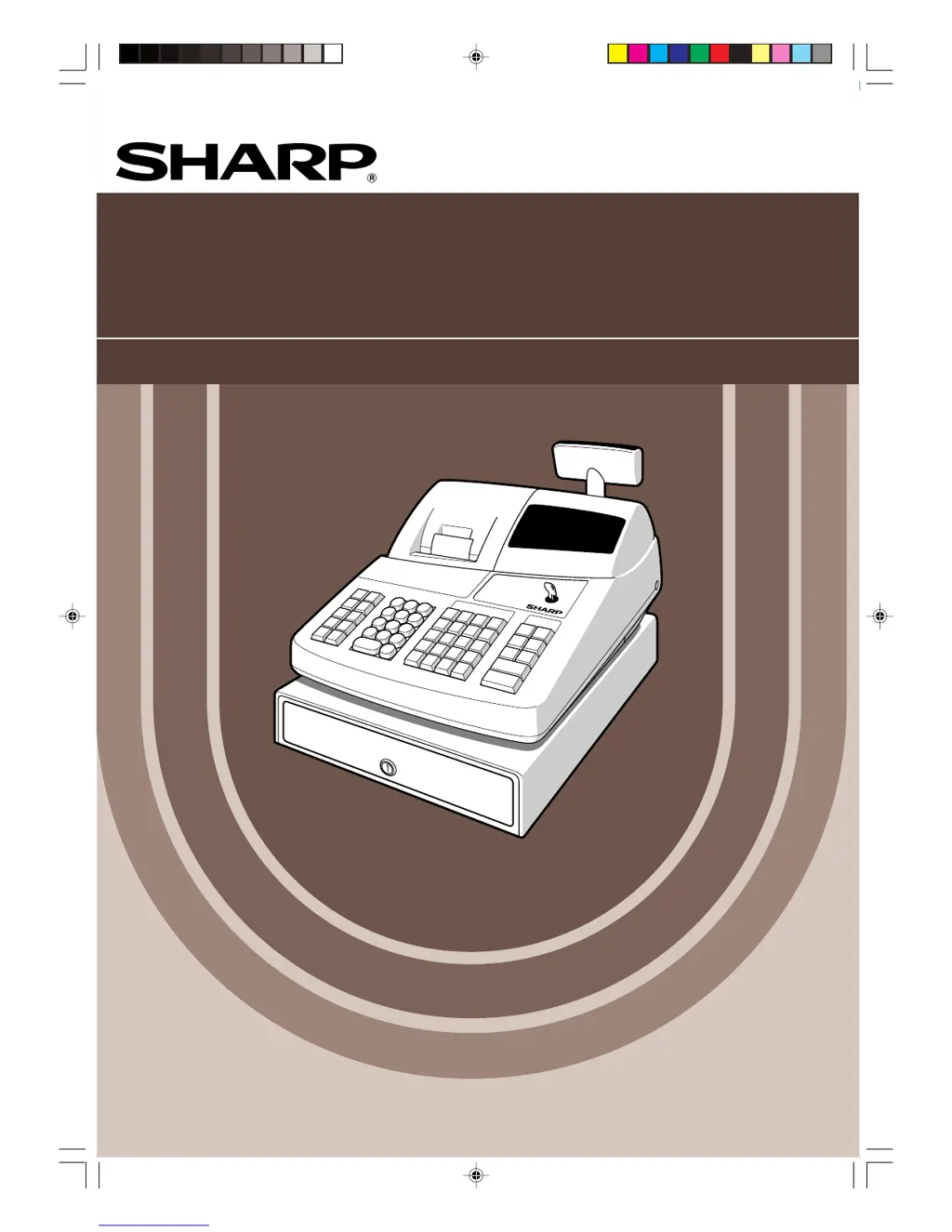
XE
-A201
ELECTRONIC CASH REGISTER
ELEKTRONISCHE REGISTRIERKASSE
CAISSE ENREGISTREUSE ELECTRONIQUE
CAJA REGISTRADORA ELECTRONICA
INSTRUCTION MANUAL
BEDIENUNGSANLEITUNG
MODEL
MODELL
MODELE
MODELO
MANUEL D’INSTRUCTIONS
MANUAL DE INSTRUCCIONES

Table of Contents

Other manuals for Sharp XE-A201

Questions and Answers

  • C
    Christopher RamirezAug 19, 2025
    Why is my Sharp XE-A201 not printing receipts?
    • T
      thomas27Aug 19, 2025
      If your Sharp Cash Register isn't issuing receipts, check if the paper roll is correctly installed and if there's a paper jam. Also, ensure the receipt function isn't set to “OFF” and that the print head release lever is at the printing position.
  • T
    Tyler TurnerAug 21, 2025
    What to do if the Sharp XE-A201 display is on, but it won’t register?
    • P
      Phillip SilvaAug 21, 2025
      If the Sharp Cash Register display is illuminated but the machine won't register sales, ensure a clerk code is assigned and that the mode switch is properly set to the “REG” position.
  • D
    Daniel SampsonAug 23, 2025
    Why is the printing unusual on my Sharp XE-A201 Cash Register?
    • R
      Raymond ArnoldAug 25, 2025
      If the Sharp Cash Register printing appears unusual, make sure the print head release lever is at the printing position and that the paper roll is properly installed.
  • C
    Craig VillanuevaAug 26, 2025
    Why no journal paper is taken up in my Sharp XE-A201?
    • D
      Diana CannonAug 27, 2025
      If the Sharp Cash Register won’t take up journal paper, check if the take-up spool is properly installed on the bearing and whether there's a paper jam. Also, verify that journal printing is selected in the printing style programming, because if receipt printing is selected, the paper won't wind around the take-up spool.
  • G
    Gary BrownAug 28, 2025
    How to fix a Sharp XE-A201 Cash Register display showing strange symbols?
    • C
      Christopher RichardsonAug 28, 2025
      If the Sharp Cash Register display shows unreadable symbols, check if the machine has been properly initialized as shown in “GETTING STARTED”. Note that initialization clears all stored data and programmed settings.
  • C
    Christine SmithAug 30, 2025
    What to do if my Sharp XE-A201 Cash Register displays 'Undefined code is entered'?
    • C
      Cynthia OwensAug 30, 2025
      If your Sharp Cash Register says 'Undefined code is entered', make sure you enter a correct code.
  • C
    coxjasonSep 1, 2025
    How to solve 'Memory is full' error in Sharp XE-A201 Cash Register key programming?
    • T
      Todd CarsonSep 1, 2025
      If your Sharp Cash Register displays 'Memory is full (in the key programming)', program the key within 25 steps.
  • A
    Amber HernandezSep 3, 2025
    What to do if my Sharp Cash Register displays 'Compulsory tendering'?
    • M
      Michael WeaverSep 3, 2025
      If the Sharp Cash Register requires compulsory tendering, perform a tendering operation.
  • L
    Linda BennettSep 5, 2025
    What to do if my Sharp XE-A201 Cash Register displays 'No entry of a clerk code'?
    • S
      Stephen StoneSep 6, 2025
      If the Sharp Cash Register displays 'No entry of a clerk code', make a clerk code entry.
  • J
    Jessica MitchellSep 8, 2025
    What to do if the open price entry is inhibited on my Sharp XE-A201 Cash Register?
    • S
      Steven RobinsonSep 8, 2025
      If the Sharp Cash Register inhibits open price entry, make a preset price entry.

Summary

Introduction

Parts and Their Functions

External View

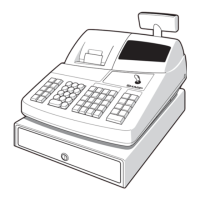
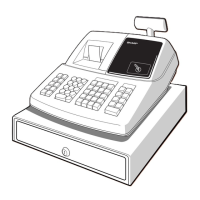
Diagram and labels for all external parts of the cash register.

Printer

Details on the thermal printer, its paper loading and head release mechanism.

Parts and Their Functions (Continued)

Keyboard

Layout of the cash register keyboard, including key names and functions.

Getting Started

For the Operator

Basic Sales Entry

Step-by-step guide for performing basic cash sales transactions with examples.

For the Operator (Continued)

Item Entries

Methods for entering items by department, PLU, or subdepartment, including repeat and multiplication.

For the Operator (Continued)

Finalization of Transaction

Procedures for completing sales using cash, cheque, credit, or mixed tenders.

Computation of VAT (Value Added Tax);tax

Explanation of VAT/tax systems and programming of tax rates.

Optional Features

1 Auxiliary Entries

Features for percentages, deductions, refunds, and non-add codes.

Optional Features (Continued)

2 Auxiliary Payment Treatment

Handling currency exchange, received-on-account, and paid-out transactions.

Correction

1 Correction of the Last Entry (direct void)

How to void the most recent entry immediately after it is made.

Correction (Continued)

2 Correction of the Next-to-last or Earlier Entry (indirect void)

Voiding entries made earlier in the transaction before finalization.

3 Subtotal Void

Cancelling an entire transaction after a subtotal has been calculated.

For the Manager

Prior to Programming

Essential steps before starting sales entries, including understanding programming sections.

For the Manager (Continued)

Basic Function Programming

Programming required items for basic cash register operation.

For the Manager (Continued)

2 Tax Programming

Setting up VAT/tax systems and tax rates for sales transactions.

Auxiliary Function Programming

1 Department Programming

Classifying merchandise into departments for sales reporting and analysis.

Auxiliary Function Programming (Continued)

2 PLU (Price Look-Up) and Subdepartment Programming

Setting up PLUs and subdepartments for quick item price recall.

Auxiliary Function Programming (Continued)

3 Miscellaneous Key Programming

Programming special function keys like percentage, refund, and exchange.

Auxiliary Function Programming (Continued)

4 Text Programming

Programming text labels for departments, PLUs, clerks, and functions.

Advanced Function Programming

1 Register Number and Consecutive Number Programming

Setting unique register numbers and managing consecutive transaction numbers.

Advanced Function Programming (Continued)

2 Electronic Journal (EJ) Programming

Setting up and managing the electronic journal for transaction logging.

Advanced Function Programming (Continued)

3 Various Function Selection Programming 1

Selecting various detailed functions, print formats, and report settings.

Advanced Function Programming (Continued)

4 Various Function Selection Programming 2

Configuring power save mode, logo messages, printer density, and language.

5 EURO Programming

Reading (X) and Resetting (Z) of Sales Totals

1 Summary of Reading (X) and Resetting (Z) Reports

Overview of X (reading) and Z (resetting) reports and their functions.

2 Daily Sales Totals

EJ Report Reading and Resetting

Override Entries

Correction After Finalizing a Transaction (Void mode)

Operator Maintenance

3 Cautions in Handling the Printer and Recording Paper

Important precautions for maintaining the printer and using thermal paper correctly.

Operator Maintenance (Continued)

4 Replacing the Batteries

Steps for replacing the internal batteries to preserve settings and data.

5 Replacing the Paper Roll

Instructions for installing new paper rolls and ensuring proper feeding.

Operator Maintenance (Continued)

Error code table

List of error codes, their status, and recommended actions for resolution.

Specifications

For Customers in U.K.

Environment Protection

Guidelines for safe battery disposal and environmental protection.

Sharp XE-A201 Specifications

General IconGeneral
BrandSharp
ModelXE-A201
CategoryCash Register
LanguageEnglish

Related product manuals