31
Software Introduction
MXW System Graphical User Interface (GUI)
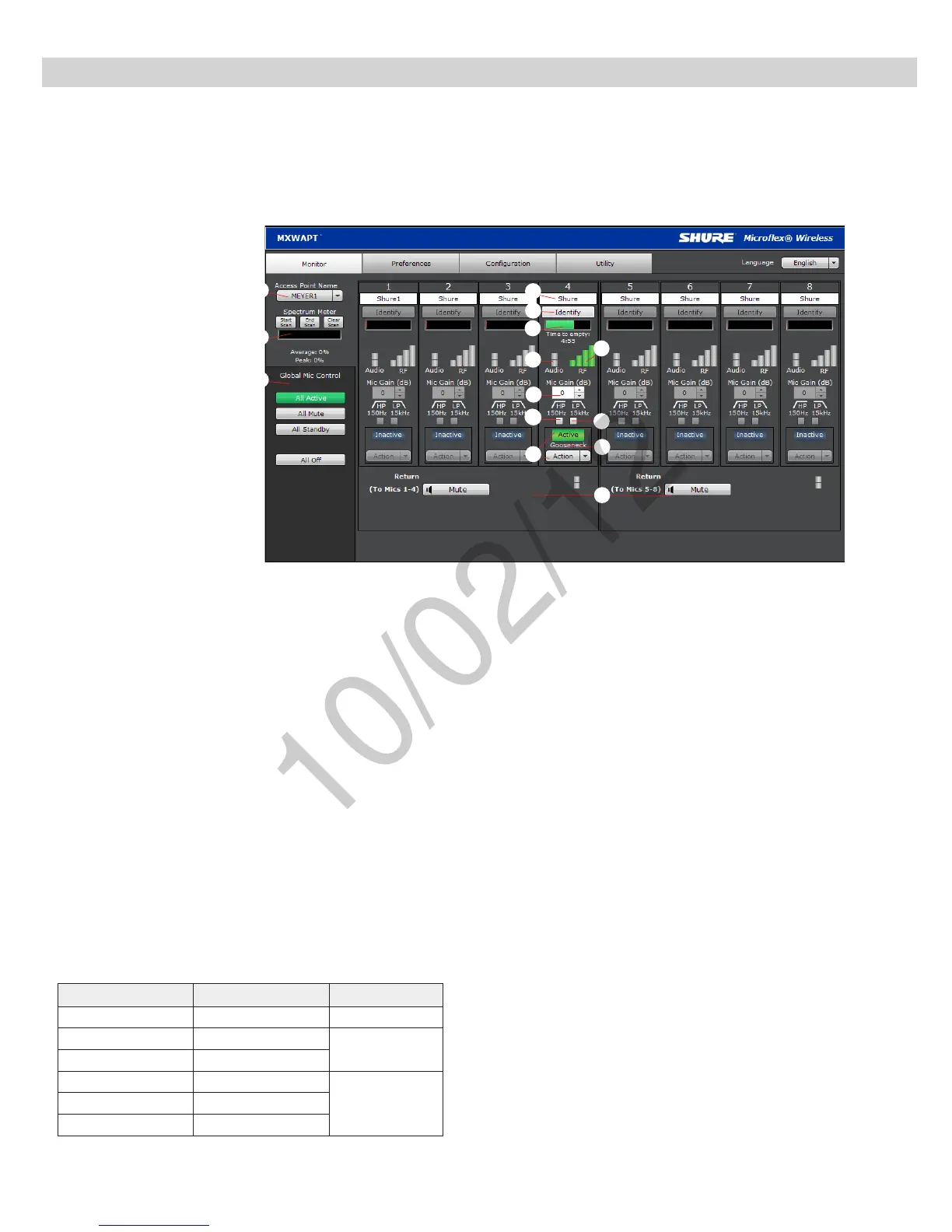
A graphical user interface (GUI) is software that allows comprehensive system control and monitoring from a computer. It is hosted from an embedded server
built into the APT, and is accessible when properly networked to a computer or 3rd party control device. All hardware functions can be adjusted using the GUI.
GUI Description
The following is a description of each tab of the GUI:
Monitor Tab
① APT Selection
Selects an APT for monitoring channel and RF spectrum information.
② Spectrum Meter
Displays the RF spectrum availability from a scan from the APT. See
Spectrum Scan section for more details.
③ Global Mic Control
Controls the status of all microphones linked to the APT.
④ Microphone Name
Microphone names can be customized with up to 31 any characters in
length except '=','.' or '@'.
⑤ Identify Button
When clicked, this commands the microphone to beep and its LED to
flash. Microphones must be removed from the charger for this function.
⑥ Battery Status
While charging: Displays the remaining time until the microphone
battery is fully charged.
Not charging: Displays the remaining battery runtime of the microphone.
⑦ RF Signal Strength
⑧ Audio Input Meter
Indicate the average input signal level.
LED Audio Signal Level Description
Red (6) -0.1 dBFS Overload
Yellow (5) -6 dBFS
Normal peaks
Yellow/ Green (4) -12 dBFS
Green (3) -20 dBFS
Signal PresentGreen (2) -30 dBFS
Green (1) -40 dBFS
⑨ Mic Gain
Adjusts microphone gain from -25 dB to +15 dB gain in 1 dB steps.
⑩ High Pass Filter
Engages a 6 dB-per-octave filter below 150 Hz for attenuating undesired
low frequencies, sometimes caused by table vibrations or air-conditioning
rumble.
⑪ Low Pass Filter
Engages a 6 dB-per-octave filter above 15 kHz for attenuating undesired
high frequencies, sometimes caused by sibilant vocals or paper rustling.
⑫ Microphone State
Microphones are in one of four states:
•Active: Microphone is on and passing audio to the network.
•Mute: Microphone is on but the signal is muted.
•Standby: Conserves battery charge and allows the GUI to change the
state to Active or Mute.
•Off (Inactive): The microphone is powered off. A microphone in this
state cannot be controlled by the GUI (it can only be turned on using
the power button on the mic).
⑬ Microphone Type
Displays the microphone type:
•Gooseneck
•Bodypack
•Boundary
•Handheld
⑭ Return Channels
Monitor the signal level and mute/unmute the audio of the return channel.
③
④
⑤
⑥
⑦
⑧
⑨
⑩
⑪
⑫
⑬
⑭
①
②


 To Next Page