EasyManua.ls Logo

Shure DCS 6000 - User Manual

Shure DCS 6000
72 pages
Print Icon
To Next Page IconTo Next Page
Loading...
© 2016 Shure Incorporated
27131341 (Rev. 1)
Discussion and Conferencing
USER GUIDE
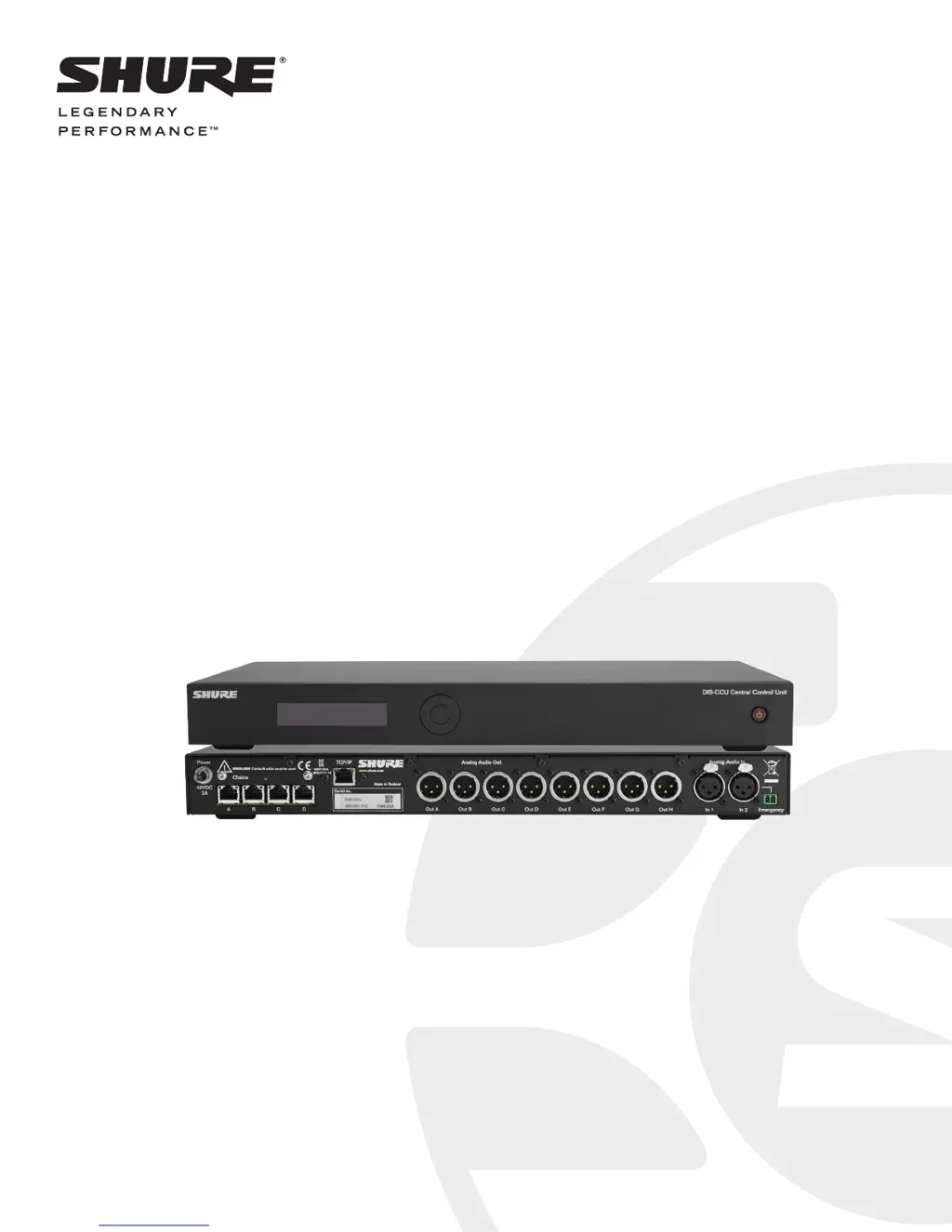
DIS-CCU Central Control Unit
DCS 6000 System Mode

Table of Contents

Other manuals for Shure DCS 6000

Questions and Answers

  • S
    shubbardSep 23, 2025
    Why doesn’t the ‘Del. Off’ button switch off delegate units on my Shure DCS 6000 Conference System?
    • J
      Jordan MartinezSep 23, 2025
      If the ‘Del. Off’ button in the chairman unit does not switch off delegate units, check if the unit is configured as a chairman unit. Also, verify if the units that are not being switched off are configured as chairman units, because chairman units are not switched off by the ‘Del. Off’ button.
  • Q
    qmayerAug 23, 2025
    What to do if the CU 6110 browser application won't open on my PC or iPad for Shure Conference System?
    • B
      Beth AndersonAug 23, 2025
      To fix the issue, check the IP address using the interactive menu on the CU: ‘LAN setup/IP address setup/IP address’. Use this IP address in the browser. Ensure that the CU 6110 is connected to the same network as the PC. Verify the LAN cables are working properly.
  • R
    Rebecca EllisonAug 25, 2025
    Why is there no audio in the built-in loudspeakers from some delegate or chairman units in my Shure DCS 6000 Conference System?
    • T
      tamaramackAug 26, 2025
      To solve the problem, check using the browser control in ‘CU 6110 * Audio * Audio Output * Group Setup‘ that this seat is selected in ‘Group A’. 'Group A' is always used as the source for the built-in loudspeakers. If a unit is not selected in ‘Group A’ the audio from this unit will not be heard in the built-in loudspeakers.
  • A
    Ashley ChapmanAug 27, 2025
    How to fix CU 6110 browser application not opening on iPad for Shure DCS 6000?
    • B
      Brandon WestAug 27, 2025
      To address this, check the IP address using the interactive menu on the CU: ‘LAN setup * IP address setup * IP address’. Use this IP address in the browser. Make sure that the iPad is connected to the correct wireless access point. Ensure that the CU 6110 is connected to the same network as the wireless access point.
  • S
    stevenholdenAug 27, 2025
    Why are the light rings constantly flashing on the microphones in my Shure DCS 6000 units?
    • B
      Benjamin GarciaAug 28, 2025
      To resolve the flashing light rings, check the cables to ensure digital communication from the central unit to the Conference units is established. Verify that all connectors on all cables are firmly inserted in the DCS-LAN sockets on the units. Also, ensure that the feeding cables from the Conference units are inserted in the ‘DCS-LAN’ chain connectors on the CU 6110.
  • J
    Jennifer RiveraSep 17, 2025
    Why can't I hear the audio from the interpreter unit in my Shure Conference System headphones?
    • W
      williecoleSep 17, 2025
      If the audio from an interpreter unit cannot be heard in the headphone in delegate or chairman units, check the headphone volume control on the units. Also, check the channel selection on the Conference units. Verify the headphone plug is firmly inserted in the headphone socket. Finally, ensure the light ring on the microphone on the interpreter unit is lit and the gooseneck microphone is firmly inserted in the microphone socket.
  • M
    Michael BakerSep 14, 2025
    What to do if the Shure CU 6110 browser application will not open in a PC or iPad?
    • A
      Anne CrossSep 14, 2025
      If the CU 6110 browser application won't open on your PC or iPad, check the IP address using the interactive menu on the CU under ‘LAN setup/IP address setup/IP address’, and use this IP address in the browser. Also, ensure that the CU 6110 is connected to the same network as the PC. Finally, check the LAN cables for any issues.
  • A
    Alexandra Hernandez MDSep 15, 2025
    What to do if Shure CU 6110 browser application will not open in iPad?
    • L
      Lori WilliamsSep 16, 2025
      If the CU 6110 browser application won't open on your iPad, verify the IP address using the interactive menu on the CU: ‘LAN setup * IP address setup * IP address’ and use that in the browser. Check that the iPad is connected to the correct wireless access point. Also, ensure that the CU 6110 is connected to the same network as the wireless access point.
  • J
    James CaseSep 6, 2025
    How to fix DIS-CCU browser application if it will not open on a tablet or laptop with Shure Conference System?
    • C
      Charles NguyenSep 6, 2025
      If the DIS-CCU browser application will not open on a tablet or laptop, use the interactive menu on the CCU to check the IP address under LAN setup > Acquire IP address, and use this IP address in your browser. Verify that the tablet or laptop is connected to the correct wireless access point and that the DIS-CCU is connected to the same subnet as the wireless access point.
  • M
    Mr. Douglas Gonzalez MDSep 3, 2025
    How to fix DIS-CCU browser application if it will not open on a PC with Shure Conference System?
    • R
      Robert DuranSep 3, 2025
      If the DIS-CCU browser application won't open on your PC, use the interactive menu on the CCU to check the IP address under LAN setup > Acquire IP address, and use this IP address in your browser. Verify that the CCU and the PC are connected to the same network, and check the LAN cable connections.

Summary

Important Product Information

Important Safeguards

Safety and operating instructions for apparatus use, including warnings and precautions.

DIS-CCU Central Control Unit

Overview

Key Features

Lists the main features of the DIS-CCU in DCS 6000 mode.

Feature Licenses

License File Purchasing

How to acquire feature license files for the DIS-CCU.

Adding the License to the DIS-CCU

Select the System Mode

DIS-CCU Hardware Description

Front Panel Controls

Details the components and controls on the front panel.

Back Panel Ports

Details the ports and connectors on the back panel.

Simplified Audio Diagram

Menu Navigation

Connecting DCS-LAN Equipment

Connecting Microphone Units

Details how to connect microphone units to the DCS-LAN.

DCS 6000 Cable Requirements

Connection Diagrams

Basic Setup

Illustrates a basic system setup with microphone units.

Computer Control Setup

Shows how to connect a computer for system management.

Interpretation Unit Overview

Emergency Signal Setup

Power Requirements for Units

Supported Unit Capacities

Installing Large Systems

Additional Power Supplies

Adding inline or rackmount power supplies for larger systems.

System Setup

Web Interface Overview

Using the web interface for system setup and control.

Accessing the System Interface

Assigning Network Address

Microphone Control Interface

Security Features

Browser Interface Protection

How to assign passwords to restrict browser interface access.

Assigning Names and Seat Numbers

Audio Settings

Floor Mix Configuration

How audio is routed to participants and interpreters.

Routing Microphones to Groups

Configuring microphone routing to different audio groups.

Headphone Channel Usage

Loudspeaker;Headphone Audio Sources

Emergency Audio Signal Connection

Participant Microphone Settings

Microphone Operation Modes

Defines how participant microphones function during a meeting.

Managing Active Microphones

Interrupt Mode Configuration

Voice Detection Settings

Language Interpretation System

Setting Up Interpretation Channels

Interpretation Settings

External Controller Commands

Protocol Behavior

Overview of TCP/IP socket connection and protocol behavior.

Command Structure (Output)

Seat Numbering

Command Replies

Voting Control Options

Voting Results Reporting

Microphone Control Commands

Microphone Command Reference

Audio Control Commands

Line Output Volume and Audio Path

Microphone Attenuation Settings

Voting Commands

Troubleshooting Guide

Firmware Update Procedure

Factory Default Reset

Diagnostic Report Generation

Technical Specifications

Wiring Details

Ordering Information

Power Supply Models

Shure DCS 6000 Specifications

General IconGeneral
System TypeDigital Conference System
Microphone TypeGooseneck microphone
ConnectivityRJ-45 Ethernet
Power SupplyPoE (Power over Ethernet)
FeaturesVoting, Interpretation
Connector TypeXLR and RJ-45
ColorBlack

Related product manuals