37
Assigning Names and Seat Numbers
When the meeting begins, the chairman or moderator will need to refer to the participants by either name, seat number, or
both. The proper assignment of names and seat numbers is critical to ensure the continuity of the meeting.
When logging in with the browser interface to an installation for the first time, each microphone unit appears with its
default name. Units are automatically assigned a seat number. Chairman units also appear in the participant setup page.
Use the participant setup page to match the units to the anticipated seating chart.
1. Make sure all units are connected and functioning.
• Go to the System Status page for details System > System Status
• All properly connected microphone units are listed with a default serial and seat number automatically assigned by the software.
• Disconnected units will display as
Lost and can be removed from the list by selecting Remove Unregistered Units
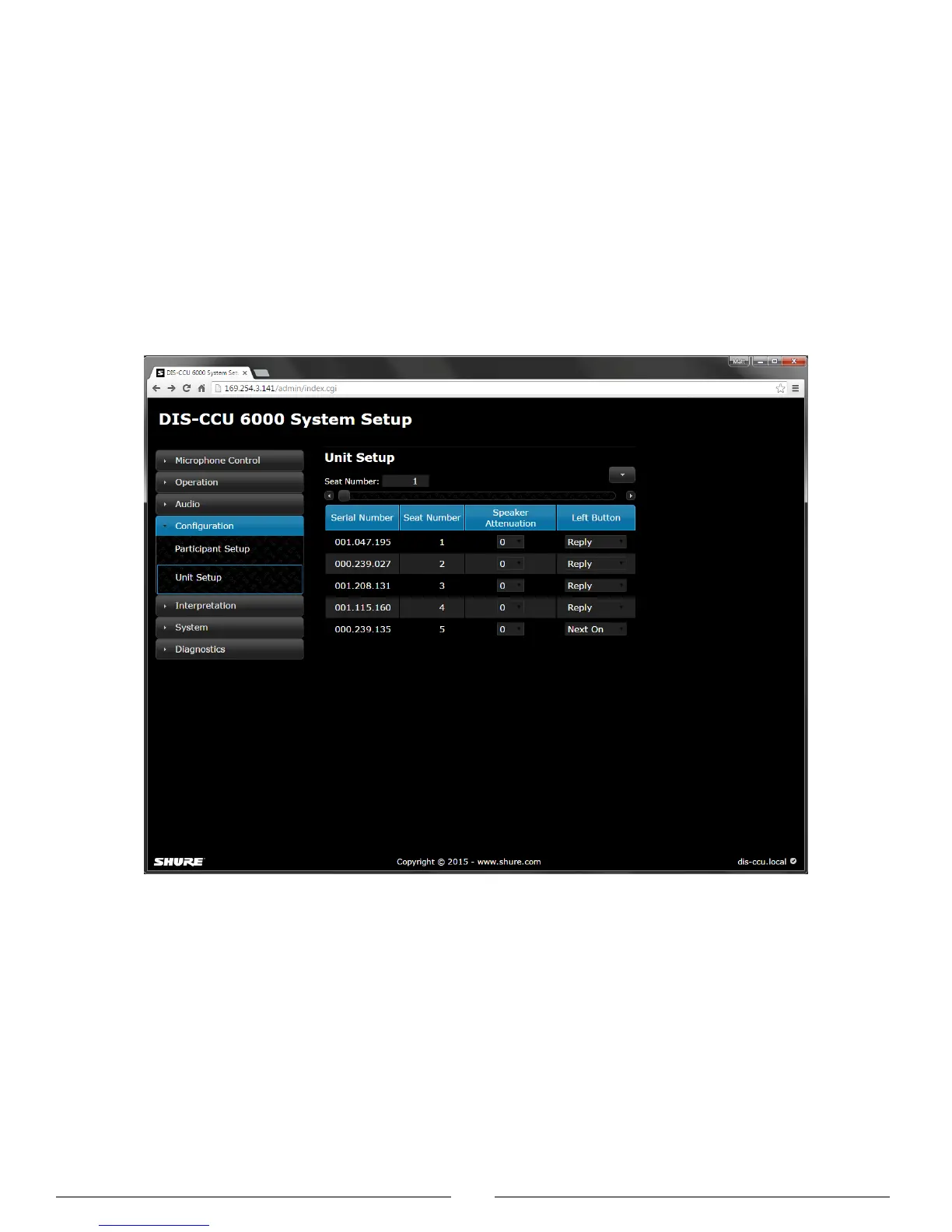
2. Reassign seat numbers to match the actual seat numbers in the room or on your seating chart.
a) Go to the Unit to Seat Relation page Conguration > Unit to Seat Relation.
Reassign Seat Numbers
b) Match the entries in the seat table to the corresponding units in the room by placing the cursor over the seat number field. The light ring on the
microphone flashes red.
c) Change the seat number by clicking in the field.


 To Next Page