EasyManua.ls Logo

SICK LMS4000 - User Manual

SICK LMS4000
60 pages
Print Icon
To Next Page IconTo Next Page
Loading...
O P E R A T I N G I N S T R U C T I O N S
LMS4000
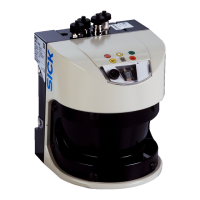
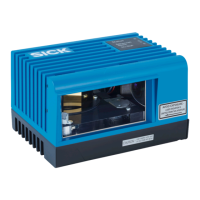
2D LiDAR sensors

Questions and Answers

  • K
    Katelyn LewisAug 12, 2025
    How to find SICK LMS4000 Accessories device in SOPAS ET?
    • R
      Rachel WatsonAug 12, 2025
      If you are unable to find the SICK Accessories device in SOPAS ET, verify the Ethernet connection by checking with a ping command if you know the IP address. Ensure that the network adapter (TCP/IPv4) is set to the sensor's IP address range and subnet mask (default: 192.168.0.1; 255.255.255.0). Also, check the selected search settings or use the default search, and update SOPAS ET to a compatible version.
  • M
    Michael HintonAug 20, 2025
    Why does my SICK LMS4000 Accessories device start and then stop?
    • N
      Nicole HawkinsAug 20, 2025
      If the SICK Accessories device starts initially but then stops and restarts, it could be due to several reasons: * The power supply unit may not be powerful enough. * The applied voltage may be almost out of range. * The current limiting may be set to less than 1.7 A. * There might be a voltage drop on the cable when using longer lengths of cable. To resolve this, check the dimensioning of the system with connected sensors, cable lengths, voltage, current limiting, and power loss.
  • A
    Andrew LeeAug 27, 2025
    What to do if SICK LMS4000 DHCP client device cannot be found in the network?
    • J
      James PerezAug 27, 2025
      If the SICK Accessories device is configured as a DHCP client but cannot be found in the network, it may be because the device has not received an IP address due to the absence or unreachability of a DHCP server. In this case, the device may be in fallback mode. If 'static IP' mode was previously selected, the device can only be reached via that IP (default: 192.168.0.1; 255.255.255.0). Another possibility is that the device is not directly connected to the network. Connect the device directly to the network via a patched network socket or a switch, and run the default search in SOPAS ET.
  • C
    Catherine RoseSep 3, 2025
    How to fix SICK LMS4000 Accessories device that won't switch on?
    • A
      Alison CordovaSep 3, 2025
      If you are unable to switch on the SICK Accessories device and the LEDs are not responding, check the pin assignments and voltage supply. The issue might be due to incorrectly wired pins, the voltage supply not being switched on, or the permissible supply voltage not being adhered to.

SICK LMS4000 Specifications

General IconGeneral
BrandSICK
ModelLMS4000
CategoryAccessories
LanguageEnglish

Related product manuals