BAL S302 PFN RT 1.00 13/27
6 Quick start for alphanumeric operation mode (ASCII format)
If the display receives data in ASCII format it can display also characters and special characters which
can be displayed by seven segments besides the digits.
Received characters which can not be displayed with seven segments are displayed as .
Step 1 to 4: See quick start for numeric operation mode (INT32 format)
Step 1: Open project
Step 2: Switch to project view
Step 3: Install the GSDML file of the ad and add the display
Step 4: Establish a connection to the display
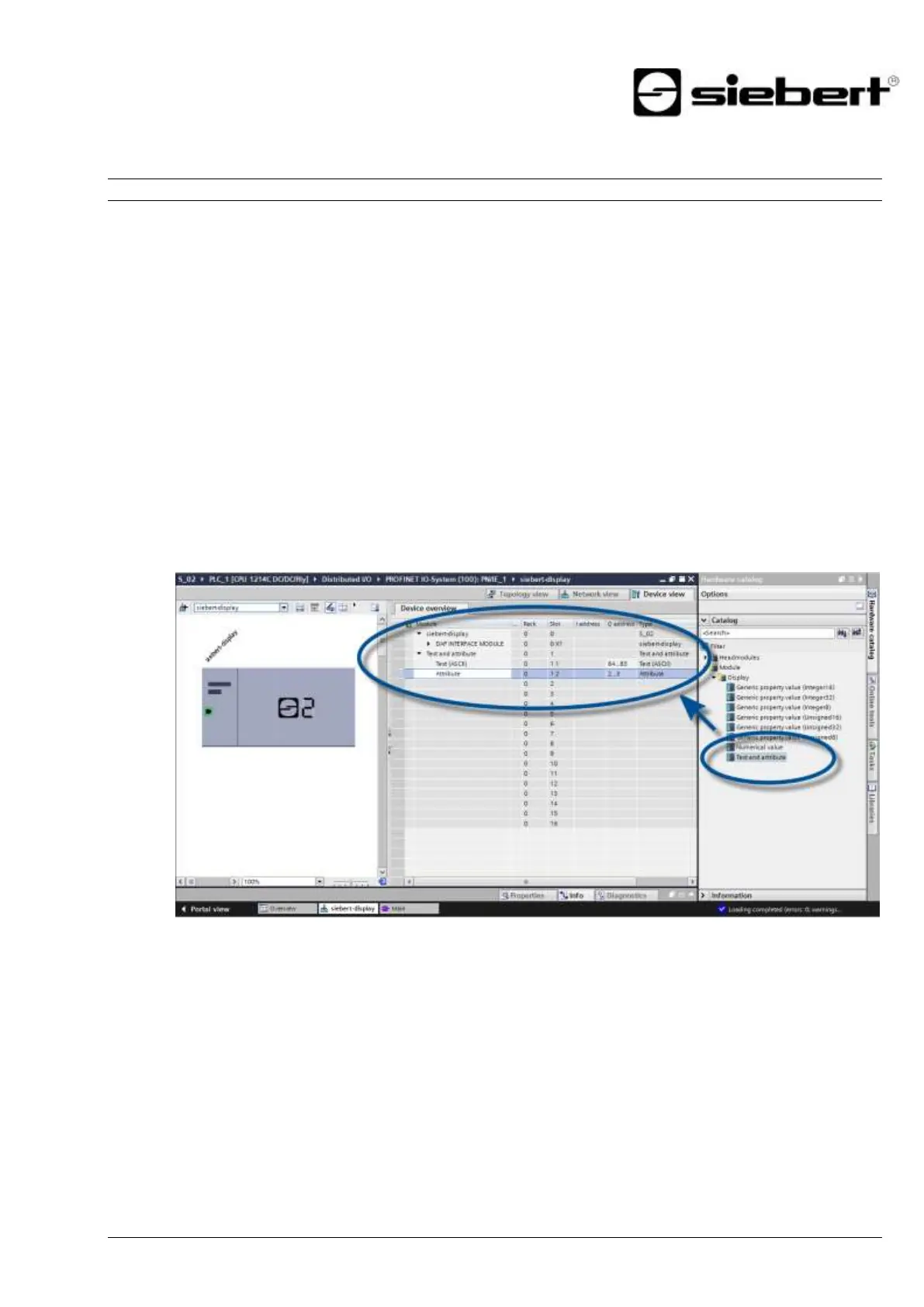
Step5: Add sub-module to the display and define address range
Add the module 'Text and attribute' from the hardware catalog to the device overview. The two sub-
modules 'Text (ASCII)' and 'Attribute' are added automatically.
This specifies that the display occupies two blocks in the output data area: 20 bytes for the text and 2
bytes for the attributes.
Step 6 and 7: See quick start for numeric operation mode (INT32-Format)
Step 6: Assign a PROFINET device name to the display
Step 7: Download the configuration to the controller
Schritt 8:
Step 8: Transmit values and texts to the display
Since the display has two address areas in this operating mode, two function blocks (in the example
'Network 1' and 'Network 2') must also be defined.
In 'Network 1' a function plan is defined with the 'MOVE' statement. In the example, the output area
begins with AD64. The following screenshot uses the string 'abcd'.
In 'Network 2', a further function plan is defined with the 'MOVE' statement. With this, the attributes are
controlled. Attributes define the display type. In this example, the value '16 # 0033 'is used to define
fast flashing.


 To Next Page