Visual analysis of assets in Fleet Manager
8.4 Viewing events
Getting Connected to MindSphere
72 Getting Started, 05/2018
8.4 Viewing events
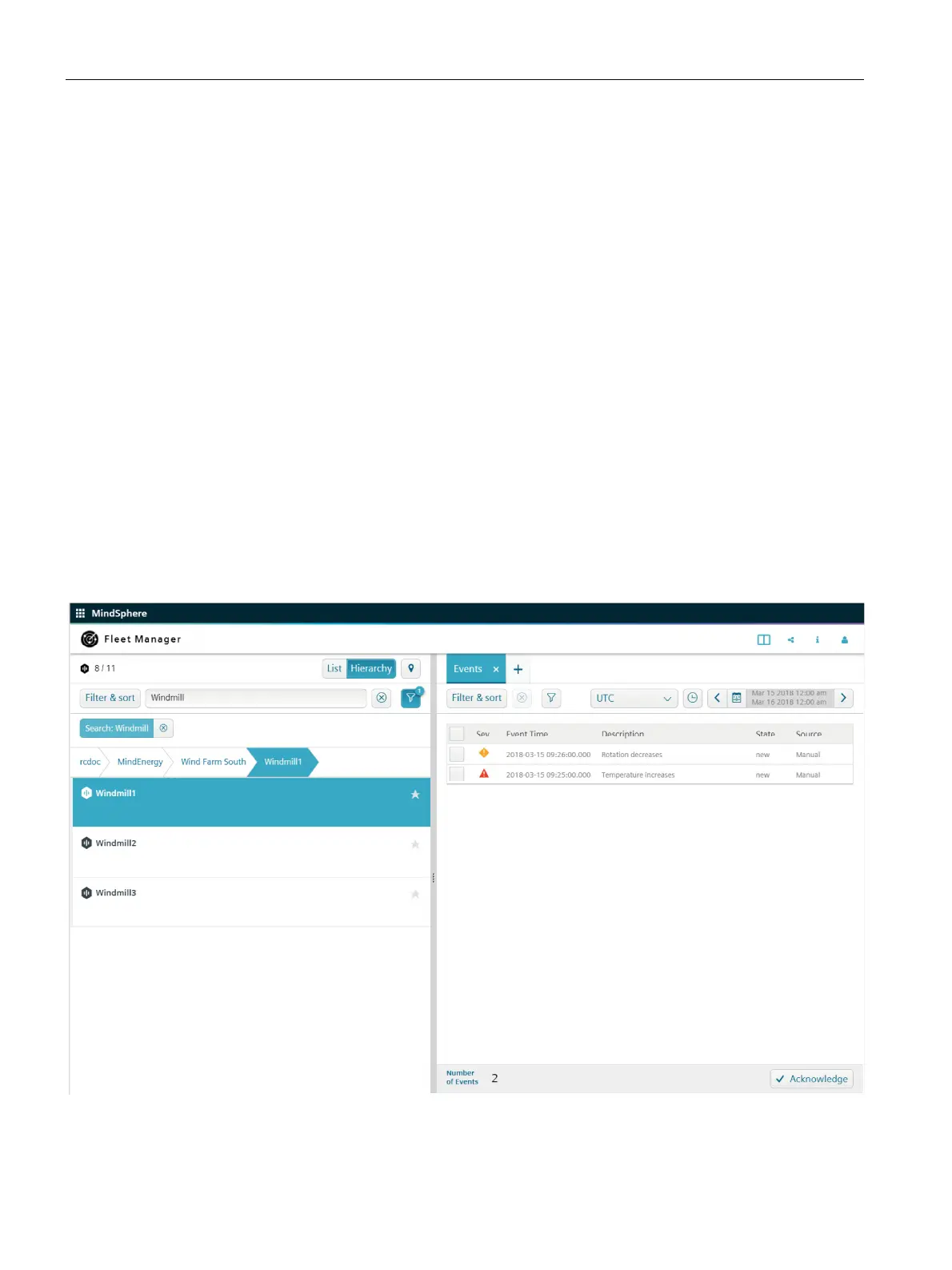
All events are displayed in an overview of the "Events" extension and you can influence the
view through different filter criteria. You can also assign a specific status to events. You can
find additional information on creating events in the Fleet Manager documentation.
Requirements
● You have created assets in Asset Manager.
● Events have been created and are already available.
Procedure
1. Select the required asset e.g. “Windmill", in the left-hand side of the window.
2. In the right-hand side, click the "Events" extension icon.
3. Click the tab "Events".
Result
The events data of asset "Windmill" is displayed.


 To Next Page
 Loading...