Copyright © Sigicom AB 2020 39
6.14. Firmware Upgrade
This section describes how to upgrade the latest FW version which is
available for download from the Sigicom Support page:
http://support.sigicom.com/infra.
Note! Monitoring must be OFF to perform a firmware upgrade.
This is the procedure:
1. Set the D10/D10 Micro in USB mode (see section 6.9.6, step 1 to
3).
2. Copy the new firmware (a .bin file and a .meta file) to the file
system root on the memory card.
3. Return from USB mode (see section 6.9.6, from step 4 until
reboot).
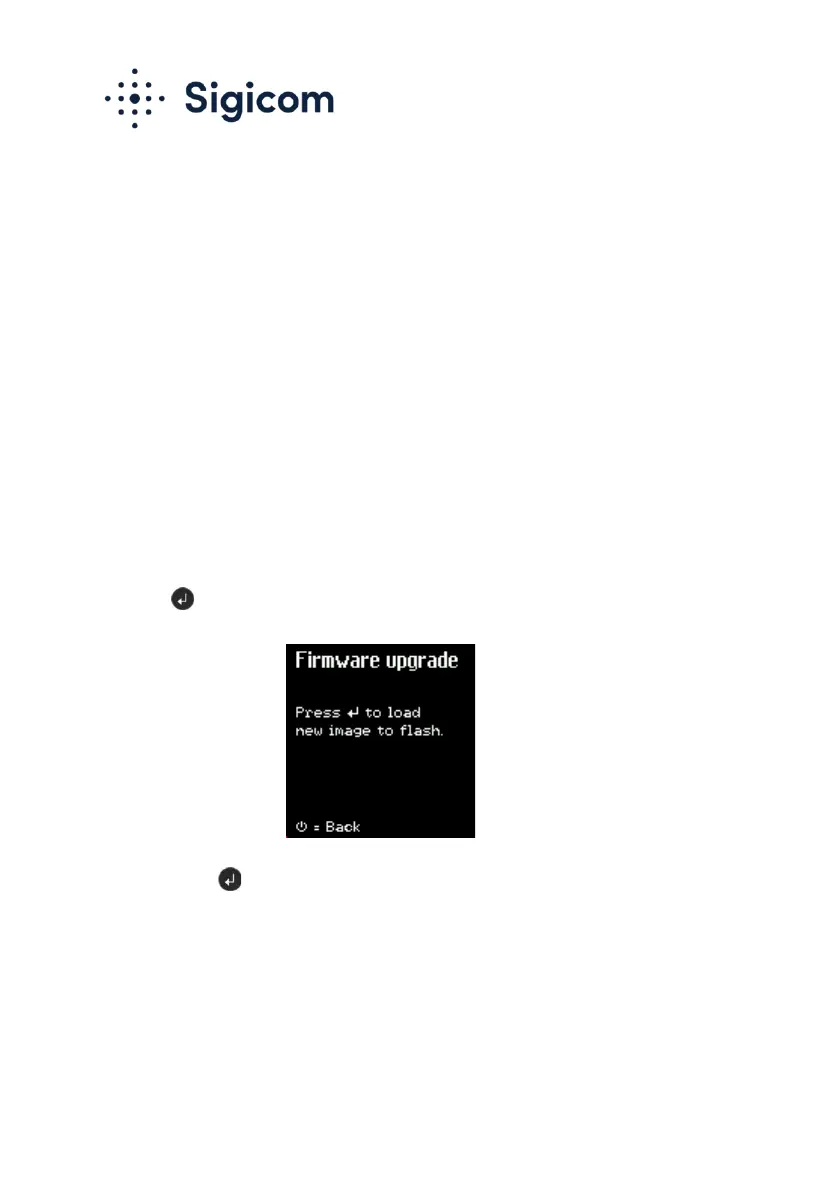
4. Go to the firmware upgrade menu screen:
→ Settings and actions → Firmware upgrade.
5. Press and wait about a minute. D10/D10 Micro will then
restart with the new firmware.
The upgrade sequence is indicated by the LED flashing
1. RED (erasing)
2. BLUE (programming)
3. GREEN/RED (ok/fail).


 To Next Page
 Loading...