17
www.simmonsdrums.net
The First Name in Electronic Drums.
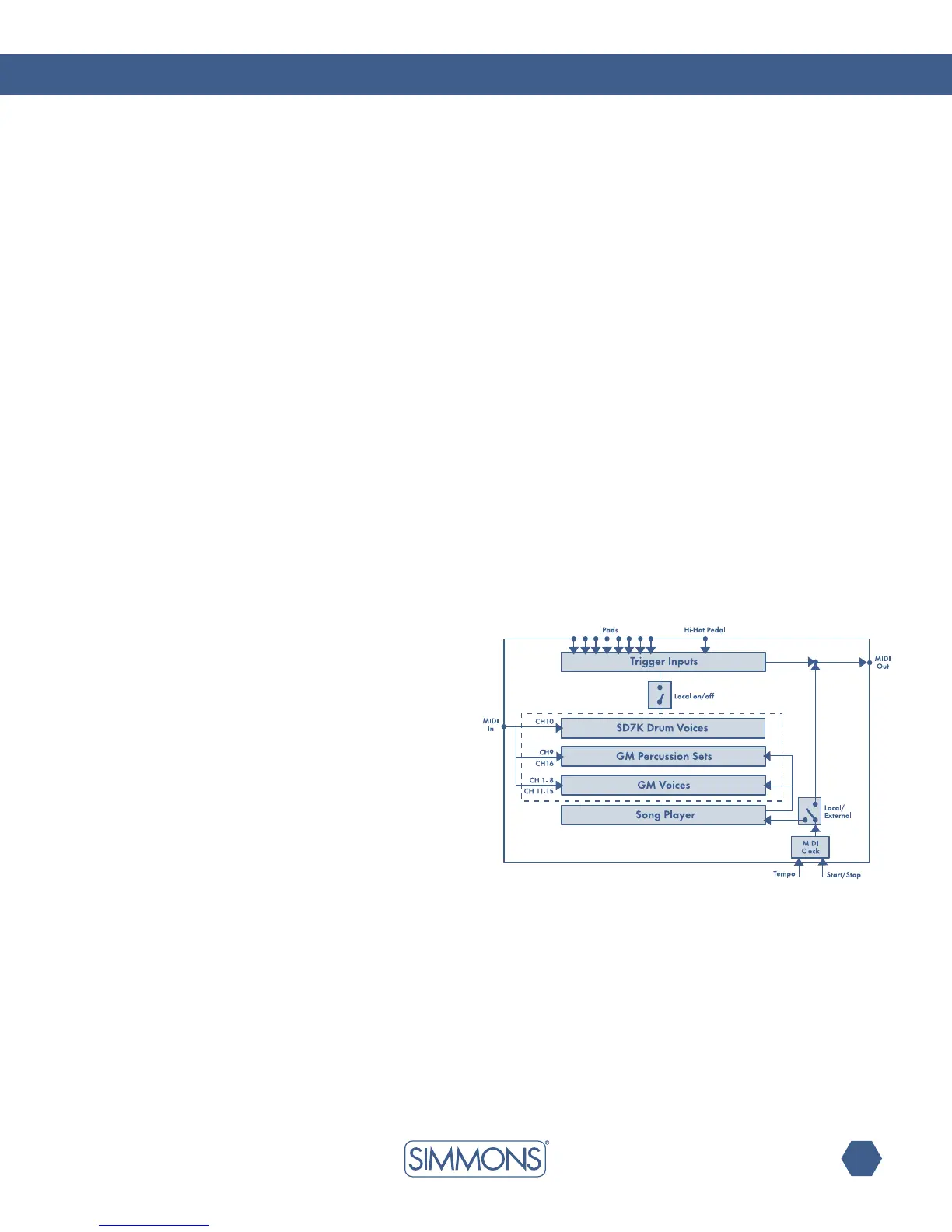
Using the SD7PK as a General MIDI sound module
Connecting an external keyboard or sequencer to the MIDI Input
allowsyoutousetheSD7PKasamulti-timbralsoundmoduletoplay
various instrument parts in addition to your drums (for instance, Piano
on Channel 1, Bass on Channel 2, Strings on Channel 3, etc).
The voices on each MIDI channel are selected using MIDI Program
Changemessages.(SeetheGeneralMIDIVoicelistpage21.)
Note: For more information on received MIDI messages,
see the MIDI implementation chart.
Using the SD7PK to control a sequencer
In Song Mode, the song source can be set to External, allowing the
SD7PK to control the playback of an external sequencer.
MIDI clock (0xF8) is sent out automatically at the current tempo,
andStartandStopReal-TimeCommands(0xFA,0xFC)willbesent
when pressing the [START/STOP] button.
1.Connect the MIDI Out of the SD7PK to the MIDI In of your
sequencer. If you are using a software sequencer on a computer,
youcansimplyconnecttheUSBportoftheSD7PKtoaUSBport
ofyourcomputerusingasingleUSBA-Bcable.
2. Setup your sequencer to respond to MIDI Clock Sync.
3. Press the [START/STOP] button to start the sequence from the
top.
4. Press the [START/STOP] button again to stop the sequence
Note: You can adjust the tempo of your sequencer using
the [TEMPO] buttons on the SD7PK.
Using a sequencer to record your SD7PK
drum performance
UsingtheMIDIIn/OutorUSBconnectionswithaMIDIsequencer
allows you to record your performance on the SD7PK pads and
play it back with the same voices.
1.Connect the MIDI Out of the SD7PK to the MIDI In of your
sequencer,andtheMIDIOutofyoursequencertotheMIDIInof
the SD7PK. If you are using a software sequencer on a computer,
youcansimplyconnecttheUSBportoftheSD7PKtoaUSBport
ofyourcomputerusingasingleUSBA-Bcable.
2. Setup the active track of your sequencer on Channel 10.
3.ActivateRECORDonyoursequencer.
4. Play the pads of your SD7PK.
5. Stop recording.
6.Locateyoursequencertothestartoftherecording.
7. Play back the recorded sequence.
8. The SD7PK will play the same voices that were used during
recording.
Notes:
1. To maintain the same voice parameters (level, pan, tuning), you
should select the same Kit for playback as the Kit that was active
when recording.
2. To capture and correctly reproduce the timing of your performance,
make sure that the Quantize function of your sequencer is
turned off.
3.If your sequencer has a Soft-Thru feature, you should set the
SD7PKto“LocalOff”modeintheUtilitymenu.Ifyoursequencer
doesnothaveaSoft-Thrufeature,youshouldleavetheSD7PKin
its“LocalOn”defaultmode.


 To Next Page